

Parental Controls on Samsung Phones: The Complete Guide (2026)
Samsung sells ~40% of Android phones, so there’s a good chance your child’s phone is a Galaxy. Samsung phones run Android with Samsung’s One UI layer — which means standard Android monitoring works, but with Samsung-specific quirks: aggressive battery management, Secure Folder, and Samsung’s own parental features.
This guide covers everything Samsung-specific: setup quirks, Secure Folder (the blind spot), Samsung’s built-in parental controls, and how monitoring apps behave on Galaxy devices.
The short version: install any top monitoring app (mSpy, Eyezy, Spynger, Parentaler) — they all work on Samsung without root. The critical Samsung step: exempt the app in three battery menus. And know about Secure Folder — it’s the one place monitoring can’t see.
🏆 Best for Samsung: mSpy
Best Samsung-specific setup guides. From ~$11.67/mo.
Why Samsung Needs Its Own Guide
One UI differences: Samsung renames and relocates standard Android settings. “Battery optimization” lives in different menus than stock Android. Generic install guides leave Samsung parents hunting.
Aggressive battery management: Samsung’s battery saver is more aggressive than stock Android’s — it’s the #1 cause of monitoring apps dying on Galaxy phones specifically.
Secure Folder: Samsung’s Knox-isolated private space. Apps inside it are invisible to monitoring apps installed in the main profile. No other major Android brand has an equivalent this robust.
Samsung Kids / parental features: Samsung ships its own parental controls — worth using alongside (not instead of) a monitoring app.
Installing on Samsung: Step by Step
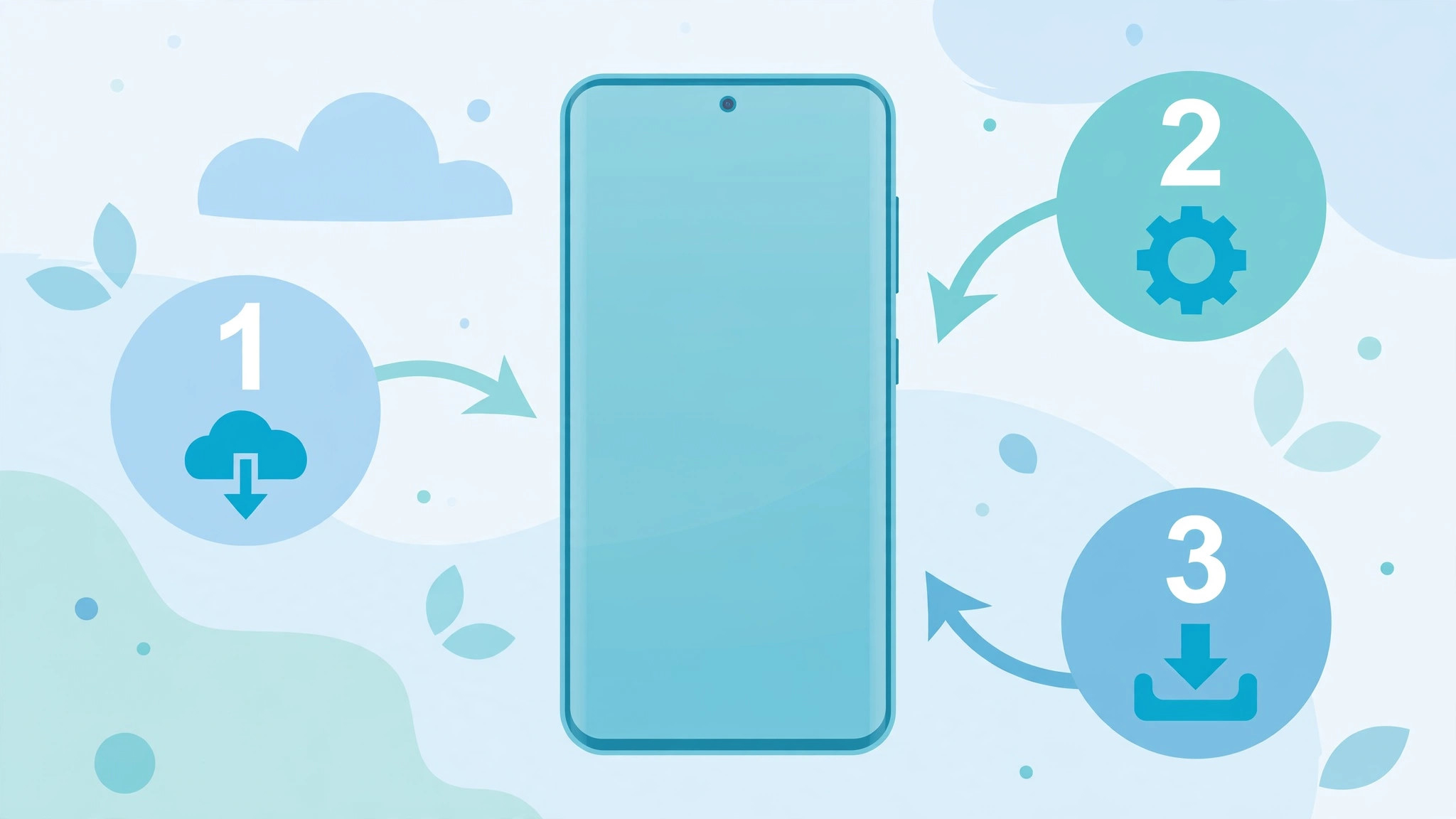
The standard Android install process applies, with these Samsung specifics:
1. Allow Unknown Sources (Samsung Path)
Settings → Biometrics and security → Install unknown apps → Chrome → Allow from this source.
2. The Samsung Battery Triple-Exemption (Critical)
This is where Samsung installs fail. Do all three:
Menu 1 — Never sleeping apps: Settings → Battery → Background usage limits → Never sleeping apps → tap + → select the monitoring app.
Menu 2 — Battery optimization: Settings → Apps → [monitoring app] → Battery → Unrestricted.
Menu 3 — Adaptive battery: Settings → Battery → More battery settings → turn OFF Adaptive battery (or verify the app is exempted).
Miss any one and Samsung will kill the app within days. This triple-exemption is the single most important Samsung-specific knowledge in this guide.
3. Knox / Security Notices
Samsung may show Knox security notices about the sideloaded app. This is normal — Knox flags non-Play-Store installs. Allow and continue (official vendor APK only).
4. Verify on Samsung
Samsung’s Settings → Battery → Battery usage shows the app’s process (disguised name). Confirm it’s running. Then check your dashboard after 1 hour, and again at 24 and 72 hours — Samsung sometimes re-applies restrictions after a few days.
Secure Folder: The Blind Spot
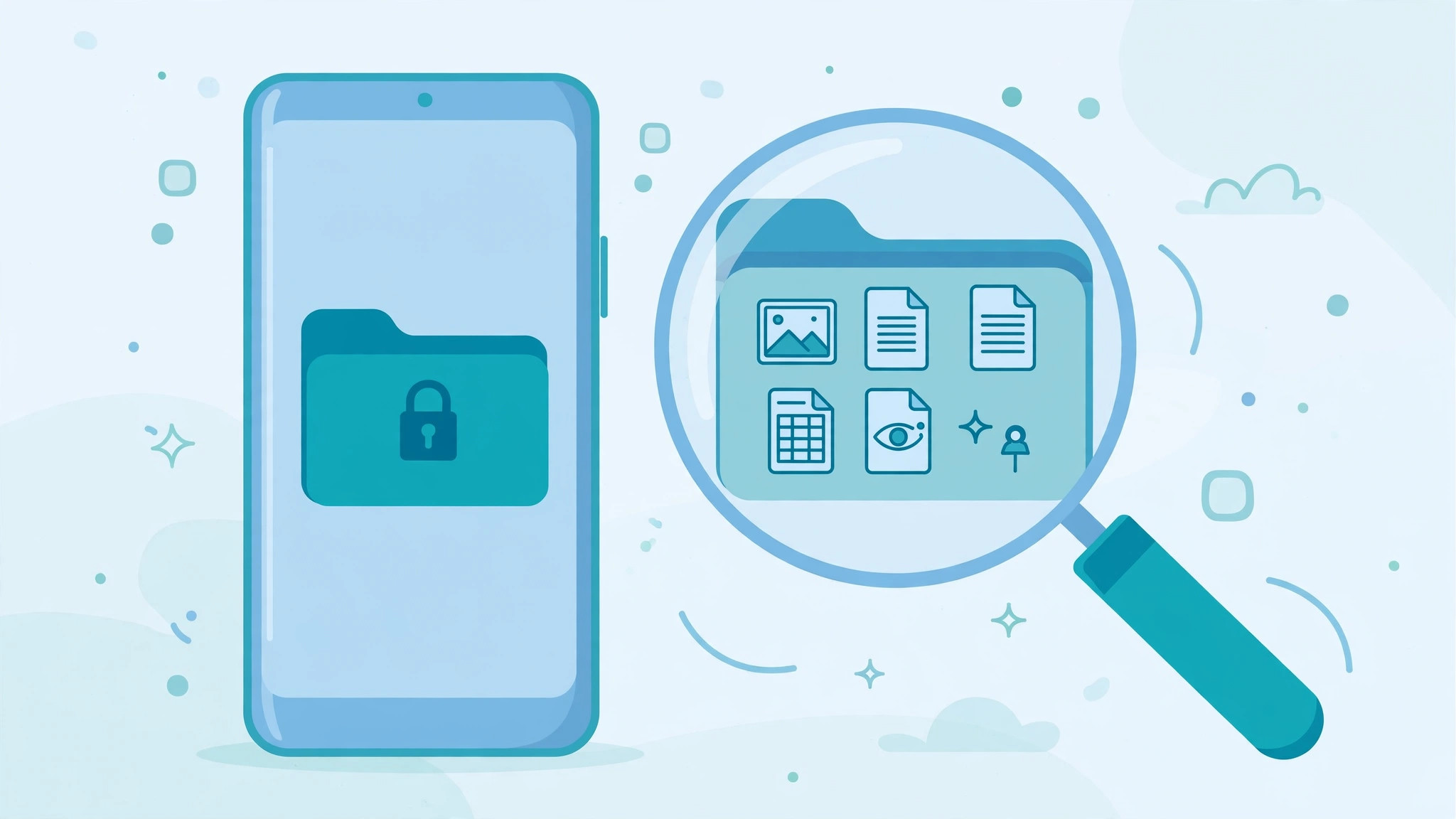
What it is: Settings → Biometrics and security → Secure Folder. A Knox-encrypted separate space with its own apps, photos, files, and even app store. Protected by separate PIN/biometric.
The monitoring problem: monitoring apps installed in the main profile cannot see inside Secure Folder. Messages, photos, apps, browsing inside it are invisible to the dashboard.
What you can do:
- Check if it’s active: Settings → Biometrics and security → Secure Folder. If it’s set up, you’ll see it.
- The conversation: there’s no technical workaround — this needs parenting, not software. “Secure Folder stays off” is a reasonable house rule for younger kids.
- For teens: if they need privacy, negotiate boundaries rather than fighting Knox encryption (you won’t win technically).
Can monitoring apps be installed inside Secure Folder? Technically possible but impractical — it would need separate setup inside the folder, which requires the folder’s PIN. If your teen set up Secure Folder themselves, you can’t get in without the PIN anyway.
Samsung’s Built-In Parental Controls (Free)
Before or alongside paid monitoring, use Samsung’s free tools:
Samsung Kids (Kids Mode): Settings → Digital Wellbeing → Parental controls → set up a kid-safe environment with approved apps only. Best for young children (under 10).
Google Family Link (works on Samsung): app management, screen-time limits, content filters, location. The free baseline every parent should set up.
Samsung’s Find My Mobile: free location tracking via Samsung account. Basic but useful backup to the monitoring app’s GPS.
Play Store parental controls: content filtering for app downloads.
The honest assessment: Samsung’s built-ins handle boundaries (what’s allowed, when). Monitoring apps handle visibility (what’s actually happening). For young kids, built-ins may suffice. For teens with social media, you need both.
💰 Best Value for Samsung: Eyezy
Full Galaxy support + Magic Alerts. ~$9.99/mo.
Galaxy Model Differences
| Series | Notes |
|---|---|
| Galaxy S (S23/S24/S25) | Flagship; all features work; One UI battery menus as described |
| Galaxy A (A14/A34/A54) | Mid-range; same One UI; slightly slower but fully compatible |
| Galaxy Z (Fold/Flip) | Works; verify on both screens (foldables sometimes need re-grant after folding state changes) |
| Galaxy M/F | Budget; same One UI Core (slightly fewer features but monitoring unaffected) |
| Older (S21 and below) | Works; older One UI versions have slightly different menu names — use Settings search |
One UI versions: One UI 6 (Android 14) and One UI 7 (Android 15) are current as of 2026. Menu paths in this guide match One UI 6/7; older versions: use the Settings search bar.
Troubleshooting Samsung-Specific Issues
“App worked for 3 days then stopped.” → Samsung re-applied battery restrictions. Redo the triple-exemption. Check: Settings → Battery → Background usage limits — is the app still in “Never sleeping”?
“Knox keeps warning about the app.” → Normal for sideloaded apps. Knox warnings don’t affect function. (Only the official vendor APK — never sideload from elsewhere.)
“Secure Folder appeared — I didn’t set it up.” → Your teen did. Time for the conversation (see above).
“Dual Messenger duplicates.” → Samsung’s Dual Messenger creates second copies of WhatsApp etc. Monitoring captures both, but the dashboard may show them separately. Normal — just know there are two accounts.
“Edge panel / Bixby interference.” → Rare. If accessibility gets disabled mysteriously, check Bixby Routines — a routine might be toggling settings. Review active routines.
Samsung vs Other Android for Monitoring
| Samsung | Pixel/Xiaomi | |
|---|---|---|
| Setup difficulty | Medium (triple battery) | Easy–Medium |
| Blind spots | Secure Folder | None major |
| Built-in parental | Good (Kids Mode) | Basic (Family Link) |
| Battery killing | Most aggressive | Moderate |
| Overall monitoring | Excellent (once set up) | Excellent |
Bottom line: Samsung takes 5 extra minutes of setup (battery menus) and has one blind spot (Secure Folder). Once configured, it’s among the best monitoring experiences — flagship hardware, stable One UI, reliable APIs.
Legal Note
Monitoring your minor child’s Samsung phone with a legitimate app is lawful parental monitoring. Secure Folder’s encryption doesn’t change the legal picture — but attempting to break into it (cracking the PIN) crosses lines that monitoring the main profile doesn’t. Stick to the main profile + the conversation. Consult a local attorney when in doubt.
Frequently Asked Questions
Secure Folder Deep-Dive (The Full Story)
How Secure Folder Works Technically
Secure Folder uses Samsung Knox to create a hardware-isolated container — effectively a second, encrypted Android environment inside the phone. It has:
- Separate app installations (a second WhatsApp, second Chrome, second Gallery)
- Separate file storage (photos moved here vanish from the main Gallery)
- Separate accounts (can use different Google/Samsung accounts)
- Independent lock (PIN, pattern, or biometric — separate from the main lock)
- Stealth option (the Secure Folder icon itself can be hidden from the app drawer)
What Monitoring Sees (and Doesn’t)
| Inside Secure Folder | Visible to monitor? |
|---|---|
| Messages (WhatsApp etc.) | ❌ No |
| Photos/videos | ❌ No |
| Browsing | ❌ No |
| App usage | ❌ No (separate) |
| That Secure Folder exists | ⚠️ Sometimes (system traces) |
| Main-profile activity | ✅ Yes (unaffected) |
Detection: Is It Active?
- Settings → Biometrics and security → Secure Folder — shows status.
- App drawer — look for the Secure Folder icon (unless hidden).
- Notification shade — Secure Folder notifications are marked.
- Storage — Settings → Battery and device care → Storage — Secure Folder usage appears as a category.
If hidden: a hidden Secure Folder is harder to detect casually — but the Settings entry still shows its status. A truly determined teen can hide the icon, not the Settings entry.
The Parenting Playbook for Secure Folder
Ages 8–12: “Secure Folder stays off. It’s a house rule, like the Wi-Fi password.” Check monthly. Simple, non-negotiable.
Ages 13–15: explain why — “I need visibility for safety; private spaces come with trust earned over time.” Offer a trade: no Secure Folder now, more privacy later.
Ages 16+: pick your battles. A 16-year-old with a hidden Secure Folder is asserting privacy — the technical fight is unwinnable (Knox encryption), so the relationship matters more than the container. Focus monitoring on the main profile and keep communication open.
Nuclear option: Secure Folder can be uninstalled (Settings → Biometrics and security → Secure Folder → More → Uninstall). It requires the Samsung account password — which, as the parent who set up the phone, you may control. Use sparingly; it’s the digital equivalent of removing a bedroom door.
Samsung Kids: Full Setup Walkthrough
For children under ~10, Samsung Kids (formerly Kids Mode) creates a walled garden:
- Swipe down → tap Kids in quick panel (or Settings → Digital Wellbeing → Parental controls).
- Set a parental PIN (different from the lock screen).
- Choose allowed apps from the curated list.
- Set daily time limits and bedtime.
- Add approved contacts (calls/texts only to these).
What Samsung Kids does well: young kids can’t exit without the PIN, can’t install apps, can’t browse freely. It’s genuinely good for the under-10 set.
What it doesn’t do: content monitoring (no message reading), no social media (not in the walled garden anyway), no GPS history. It’s restriction, not visibility.
The graduation path: Samsung Kids (under 10) → Family Link + light monitoring (10–13) → full monitoring (13+). Match the tool to the developmental stage.
Google Family Link on Samsung (The Free Foundation)
Every Samsung parent should set up Family Link regardless of paid apps:
- Install Google Family Link on YOUR phone.
- On the child’s Galaxy: Settings → Digital Wellbeing → Parental controls → Get started.
- Link the child’s Google account (create one if under 13).
- Configure: app approvals, screen-time limits, bedtime, content filters, location sharing.
What Family Link gives free: app install approvals, daily limits, bedtime lockdown, SafeSearch, YouTube restricted mode, location.
What it doesn’t give: message content, social media visibility, keylogging. That’s the paid tier’s job.
The combo: Family Link (boundaries) + monitoring app (visibility) = complete coverage. They don’t conflict — run both.
Samsung Account Features Worth Knowing
Find My Mobile (findmymobile.samsung.com): free location, remote lock/wipe, backup. Set it up with YOUR Samsung account on the child’s phone — it’s a free GPS backup independent of the monitoring app.
Samsung Cloud backup: if the child backs up to Samsung Cloud, photos/messages exist in a second location. Useful context, not a monitoring method per se.
Second SIM / eSIM: Samsung dual-SIM phones can have two numbers. Monitoring is device-level (both SIMs captured), but be aware the second number exists — check Settings → Connections → SIM manager.
Knox Explained (Simply)

Knox is Samsung’s hardware security platform — a chip-level vault that:
- Detects system tampering (trips permanently if rooted — “Knox warranty void: 0x1”)
- Isolates Secure Folder (the encryption discussed above)
- Powers Samsung’s enterprise security
For monitoring parents, Knox means two things:
- Don’t root Samsung phones — Knox trips permanently, voiding warranty irreversibly (unlike other brands where relocking restores it).
- Knox warnings about sideloading are cosmetic — allow and continue.
Knox vs monitoring apps: no conflict. Knox protects the system; monitoring apps operate at the app layer with user-granted permissions. They coexist fine.
🏆 Samsung-Tested: mSpy
Bixby Routines: The Hidden Variable
Bixby Routines (Samsung’s automation) can interfere with monitoring:
- A routine like “at night → battery saver ON” can re-enable restrictions that kill the monitoring app.
- Routines can toggle accessibility, location, or Wi-Fi on schedules.
Check: Settings → Modes and Routines → Routines. Review every active routine for anything touching battery, accessibility, or location. Disable or exempt as needed.
Pro tip: create your OWN routine — “when monitoring app stops → notify me”? Not directly possible, but a routine that keeps Wi-Fi on overnight helps sync reliability.
Dual Messenger: Two of Everything

Samsung’s Dual Messenger (Settings → Advanced features → Dual Messenger) clones WhatsApp, Facebook, Telegram etc. — two accounts, two app icons.
Monitoring impact: the app captures both instances (they’re separate app processes, both visible to accessibility). The dashboard may list them as separate sources.
Parenting note: if your teen uses Dual Messenger, ask why two accounts exist. Sometimes innocent (work/school separation — unlikely for a teen), sometimes not. The monitoring sees both; the question is whether you know to look.
Work Profile Complications
If the Galaxy has a work profile (school or employer MDM), monitoring gets complicated:
- Work profile apps/data are managed by the organization — your monitoring app (personal profile) can’t see them.
- School devices often prohibit monitoring apps entirely — check the acceptable-use policy.
- Don’t install monitoring on school-issued phones without explicit permission from the school. Different legal territory.
This guide covers personal Galaxy phones. School devices are a separate conversation (with the school).
Samsung Stealth Specifics
Beyond standard stealth (hidden icon, no notifications):
- Hide from Secure Folder check: nothing to do — the app is in the main profile, Secure Folder is separate.
- Samsung’s device care: Settings → Battery and device care → Battery → Background usage — the app appears here (disguised name). Can’t be hidden from this screen; the disguised process name is the protection.
- Edge panels: ensure the app isn’t accidentally added to Apps edge.
- Bixby: “Hi Bixby, open [app]” — if the teen knows the process name, Bixby could launch it. The disguised name mitigates this.
Realistic stealth on Samsung: hidden from casual use, visible in battery settings (disguised), discoverable by a determined teen — same as standard Android. Samsung doesn’t make stealth worse; Secure Folder is the only Samsung-specific consideration, and it’s about their hiding, not yours.
Age-Based Samsung Setups
Ages 8–10 (first phone, usually Galaxy A): Samsung Kids + Family Link. No paid monitoring needed. Secure Folder: off (house rule).
Ages 11–13 (Galaxy A, social media begins): Family Link + Eyezy/Parentaler (alerts-first). Secure Folder: off, checked monthly.
Ages 14–16 (Galaxy S/A, full social life): Family Link (lighter) + mSpy/Spynger (depth). Secure Folder: negotiated — off preferred, conversation if active.
Ages 17+: Reassess. Many parents scale back to Family Link location + trust. The goal was always raising a safe adult, not permanent surveillance.
Frequently Asked Questions (Continued)
Which monitoring app is best for Samsung specifically?
mSpy — best Samsung-specific setup documentation and fastest One UI update adaptation. Eyezy close second for value.
Does monitoring drain Galaxy battery faster?
No more than other Androids — negligible on S/A series. If battery tanks after install, it’s usually a different cause; check device care.
Can I monitor a Samsung phone from my iPhone?
Yes — the dashboard is web-based. Your phone’s brand is irrelevant.
What if my child factory-resets the Galaxy?
The app is wiped. You’ll need physical access to reinstall. Samsung’s Find My Mobile can tell you if a reset happened (device goes offline).
Does Samsung’s “Kids Home” (old name) still exist?
Rebranded as Samsung Kids. Same concept, updated.
Will it work on Galaxy Fold?
Yes — install once; verify permissions on both folded and unfolded states (rarely, folding triggers permission re-prompts).
The Samsung Parent’s Checklist
- [ ] Monitoring app installed (mSpy/Eyezy/Spynger/Parentaler)
- [ ] Triple battery exemption done (never-sleeping + unrestricted + adaptive)
- [ ] Secure Folder status checked (off or negotiated)
- [ ] Samsung Kids OR Family Link configured (age-appropriate)
- [ ] Find My Mobile set up (free GPS backup)
- [ ] Bixby Routines reviewed (no battery-killers)
- [ ] Dual Messenger checked (know both accounts)
- [ ] Dashboard verified at 1h, 24h, 72h
- [ ] Knox warnings acknowledged (cosmetic, ignore)
Bottom Line
Samsung is the most common — and most manageable — monitoring target. The triple battery exemption is the whole game; Secure Folder is the one blind spot; Samsung’s free tools (Kids, Family Link, Find My Mobile) stack beautifully with a paid app. Fifteen minutes of Samsung-specific setup buys you the same full visibility as any Android.
🔥 Start Monitoring That Galaxy
One More Thing: The Grandparent’s Galaxy
Samsung phones are the most-gifted phones from grandparents to grandkids — which means the parent often didn’t set up the phone and doesn’t know the Samsung account password. If that’s you: factory-reset the gifted phone before giving it to your child (wipes the grandparent’s account), set it up with YOUR Samsung and Google accounts, then install monitoring. A phone you don’t administratively control is a phone you can’t fully protect. Ten minutes of setup saves months of headaches.
P.S. The 5-Minute Samsung Difference
Everything in this guide beyond standard Android setup is five minutes: three battery menus, one Secure Folder check, one Bixby Routines glance. That’s the entire “Samsung tax.” Parents who skip it get the classic “worked for three days then died” — parents who pay it get flawless Galaxy monitoring. Five minutes. Pay it.
Related Guides
- Android complete guide — the full picture
- Install walkthrough — every screen
- No-root explained — why root is unnecessary
- Best Android spy apps — ranked picks
- iPhone guide — if the next phone is Apple
Our Testing Note
Verified October 2026 on Galaxy S24 (One UI 6.1), Galaxy A54 (One UI 6), and Galaxy Z Flip 5. Menu paths match One UI 6/7; older One UI versions differ slightly — use Settings search. Samsung changes menus yearly; we re-verify.
TL;DR
Samsung Galaxy monitoring: install any top app (no root), do the triple battery exemption (never-sleeping + unrestricted + adaptive off), check Secure Folder status, stack Samsung Kids/Family Link/Find My Mobile (free), review Bixby Routines, verify at 1h/24h/72h. The blind spot is Secure Folder — everything else is fully visible. Five extra minutes vs stock Android. Worth it.
