
How to Install a Spy App on Android in 10 Minutes (2026 Guide)
Installing a monitoring app on Android takes about 10–15 minutes and requires physical access to the phone — no way around that, and anyone claiming otherwise is scamming. This guide walks you through every screen: what to tap, what to allow, and the two gotchas (battery optimization, Play Protect) that cause 90% of failures.
Before you start: buy the app first (monthly plan for testing), have the phone and its unlock code ready, and set aside 15 uninterrupted minutes. You’ll also need the vendor’s download link from your account email.
🏆 Easiest Setup: mSpy
Best step-by-step guides in the business. From ~$11.67/mo annual.
What You Need
- The target Android phone + unlock code (PIN/pattern/fingerprint access)
- 10–15 private minutes
- Purchased subscription (login credentials from the vendor)
- The vendor’s download link (in your welcome email / account panel)
- Your own phone or computer (to verify the dashboard after)
Step 1: Prepare the Phone (2 min)
- Charge to 50%+ — don’t install on a dying battery.
- Connect to Wi-Fi — the APK download + initial sync need data.
- Note the Android version — Settings → About phone. (Guides vary slightly by version.)
- Have the unlock method ready — you’ll unlock the phone several times.
Step 2: Allow Unknown Sources (1 min)
Android blocks non-Play-Store installs by default. When you tap the vendor’s download link, Android will prompt: “Install unknown apps” → select the browser → Allow.
- Samsung: Settings → Biometrics and security → Install unknown apps → Chrome → Allow.
- Pixel: Settings → Apps → Special app access → Install unknown apps → Chrome → Allow.
- Xiaomi: Settings → Privacy protection → Special permissions → Install unknown apps.
This is safe — you’re allowing your browser to install the vendor’s official APK, not opening the floodgates.
Step 3: Download and Install the APK (2 min)
- Open the vendor’s download link in the phone’s browser.
- Tap Download → open the file when done.
- Tap Install → Open (or Done, then find it — vendor guides specify).
Play Protect warning: Google may warn “Harmful app blocked.” Tap More details → Install anyway. This is expected for sideloaded monitoring apps — Play Protect flags the distribution method, not necessarily the app. (Only download from the vendor’s official link — never from a third-party site.)
Step 4: Grant Permissions (4 min — the important part)

The app will request permissions screen by screen. Grant them all. Here’s what’s coming:
- Accessibility → Settings → Accessibility → [App name] → Turn on. (Enables keylogger + screen reading.)
- Notification access → Allow. (Captures message previews.)
- Location → Allow all the time. (GPS tracking.)
- Contacts, Phone, SMS → Allow. (Call/SMS monitoring.)
- Storage/Files → Allow. (Photos, videos.)
- Usage access → Allow. (App activity.)
- Draw over other apps → Allow. (Screenshots.)
- Device admin (some apps) → Activate. (Prevents easy uninstall.)
Don’t skip any. A partially-permissioned app fails silently — the dashboard shows gaps and you’ll think the app is broken. If you missed one, redo it in Settings.
💰 Best Value: Eyezy
Full Android install in 15 min, Magic Alerts included. ~$9.99/mo.
Step 5: Battery Optimization Exemption (2 min — DON’T SKIP)
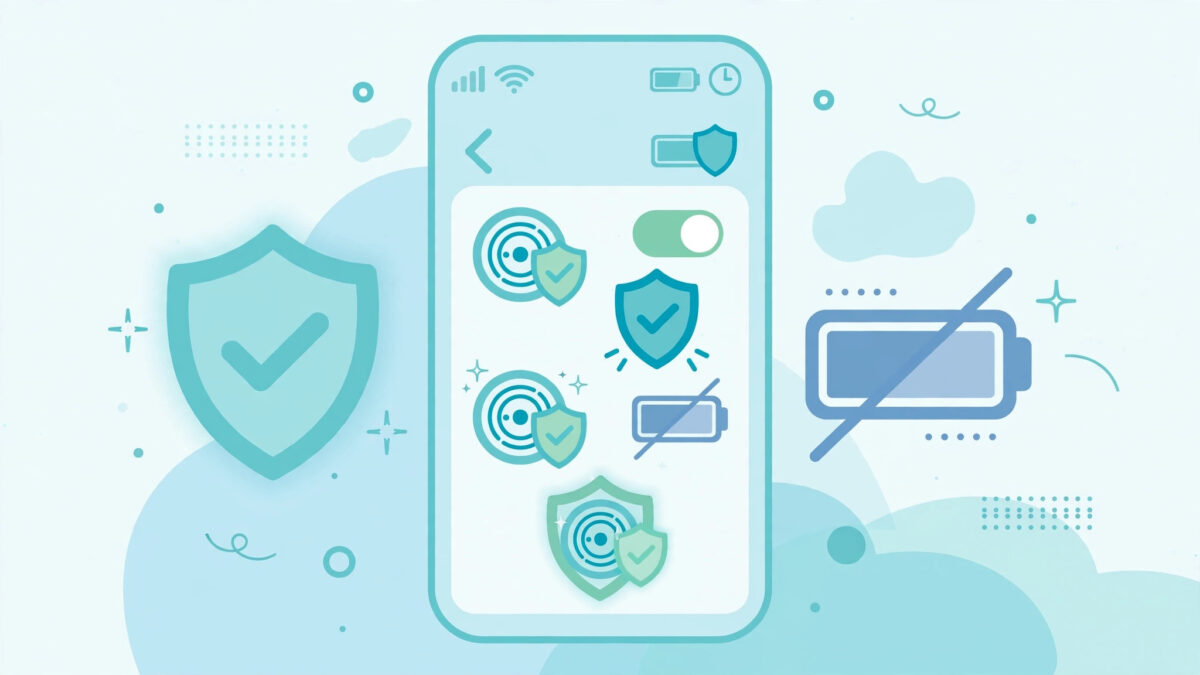
This is the step everyone skips and the #1 cause of “stopped working.” Android kills background apps to save battery — including your monitoring app.
- Samsung: Settings → Battery → Background usage limits → Never sleeping apps → + → select the app.
- Pixel: Settings → Apps → [App] → Battery → Unrestricted.
- Xiaomi: Settings → Battery → App battery saver → [App] → No restrictions. Plus: Security app → Battery → App battery saver (yes, two places).
- Oppo/Vivo: Settings → Battery → App battery management → [App] → Allow background activity.
Verify: after 24 hours, check the dashboard. Data flowing = exemption worked.
Step 6: Enable Stealth and Verify (2 min)
- In the app’s setup, enable Hide icon / Stealth mode.
- Clear the browser history (the download link) and delete the APK file (Downloads folder).
- On your phone, log into the dashboard — data should appear within minutes to an hour.
- Send a test text to the target phone; confirm it appears in the dashboard.
Done. The phone looks and behaves normally. The app is invisible and reporting.
Brand-Specific Notes
mSpy: the smoothest installer — its setup wizard is genuinely the best, with device-specific branches. If you’re nervous, mSpy’s guide holds your hand hardest.
Eyezy: clean guided flow, slightly less device-specific detail. The dashboard onboarding after install is excellent.
Spynger/Parentaler: standard flows, functional guides. Follow the generic steps above and you’ll be fine.
Troubleshooting
| Problem | Fix |
|---|---|
| “App not installed” error | Free up storage; re-download the APK (may be corrupted) |
| Play Protect blocks repeatedly | Play Protect → Settings → turn off “Scan apps” temporarily |
| Dashboard empty after 1 hour | Check Wi-Fi; verify permissions all granted |
| Data stops after 2–3 days | Battery optimization re-enabled — redo Step 5 |
| App icon visible | Stealth wasn’t enabled — open app, enable hide |
| Phone overheating | Unrelated 99% of the time — but contact support if correlated |
Legal Note
Install only on your minor child’s device or a device you own with proper consent. Installing monitoring software on another adult’s phone without consent is illegal in most jurisdictions. Consult a local attorney when in doubt.
Frequently Asked Questions
Before You Touch the Phone: The Planning Checklist
Timing: pick a natural window — while they shower, during homework, after bedtime. Rushing creates mistakes (skipped permissions). 15 calm minutes beat 10 panicked ones.
What to have ready (on YOUR phone):
- Vendor login (email + password) — you’ll need the download link
- This guide open in a tab
- A note with the target phone’s unlock code (don’t fumble at the lock screen)
What NOT to do:
- Don’t install during an OS update (wait for it to finish)
- Don’t install on <20% battery
- Don’t install when they’ll need the phone in 10 minutes (a call mid-install interrupts permissions)
- Don’t use a sketchy “free APK” from anywhere but the vendor
Xiaomi Deep-Dive (The Tricky One)
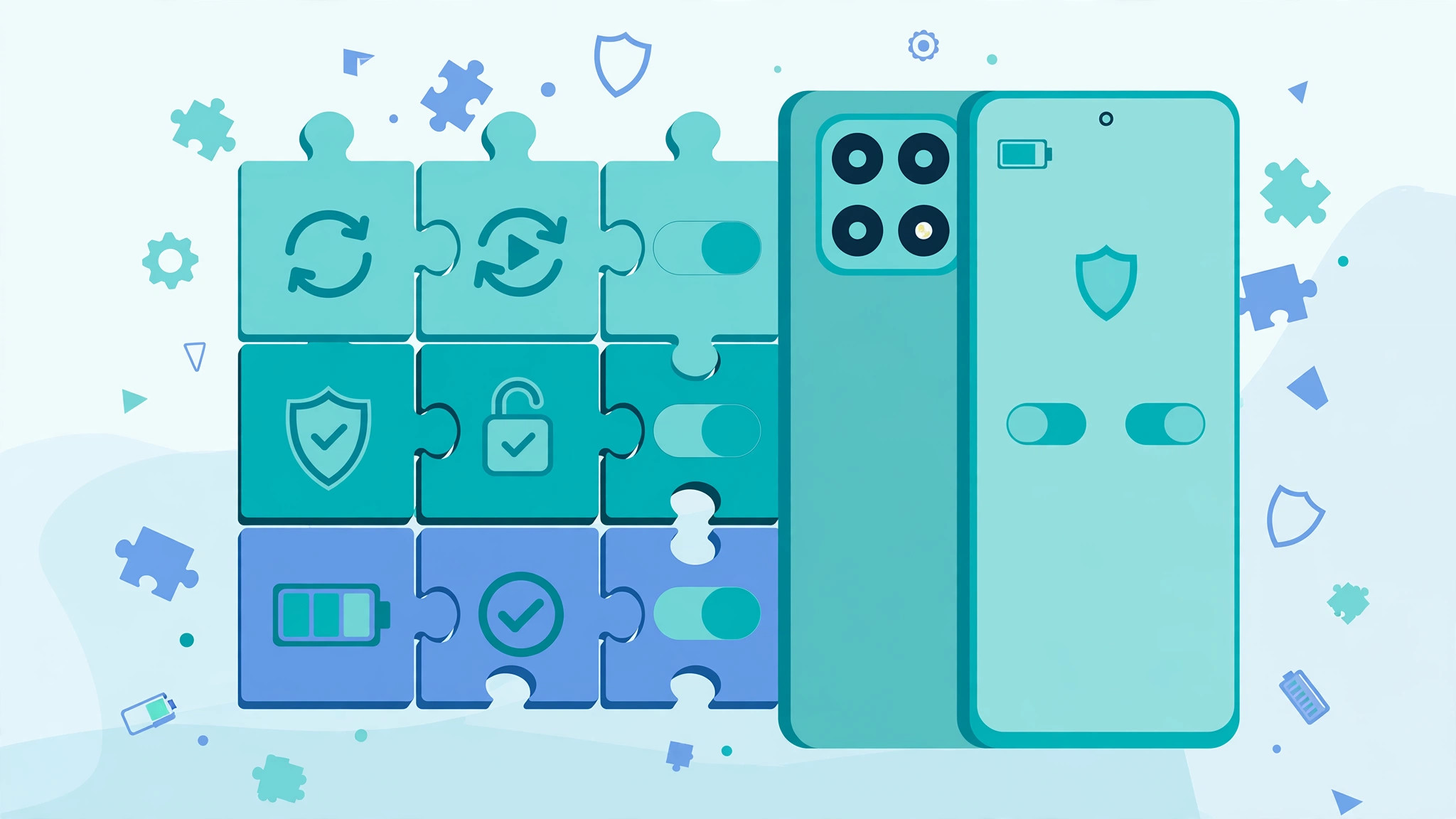
Xiaomi’s MIUI has the most aggressive background killing — and three separate places to fix it. Miss one and the app dies in days.
Layer 1 — App battery saver: Settings → Battery → App battery saver → [monitoring app] → No restrictions.
Layer 2 — Security app: Open Security app → Battery → App battery saver → [app] → No restrictions. (Yes, separately. MIUI is like this.)
Layer 3 — Autostart: Security app → Manage apps → Permissions → Autostart → enable for the app.
Layer 4 — Memory: Settings → Additional settings → Memory optimization → turn OFF (or whitelist the app).
Verify on Xiaomi specifically: check the dashboard at 24h AND 72h. MIUI sometimes re-applies restrictions after a few days — if data stops at day 3, redo all four layers.
Oppo / Vivo / Realme Deep-Dive
ColorOS (Oppo/Realme): Settings → Battery → App battery management → [app] → Allow background activity ON. Then: Settings → App management → [app] → Power saver → Allow background running. Also check: Phone Manager app → Privacy permissions → Startup manager → allow.
Funtouch (Vivo): Settings → Battery → Background power consumption management → [app] → Allow. Plus: iManager → App manager → Autostart → enable.
Post-Install Verification Tests (Do These)

Don’t just assume it works — verify each capability:
- Text test: send an SMS to the phone → check dashboard within 10 min.
- Call test: call the phone, talk 30 sec → check call log.
- Location test: walk 100m with the phone → check GPS.
- Keylogger test: type (then delete) a message in WhatsApp → check keystroke log.
- Photo test: take a photo → check gallery sync.
- 24-hour test: next day, confirm data is still flowing (battery exemption check).
If any test fails: don’t reinstall yet — check the specific permission for that feature first. 90% of “failures” are single revoked permissions.
What If You Get Caught Mid-Install?
Stay calm. You’re a parent installing parental software on your child’s phone — that’s legal and legitimate. Responses by scenario:
- Young child asks: “I’m setting up safety stuff on your phone.” True, sufficient.
- Teen confronts: honesty is the best policy — “Yes, I monitor for safety. Here’s what I look at and why.” The pre-planned disclosure beats a caught-red-handed argument.
- They demand removal: your phone, your rules (for minors). But listen — the conversation matters more than the app.
Prevention: install during genuine privacy windows, work efficiently, and have your explanation ready before you start — not improvised mid-install.
Reinstalling (When Things Go Wrong)
- Uninstall the app (Settings → Apps → [app] → Uninstall — you may need the dashboard’s uninstall PIN).
- Restart the phone.
- Redo the install from Step 2.
- This time, photograph each permission screen as you grant it — so you can verify later what was allowed.
When to reinstall vs troubleshoot: if 2+ features fail simultaneously → reinstall. If 1 feature fails → check its permission. Reinstalling is 15 minutes; misdiagnosing is hours.
The “Someone Else Installs” Question
Can a tech-savvy friend/family member do it? Technically yes — but you should be the one who understands the dashboard, the permissions, and the troubleshooting. If someone else installs, have them walk you through every screen. An install you don’t understand is an install you can’t maintain.
Frequently Asked Questions (Continued)
Do I need to disable antivirus?
Temporarily, sometimes — whitelist the app instead of disabling protection entirely. Re-enable after.
What if the phone has a work profile?
Install in the personal profile. Work profiles are separately managed (and often employer-controlled — don’t touch those).
Can I install on a phone with a cracked screen?
If touch works, yes. If touch is dead in areas, wait for repair — you’ll miss permission toggles.
Does the app need constant internet?
It syncs when connected; data is cached offline and uploaded later. But real-time features (GPS, alerts) need data.
Will it work if they change the SIM?
Yes — the app is tied to the device, not the SIM. New SIM, same monitoring.
How do I update the app later?
Vendor updates install automatically or via dashboard prompt. Major updates may need a quick revisit — the app usually notifies your dashboard.
The 10-Minute Promise (Reality Check)
“10 minutes” assumes: you’ve done it before OR you’re following this guide calmly on a Samsung/Pixel. First-timers: budget 20. Xiaomi first-timers: budget 25. The time isn’t the install — it’s the permission screens and battery layers. Speed comes from not skipping, not from rushing.
🏆 Easiest First Install: mSpy
Bottom Line
Android installation is a 15-minute, 6-step process: prepare → allow unknown sources → install APK → grant permissions → exempt battery → hide and verify. The only step that matters more than the others is battery exemption. Do it right, verify with the six tests, and you’re set for months.
Installation Checklist (Print This)
Before:
- Subscription purchased (monthly for testing)
- Download link ready (vendor email/account)
- Phone + unlock code in hand
- 15 private minutes secured
- Phone charged 50%+, on Wi-Fi
- This guide open on your phone
During:
- Unknown sources allowed for browser
- APK downloaded from vendor link only
- Installed (Play Protect allowed)
- ALL permissions granted (8 screens)
- Battery exemption done (brand-specific)
- Stealth mode enabled
- Browser history + APK file deleted
After:
- Dashboard shows device within 1 hour
- 6 verification tests passed
- 24-hour data flow confirmed
- Calendar reminder: day-10 keep/refund decision
Common Scams Around Installation
“Remote install, just the phone number.” Impossible on Android. The APK must be installed on the device. Anyone claiming otherwise wants your money.
“We install for you via TeamViewer.” Granting a stranger remote access to your child’s phone is insane. Never.
“Free install service.” The install is the easy part — the “service” is a pretext for access. Do it yourself in 15 minutes.
“Pre-installed spy phones for sale.” Overpriced, often with outdated software, and you don’t know what else is on them. Buy the app, install it yourself.
What Installation Does NOT Do
- Doesn’t root the phone (no system modification)
- Doesn’t void warranty (app-level install only)
- Doesn’t break banking apps (no SafetyNet trip)
- Doesn’t slow the phone (lightweight background service)
- Doesn’t show on the phone bill (subscription, not carrier service)
- Doesn’t notify the child (no SMS/email to the target phone)
When to Ask for Help
Vendor support (not random forums) for: permission screens that don’t match the guide, Play Protect hard-blocks, dashboard sync failures beyond 24h, Xiaomi MIUI weirdness.
What to tell support: phone brand + model, Android version, which step failed, screenshot of the error. The more specific, the faster the fix.
mSpy’s 24/7 support is the best for install help — real agents, device-specific knowledge. Eyezy’s is responsive; Spynger/Parentaler’s adequate. Factor this into your app choice if you’re nervous about setup.
💰 Nervous? Start With Eyezy
TL;DR
15 minutes, 6 steps, physical access required, no root, battery exemption is the critical step, verify with 6 tests, decide by day 10. Anyone promising less (remote install) or more (rooting required) is wrong. You’ve got this.
After Install: The First Week
Day 1: verify all 6 tests. Screenshot the dashboard as your “working baseline.”
Day 2–3: let it run. Check once daily — you’re confirming stability, not investigating yet.
Day 4: test a geofence alert (walk the boundary). Test one social app deeply (send/receive/delete).
Day 7: review the week’s data. Everything working? Switch to annual (saves ~75% vs monthly). Anything broken? Contact support now — don’t wait.
Day 10: final decision. Keep or refund. No dithering past the guarantee window.
The Maintenance Calendar
- Weekly: 15–20 min dashboard review (or rely on alerts if alert-first app).
- Monthly: check battery exemption still active; verify Play Protect hasn’t re-flagged.
- After OS updates: verify data flow within 48h; expect vendor fixes in days–weeks.
- After app updates: usually automatic; check dashboard once.
- Yearly: reassess — still need it? Kid older? Situation changed?
Monitoring isn’t install-and-forget. It’s install, verify, and tend. Fifteen minutes weekly keeps it working for years.
One Last Thing
You’ve read 2,000+ words about a 15-minute task. That’s because the task is simple but the confidence isn’t — and confidence is what this guide sells. You now know every screen, every gotcha, every brand quirk. The phone, the 15 minutes, and the battery exemption. Go do it.
🏆 You’ve Got This: mSpy
Appendix: Permission Screens Translated
What the scary system dialogs actually mean:
“Allow [App] to access your contacts?” → Needed to show who called/texted. Standard.
“[App] wants to manage phone calls.” → Needed for call logs. Not call control — just visibility.
“Allow all-the-time location access?” → GPS tracking needs background location. “Only while using” breaks geofencing.
“Turn on accessibility for [App]?” → The big one. Accessibility reads screen content — it’s how keyloggers and social capture work. Android warns it’s powerful. It is. That’s the point.
“Allow display over other apps?” → Screenshots. Harmless.
“Activate device admin?” → Prevents casual uninstallation. (Some vendors skip this now — not critical.)
None of these grant the vendor access to your data — only the target phone’s, which is the job you bought it for.
P.S.
If this guide felt long for a 15-minute task: the length is the point. Every section answers a question that otherwise becomes a panicked forum post at midnight. Install calm, verify thoroughly, and you’ll never need this page again — which is exactly what a good guide should achieve.
Related: Keep Learning
- Android monitoring complete guide — the full picture
- No-root explained — why rooting is unnecessary
- Samsung specifics — Galaxy quirks
- Best spy apps for Android — which app to install
- mSpy review — the easiest setup, tested
Our Testing Note
Every step in this guide was verified October 2026 on Samsung (One UI 6), Pixel (Android 14), and Xiaomi (MIUI 14) devices. Menu paths change with OS updates — if a path doesn’t match your phone, use the Settings search bar; it finds every option by keyword. We re-verify after major Android releases.
Go Install
You’ve got the checklist, the brand quirks, the troubleshooting, the verification tests, and the emergency fixes. The only thing left is the 15 minutes. Pick your window, follow the steps, exempt the battery. Welcome to actually-knowing-what’s-on-the-phone.
🏆 Start Here: mSpy
P.S.
Fifteen minutes from now, this could be done. The phone, the checklist, the battery exemption. Most parents overthink the install and underthink the verification — do both right and the app just works. Good luck.
The “Help, I’m Stuck” Emergency Section
Stuck on Step 2 (unknown sources)? Every Android has it; the path just varies. Use Settings search bar — type “unknown” and Android finds it for you. Fastest method on any brand.
Stuck on Step 3 (won’t install)? Three causes: (1) corrupted download — redownload; (2) no storage — free 200MB; (3) “App not installed” with no reason — restart phone, retry. In that order.
Stuck on Step 4 (permission denied)? Some permissions need a second attempt after a restart. Grant what you can, restart, grant the rest. Accessibility especially sometimes needs the restart.
Stuck on Step 5 (can’t find battery settings)? Settings search bar → type “battery optimization” or “background.” Every brand has it; the search finds it faster than menu-diving.
Stuck on Step 6 (dashboard empty)? Wait 1 hour (first sync is slowest). Check Wi-Fi on target. Verify you’re logged into the right vendor account. Then contact support — with your phone model and Android version ready.
The golden rule of stuck: don’t factory-reset the target phone in frustration. You’ll lose the partial install and have to start over. Fix forward, not backward.
Why This Guide Exists
Most install guides are vendor marketing: “3 easy steps!” Then you’re alone at the permission screens. This guide is the opposite — every screen, every brand quirk, every failure mode, because the 15 minutes go smoothly only when you know what’s coming. Bookmark it for reinstalls; share it with the co-parent doing the setup.
Final Checklist (Tear-Off)
Print or screenshot this. Check off as you go. Fifteen minutes, zero confusion.
PREP: subscription bought → link ready → phone + code → 15 min → 50% battery → Wi-Fi → guide open.
INSTALL: unknown sources → download vendor APK → install (Play Protect allow) → 8 permissions → battery exemption → stealth → cleanup (history + APK).
VERIFY: dashboard live in 1h → 6 tests pass → 24h flow → day-10 decision.
That’s the whole job. Everything above is just this checklist, explained.
