iPhone Monitoring Without Jailbreak: The Complete Guide (2026)
iPhone monitoring is a different world from Android — and most parents arrive with Android expectations that don’t transfer. The headline: iPhone monitoring works without jailbreak, without touching the phone, via iCloud — but it’s less deep than Android (no keylogger, backup-speed data).
This guide covers how iPhone monitoring actually works, what you can and can’t see, the iCloud setup, free Apple parental controls, and which apps do it best.
The 30-second version: enter the child’s Apple ID + password (+ 2FA code) into the monitoring app’s dashboard — done, no phone needed. You get texts, calls, photos, locations, WhatsApp, browsing — synced at iCloud backup speed (minutes to hours delay). No keylogger, no real-time screenshots. For maximum iPhone depth: mSpy.
🏆 Best for iPhone: mSpy
Deepest iCloud monitoring, no jailbreak. From ~$11.67/mo.
How iPhone Monitoring Works (The iCloud Method)

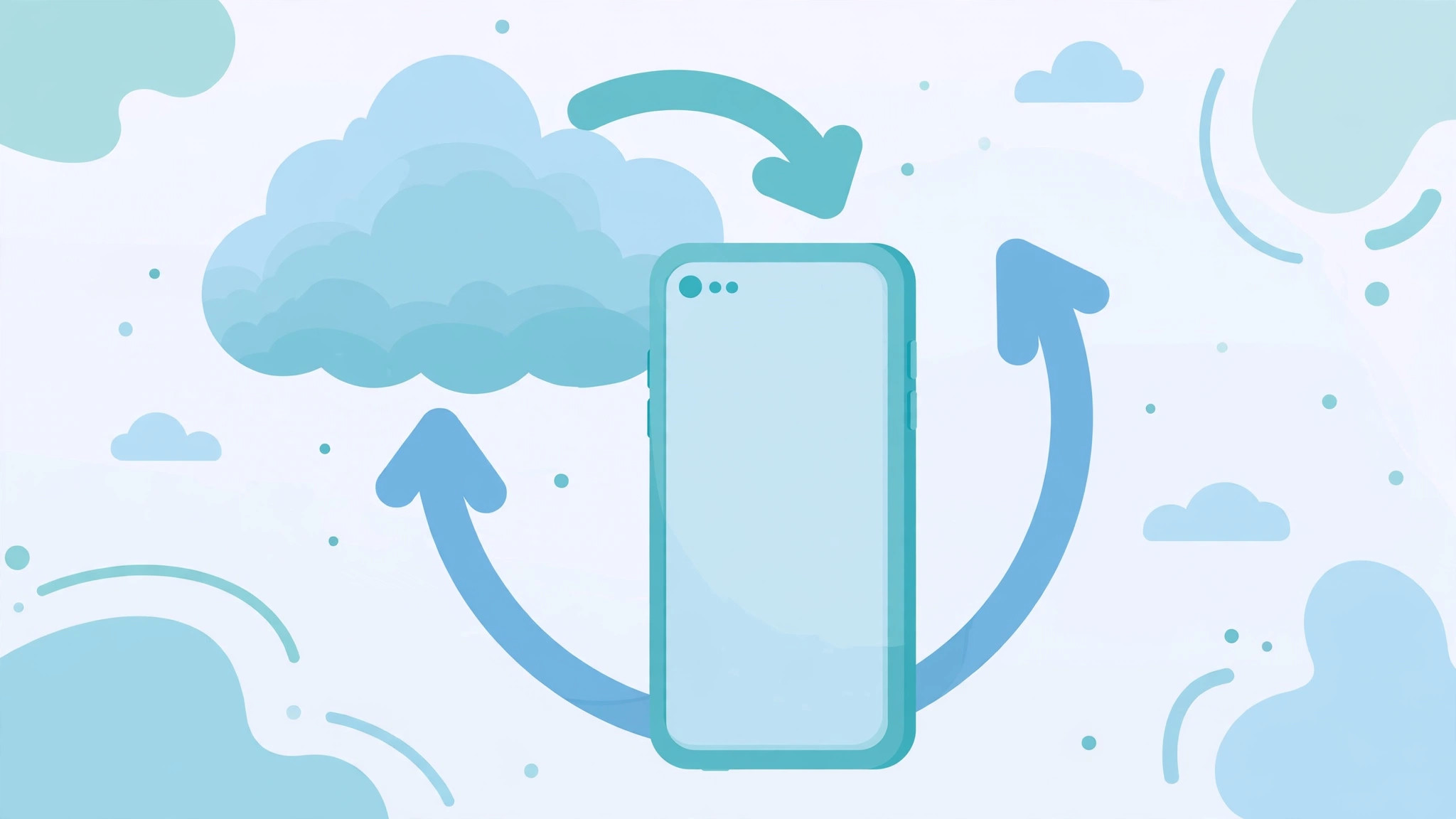
Unlike Android (app installed on the phone), iPhone monitoring pulls data from iCloud:
- You enter the child’s Apple ID and password in the monitoring dashboard.
- You approve the 2FA code (sent to the child’s trusted device — you need one-time access or their cooperation).
- The monitoring service reads the iCloud backup/sync data: messages, photos, contacts, calendars, locations, WhatsApp backups, browsing.
- Your dashboard updates whenever iCloud syncs — typically every few hours, sometimes faster.
Nothing is installed on the iPhone. No icon, no battery impact, no trace on the device. It also survives factory resets (the data is in iCloud, not on the phone).
Jailbreak: What It Is and Why You Don’t Need It
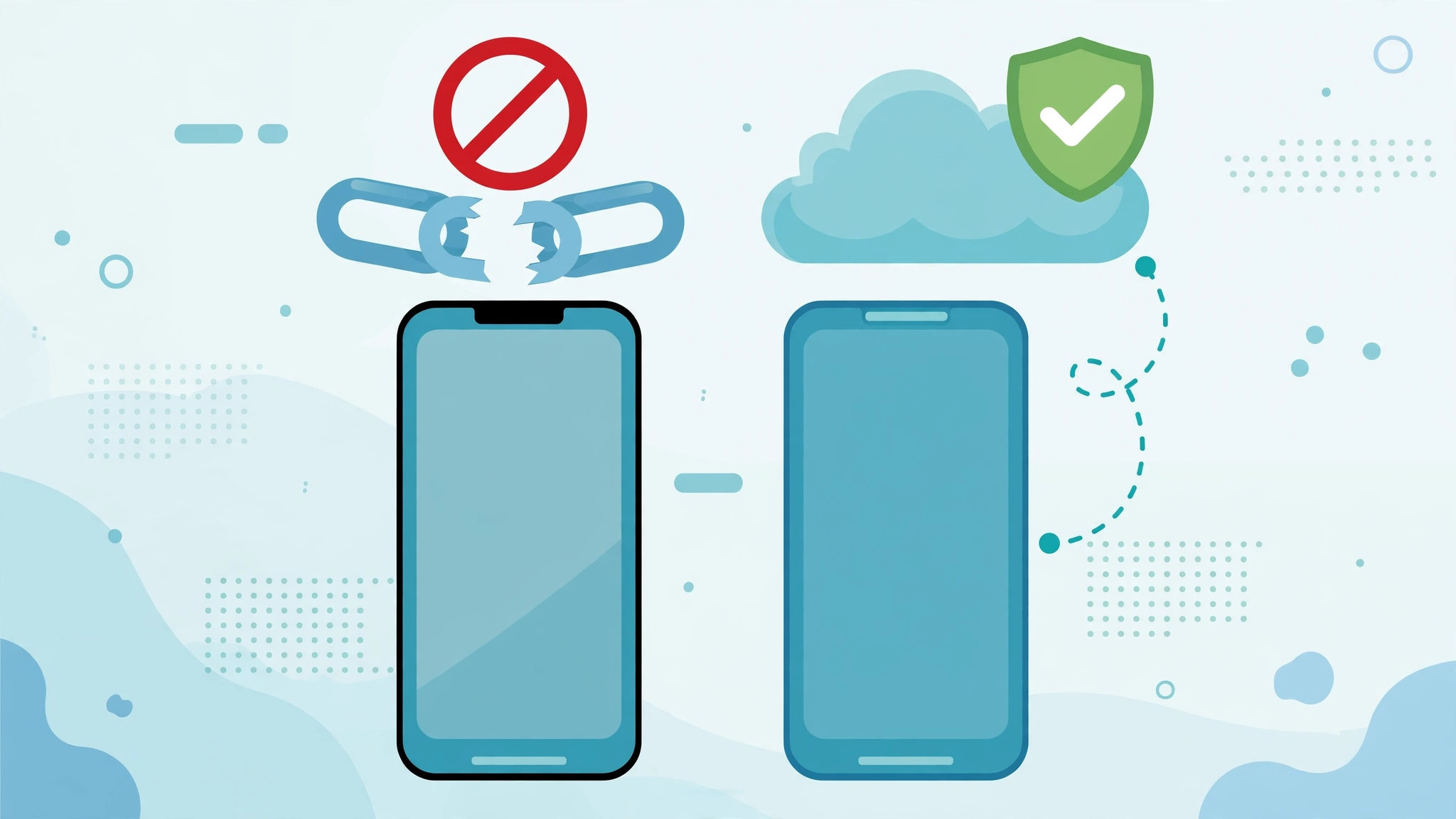
Jailbreaking = removing Apple’s iOS restrictions (the iPhone equivalent of rooting). It enables deeper monitoring (keylogger-like features) but:
- Voids warranty, breaks Apple Pay/banking
- Security holes; can’t take normal iOS updates
- Modern jailbreaks are rare/unstable (iOS 16+ barely jailbreakable)
- Unnecessary — iCloud monitoring covers parental needs
Our position: don’t jailbreak. The iCloud method is the 2026 standard — legal, stable, and sufficient. Anyone pushing jailbreak is selling 2018 advice.
What You CAN Monitor on iPhone (iCloud)
| Capability | Works? | Notes |
|---|---|---|
| iMessages & SMS | ✅ | Full content via iCloud sync |
| Calls | ✅ | Logs via iCloud |
| Photos & videos | ✅ | iCloud Photos sync |
| GPS location | ✅ | Find My integration |
| ✅ | Via iCloud backup (needs backup enabled) | |
| Browsing (Safari) | ✅ | iCloud Tabs/history |
| Contacts, calendars | ✅ | Full sync |
| Notes | ✅ | iCloud Notes |
| App list | ✅ | Installed apps visible |
What You CAN’T (iPhone Limits — Honest)
| Capability | Status | Why |
|---|---|---|
| Keylogger | ❌ | iOS doesn’t expose keystrokes — impossible without jailbreak |
| Real-time screenshots | ❌ | No on-device access |
| Snapchat content | ⚠️ | Limited — no notification capture like Android |
| Real-time data | ❌ | Backup-speed (minutes–hours delay) |
| Deleted messages | ⚠️ | Only if synced before deletion |
The honest gap vs Android: no keylogger means no typed-but-deleted capture, no in-app text reading. iPhone monitoring is very good but not total. Set expectations accordingly.
💰 Best iPhone Value: Eyezy
Full iCloud monitoring + alerts. ~$9.99/mo.
iCloud Setup: The 10-Minute Process
- Get the Apple ID + password (the child’s iCloud account).
- Ensure iCloud Backup is ON: child’s iPhone → Settings → [name] → iCloud → iCloud Backup → On. Also enable sync for Messages, Photos, etc.
- Enter credentials in the monitoring dashboard (mSpy/Eyezy/etc.).
- Approve the 2FA code — sent to the child’s trusted device. You need to see it once (ask them, or time it right).
- Wait 1–24 hours for the first full sync. Dashboard populates gradually.
The 2FA moment is the only tricky part — it’s Apple’s security working as designed. Options: ask your child (disclosure approach), or be present when the code arrives. There’s no bypass — and that’s good (it protects against strangers doing this).
Free Apple Parental Controls (Don’t Skip)
Screen Time (Settings → Screen Time): Apple’s built-in system — app limits, downtime, content restrictions, communication limits, purchase approvals. Genuinely excellent and free.
Family Sharing: share purchases, Apple Music, storage; approve kids’ downloads; track location via Find My.
Find My: free real-time location for family members. The free GPS every parent should enable.
Communication Safety: blurs nudity in Messages/AirDrop for kids — on by default for under-13s.
The stack: Screen Time (boundaries) + Find My (location) + iCloud monitoring app (visibility) = complete iPhone parenting. All three, not one.
Best Monitoring Apps for iPhone (2026)
| App | Score | iPhone strength | Annual |
|---|---|---|---|
| mSpy | 9.2/10 | Deepest iCloud sync | ~$11.67/mo |
| Eyezy | 8.8/10 | Alerts + iCloud | ~$9.99/mo |
| Spynger | 8.4/10 | iCloud basics, budget | ~$9.28/mo |
| Parentaler | 8.3/10 | Keyword alerts via iCloud | ~$10.17/mo |
iPhone-specific picking advice: the iCloud data is the same regardless of vendor (it’s Apple’s data) — vendors differ in dashboard quality, sync speed, and alert features. mSpy’s dashboard presents iCloud data best; Eyezy adds the alert layer.
iPhone vs Android Monitoring (Final)
| iPhone (iCloud) | Android (on-device) | |
|---|---|---|
| Physical access | ❌ Not needed | ✅ Required |
| Keylogger | ❌ Impossible | ✅ Full |
| Data speed | Backup-speed (delayed) | Real-time |
| Stealth | Perfect (nothing on device) | Good (hidden app) |
| Survives reset | ✅ Yes | ❌ No |
| Setup difficulty | Easy (credentials) | Medium (permissions) |
| Jailbreak/root needed | No | No |
Which is “better”? Neither — they’re platform-dictated trade-offs. iPhone: easier setup, less depth. Android: harder setup, more depth.
Legal Note
iCloud monitoring is legal for your minor child’s account with proper standing (you as parent/guardian). Accessing another adult’s iCloud without consent violates computer-crime laws (CFAA and equivalents). The 2FA step exists to prevent exactly that — don’t circumvent it for non-consensual access. Consult a local attorney when in doubt.
Frequently Asked Questions
The iCloud Sync Deep-Dive (How Data Actually Flows)
What Syncs and How Fast
| Data type | Source | Typical delay |
|---|---|---|
| iMessages/SMS | iCloud Messages sync | Minutes–2 hours |
| Photos/videos | iCloud Photos | Minutes–hours (large files slower) |
| Call history | iCloud backup | Hours (backup-dependent) |
| iCloud backup (if enabled in WhatsApp) | Hours | |
| Safari history | iCloud Tabs | Minutes–hour |
| Location | Find My | Near real-time |
| Contacts/calendars/notes | iCloud sync | Minutes |
| App list | iCloud backup | Hours |
The pattern: sync data (Messages, Photos with iCloud Photos on) is fast — minutes. Backup data (call history, WhatsApp) is slow — hours, tied to backup schedule. Location via Find My is the fastest.
Making Sync Faster (What You Control)
- iCloud Photos ON (not just backup) — photo sync becomes near-instant.
- Messages in iCloud ON — Settings → [name] → iCloud → Messages → Sync this iPhone.
- Background App Refresh ON for system services.
- Phone on Wi-Fi regularly — iCloud syncs aggressively on Wi-Fi, conservatively on cellular.
- Enough iCloud storage — full storage pauses syncs silently. The 5GB free tier fills fast; the 50GB ($0.99/mo) tier is the practical minimum for a monitored phone.
The storage gotcha: if the child’s iCloud is full, everything stops syncing — and the monitoring dashboard goes stale. Check storage quarterly. This is the #1 “mysterious stoppage” cause on iPhone.
What “Backup-Speed” Means in Practice
Scenario: your teen sends a concerning text at 3pm. When do you see it?
- Messages in iCloud ON: ~3:05–3:30pm. Fast enough.
- Messages in iCloud OFF (backup only): tonight’s backup, ~2am. You see it tomorrow.
- WhatsApp: tonight’s backup at earliest — WhatsApp iCloud backup runs on its own schedule (daily default).
For urgent situations, iPhone monitoring is not real-time — that’s the honest trade-off. Android’s on-device capture is real-time; iCloud is not. If real-time alerts are critical, the next phone should be Android, or lean on Eyezy/Parentaler alerts (which trigger on sync, still delayed but automatic).
The Apple ID: Your Key (Manage It Right)
Getting and Keeping Access
- Know the credentials: Apple ID (email) + password. Store securely (password manager).
- The 2FA trust: after first approval, the monitoring service’s access persists — you don’t need a code every time. But Apple periodically re-challenges (every few months, or after password changes).
- Password changes: if your teen changes the Apple ID password, monitoring breaks until you update it in the dashboard. This is the most common “it just stopped” cause — and the most awkward to fix (requires the conversation).
Should You Control the Apple ID?
For under-13s: Apple requires a child account managed by Family Sharing — you control it by design.
For 13–17: two schools of thought:
- Parent-held: you know the password, manage 2FA. Maximum visibility, minimum surprise. Appropriate for younger teens.
- Teen-held with known password: they have autonomy, you have access. The trust-but-verify model. Works when the relationship supports it.
Our take: under 15, parent-held. 15+, negotiate — the goal is a young adult who doesn’t need monitoring, and controlling their Apple ID at 17 delays that.
The “Sign-In Notification” Email
When the monitoring service first connects, Apple emails the account: “Your Apple ID was used to sign in to iCloud via a web browser.” Your teen may see this.
Options: (a) disclose upfront — “I’m setting up monitoring, you’ll get an Apple email”; (b) time the setup when they’ll miss the email (not recommended — discovered secrecy is worse than disclosed monitoring); (c) use a parent-managed Apple ID where you control the email.
We recommend (a). The email exists to prevent exactly the non-consensual access we’re against.
Screen Time Deep-Dive (The Free Powerhouse)
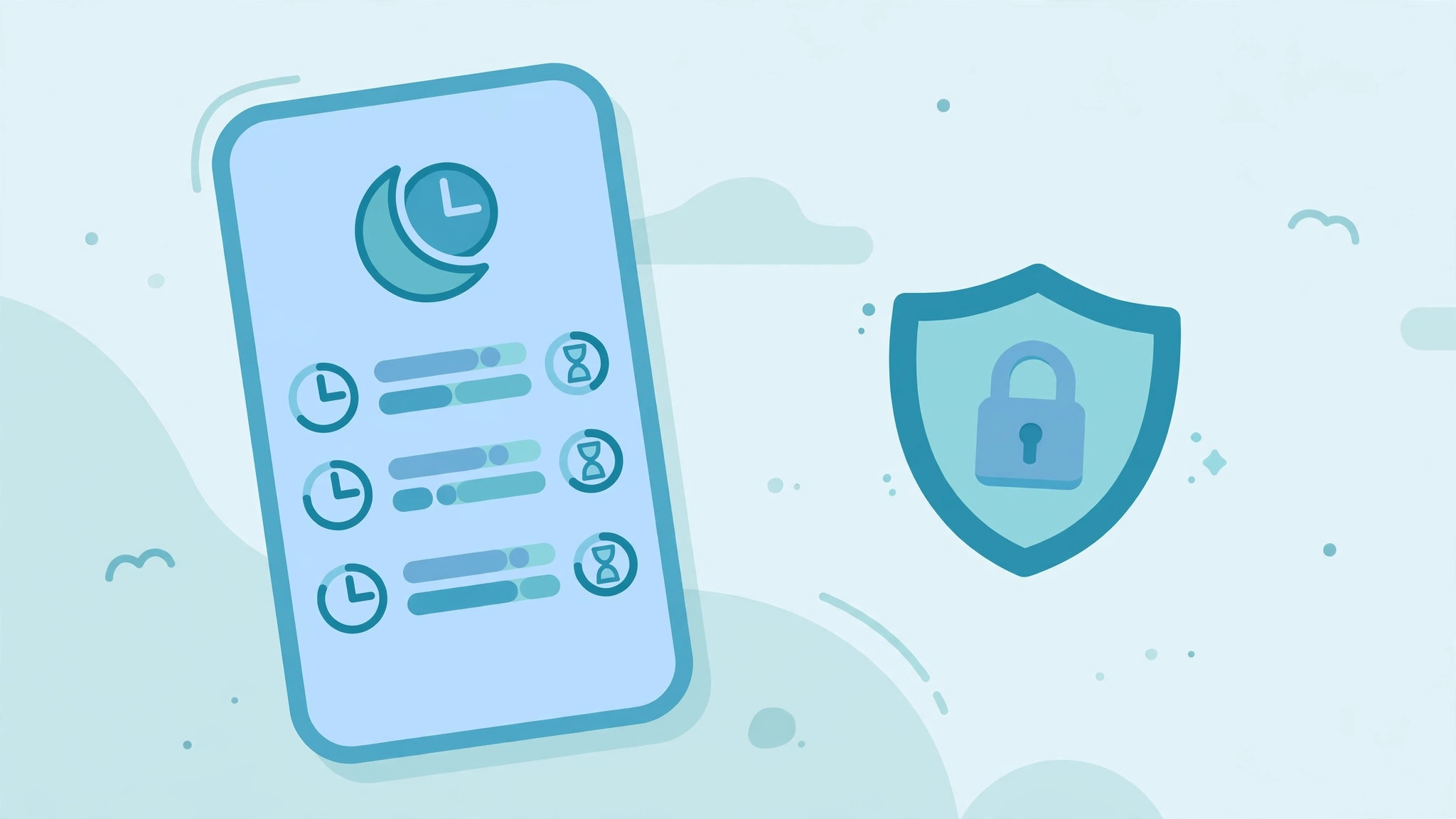
Screen Time (Settings → Screen Time) is Apple’s genuinely excellent free parental system:
Downtime: schedule phone lockdown (e.g., 10pm–7am) — only allowed apps + calls work.
App Limits: daily caps per app or category (e.g., 1hr social media).
Communication Limits: who they can contact, when.
Content Restrictions: age ratings for apps/media/web; explicit content filters.
Purchase controls: Ask to Buy for under-18s — you approve every download.
The Screen Time passcode: set a 4-digit code (different from lock screen) so they can’t change settings. Don’t forget it — recovery requires the Apple ID.
Screen Time + monitoring app: Screen Time sets boundaries; the monitoring app provides visibility. A teen with Screen Time limits but no monitoring is fenced but unwatched; monitoring without Screen Time is watched but unfenced. Use both.
Family Sharing Setup (Do This First)
Before any monitoring, set up Family Sharing — it’s the foundation:
- Your iPhone → Settings → [your name] → Family Sharing → Add Member.
- Add your child (create child account if under 13).
- Enable: Purchase Sharing, Ask to Buy, Location sharing (Find My), Screen Time management.
What this gives you free: download approvals, shared location, Screen Time remote management, shared storage plan. It’s the 30-minute setup that every iPhone parent should do — monitoring app or not.
Troubleshooting iPhone Monitoring
“Dashboard empty after 24h.” → iCloud storage full (check), Messages-in-iCloud off (enable), or 2FA re-challenge pending (check dashboard for auth prompt).
“Data stopped after months.” → Apple ID password changed (update in dashboard) OR iCloud storage filled up (upgrade to 50GB).
“Some data missing.” → per-feature: WhatsApp missing = WhatsApp iCloud backup off (enable in WhatsApp → Settings → Chats → Chat Backup). Photos missing = iCloud Photos off. Calls missing = backup not running.
“Location not updating.” → Find My sharing off (re-enable), or phone offline/dead. Find My is separate from the monitoring app — check both.
“2FA keeps asking.” → Normal periodically. Keep the trusted device accessible. If excessive, check Apple’s account security (too many sign-in locations triggers challenges).
Age-Based iPhone Setups
Ages 8–12 (first iPhone, usually hand-me-down): Child Apple ID (you control) + Family Sharing + Screen Time (strict) + Find My. No paid monitoring needed — Screen Time + Ask to Buy covers it.
Ages 13–15 (own iPhone, social media): Family Sharing + Screen Time (moderate) + iCloud monitoring (mSpy/Eyezy). Parent-held or known Apple ID password. The full stack.
Ages 16–17: Screen Time (light — mostly Downtime) + Find My + negotiated monitoring. Start the off-ramp conversation: “At 18 this ends — let’s build the habits now.”
18+: stop. They’re an adult. Monitoring an adult child’s iCloud without consent is illegal — full stop.
Switching: Android ↔ iPhone
iPhone → Android: you gain keylogger, real-time data, screenshots — but lose remote setup (physical access needed) and reset-survival. Most parents find Android monitoring more capable but more hands-on.
Android → iPhone: you gain remote setup and perfect stealth, but lose keylogger and real-time. The adjustment: accept backup-speed data, lean on alerts.
Our advice: don’t switch platforms for monitoring — switch for the phone you want, then adapt monitoring to it. Both platforms are fully workable.
🔥 Best iPhone Depth: mSpy
Frequently Asked Questions (Continued)
Can Apple detect the monitoring?
Apple sees a web-browser iCloud sign-in — normal activity, not flagged. The sign-in email is the only notification.
Does it work on iPads?
Yes — same iCloud method, same Apple ID.
What if they use Android apps (WhatsApp) on iPhone?
WhatsApp on iPhone backs up to iCloud (if enabled) — captured. Same as native.
Can I monitor without knowing the Apple ID?
No legitimate method exists. Anyone claiming otherwise is scamming.
Does Low Power Mode affect syncing?
Marginally — background sync slows. Not a monitoring-breaker, but worth knowing.
What about eSIM/second numbers?
iCloud captures the device’s data regardless of SIM. Dual-SIM iPhones: both numbers’ iMessages sync to the same iCloud.
The Bottom Line
iPhone monitoring: Apple ID + password + one 2FA code = full remote setup, no jailbreak, nothing on the phone. You get messages, photos, calls, WhatsApp, location, browsing — at backup speed, without keylogger. Stack it with Screen Time (free) and Family Sharing (free) for complete coverage. The platform’s limits are real but the setup’s ease is unmatched.
Quick-Reference
- Touch the phone? No.
- Jailbreak? No.
- What you need: Apple ID, password, one 2FA code.
- Data speed: minutes–hours (not real-time).
- Keylogger? Impossible on iOS.
- Survives reset? Yes.
- Free stack: Screen Time + Family Sharing + Find My.
- Best paid: mSpy (depth), Eyezy (alerts + value).
Where to Go Next
- iCloud setup walkthrough — the 10-minute process
- Screen Time guide — the free powerhouse
- Jailbreak explained — why you don’t need it
- Android guide — if the next phone is Android
- Best iPhone spy apps — ranked picks
The Honest Limitations (Read This)
We’d rather you know now than discover later:
- No keylogger, ever. Typed-but-deleted text is invisible. If your primary fear is “what are they typing that they delete,” iPhone can’t answer it — Android can.
- Not real-time. Minutes to hours of delay. For “where is my child RIGHT NOW,” use Find My (free, real-time) — not the monitoring dashboard.
- Snapchat is thin. iCloud doesn’t capture Snapchat well. If Snapchat is the concern, this is the platform’s weakest point.
- Dependent on their cooperation (indirectly). Password changes and disabled iCloud syncs break monitoring. A teen who knows how it works can degrade it — which is why the relationship matters more than the technology.
- Apple could change the rules. iCloud access methods depend on Apple’s current architecture. Vendors adapt, but it’s Apple’s platform — they set the terms.
None of this makes iPhone monitoring bad — it’s genuinely good for messages, photos, location, and browsing. But it’s not Android-deep, and honest guides say so.
P.S. The iPhone Parent’s Mantra
“Screen Time for boundaries, Find My for location, iCloud monitoring for visibility, and conversation for everything the technology can’t reach.” The parents who do all four don’t need to worry about what they’re missing — because they’re not missing much.
🏆 The Complete iPhone Stack
Our Testing Note
Verified October 2026 across iOS 17/18 devices with iCloud sync and backup configurations. Sync speeds measured on Wi-Fi with iCloud Photos and Messages-in-iCloud enabled. Apple changes iCloud behavior periodically; we re-verify annually.
TL;DR
iPhone monitoring without jailbreak: enter Apple ID + password + one 2FA code in the dashboard — no phone touching, nothing installed, survives resets. You get iMessages, photos, calls, WhatsApp (backup), Safari, location, notes — at backup speed (minutes–hours), no keylogger, thin Snapchat. Free stack: Screen Time + Family Sharing + Find My. Paid: mSpy (depth), Eyezy (alerts). Keep iCloud storage non-full, keep the password current, disclose the sign-in email. Done.
Appendix: iCloud Settings Checklist (On Their iPhone)
Verify these are ON for full monitoring:
- [ ] Settings → [name] → iCloud → iCloud Backup → On
- [ ] Settings → [name] → iCloud → Messages → Sync this iPhone
- [ ] Settings → [name] → iCloud → Photos → Sync this iPhone
- [ ] Settings → [name] → iCloud → iCloud Drive → On (for files)
- [ ] WhatsApp → Settings → Chats → Chat Backup → Auto Backup On
- [ ] Settings → [name] → Find My → Share My Location (family)
- [ ] Settings → General → Background App Refresh → On
- [ ] iCloud storage: not full (Settings → [name] → iCloud → Storage)
Screenshot this list after setup — when data goes stale months later, it’s your diagnostic checklist.
One Last Thing
The iPhone parents who struggle are the ones who expected Android. The ones who thrive accepted the platform: backup-speed data, no keylogger, unbeatable ease. Your iPhone monitoring won’t be total — but it’ll be enough, especially stacked with Screen Time and conversation. And “enough, sustainably” beats “total, briefly” every time.
Related Guides
- iCloud setup walkthrough — step by step
- Screen Time guide — Apple’s free controls
- Jailbreak explained — why it’s unnecessary
- Best iPhone spy apps — ranked
- Android guide — the other platform
Glossary
iCloud sync: continuous syncing of specific data types (Messages, Photos) — fast, minutes.
iCloud Backup: periodic full-device backup — slow, hours. Source of call history, WhatsApp.
2FA (two-factor authentication): Apple’s code-to-trusted-device security. Required once for monitoring setup.
Apple ID: the iCloud account — your key to remote monitoring.
Jailbreak: removing iOS restrictions. Unnecessary for monitoring in 2026.
Screen Time: Apple’s free parental control system (limits, downtime, restrictions).
Family Sharing: Apple’s family account system — purchase approvals, shared location, shared storage, Screen Time management.
Final Checklist
- [ ] Apple ID + password known and stored securely
- [ ] iCloud Backup ON, Messages/Photos sync ON
- [ ] 50GB iCloud tier (avoid the full-storage stall)
- [ ] Monitoring app connected (2FA approved once)
- [ ] First sync complete (wait up to 24h)
- [ ] Screen Time configured (free boundaries)
- [ ] Family Sharing active (approvals + location)
- [ ] Sign-in email disclosed to teen (trust)
- [ ] Dashboard bookmarked on your phone
Nine checks. Remote setup. No jailbreak. Welcome to iPhone monitoring.
