How to Set Up Parental Controls (All Devices)
You don’t need a weekend and a computer science degree. You need about 40 minutes, your child’s device in your hand, and this guide open on yours. Below: exact setup walkthroughs for iPhone, Android, Windows, Mac, and your home router — in the order that gives you the most protection per minute spent.
The 30-second version: do the router DNS filter first (2 minutes, protects every device on WiFi), then the phone (Screen Time on iPhone or Family Link on Android — 15 minutes each), then the computer if your kid uses one. Add a dedicated app like Parentaler when you need monitoring the free tools can’t do: social DMs, detailed location, tamper alerts.
🛡️ Easiest All-in-One Setup: Parentaler
One app, one parent dashboard, every device: app blocking, screen-time schedules, web filtering, GPS location. 14-day money-back guarantee.
Before You Start: What You’ll Need
Gather these before touching a single setting — every interrupted setup is a setup that never gets finished.
1. The child’s device, unlocked, charged above 50%. You’ll be installing profiles, signing into accounts, and restarting. A dying phone mid-setup corrupts the process.
2. Your own Apple ID / Google account credentials. Family Sharing (Apple) and Family Link (Google) both require the parent to authenticate. Know your passwords; reset them now if you’re unsure.
3. A separate passcode or PIN the child doesn’t know. Every system below has a settings lock. Use something unguessable — not the house alarm code, not their birthday, not 1234. (Kids try birthdays first. Every time.)
4. 40 uninterrupted minutes. Not “while dinner cooks.” The phone setups need the child nearby for at least part of it (account verification texts, biometric confirmations).
5. The child’s buy-in, age-adjusted. For under-10s: “I’m putting kid settings on your tablet.” For teens: the two-minute version of why — safety, not surveillance. Secret setups discovered later cost more trust than the setup saves.
iPhone & iPad: Screen Time Setup (15 Minutes)
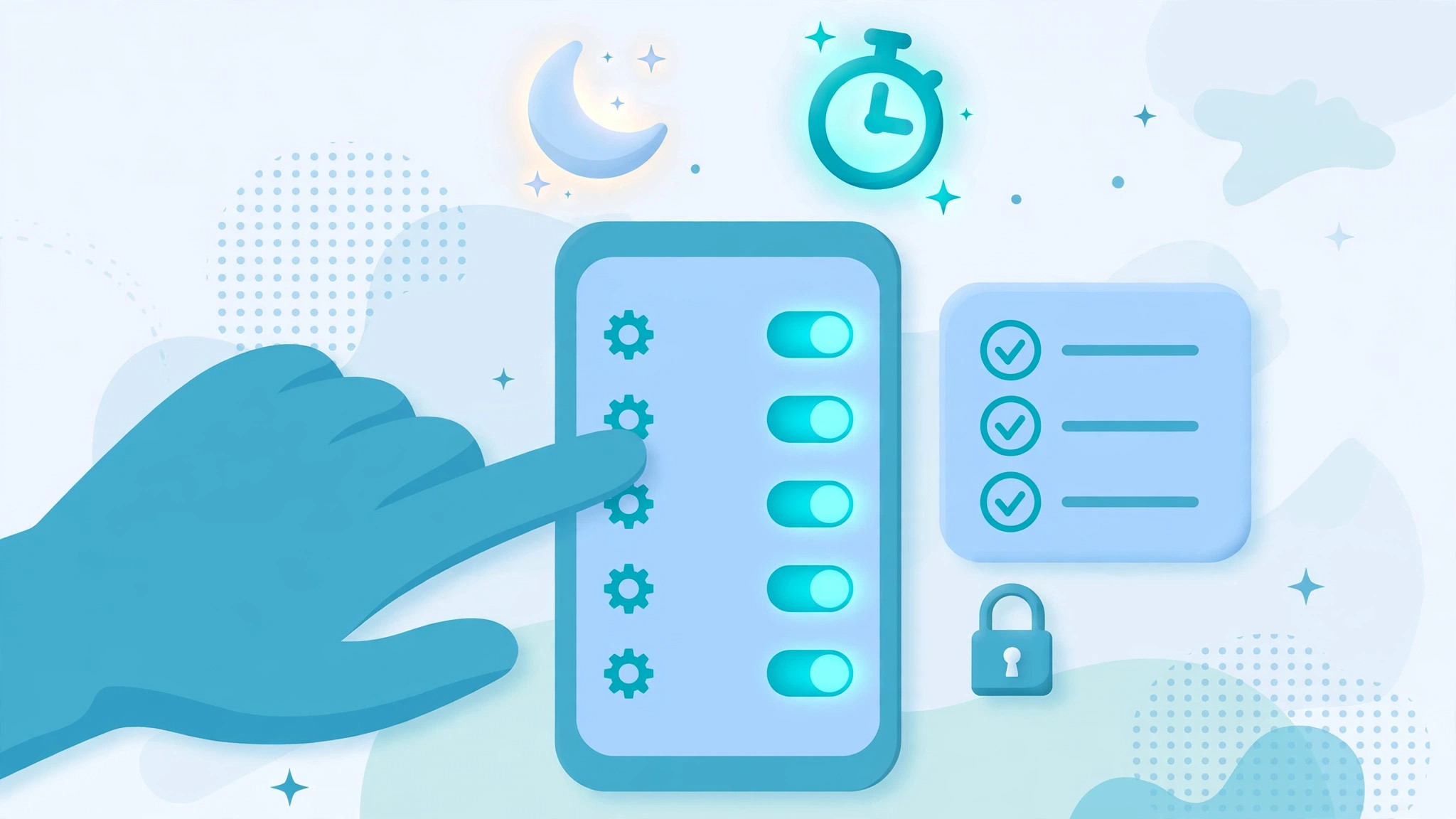
Apple’s Screen Time is the deepest free system available. Follow in order — skipping steps creates the bypasses.
Step 1: Update iOS first. Settings → General → Software Update. Old iOS versions have known Screen Time bypasses that Apple patched. Don’t build on a cracked foundation.
Step 2: Set up Family Sharing (if you haven’t). Settings → [your name] → Family Sharing → Add Member → Create Child Account. The child needs their own Apple ID under your family — sharing your Apple ID with a child breaks everything (messages merge, purchases merge, controls can’t distinguish you).
Step 3: Enable Screen Time on the child’s device. On the child’s iPhone: Settings → Screen Time → Turn On → “This is My Child’s iPhone.” Do this on their device, not yours — remote setup misses half the options.
Step 4: Set the Screen Time passcode. Use the 4-digit lock and choose something genuinely unguessable. Critical: when iOS asks for Apple ID recovery, enter your Apple ID, not the child’s — otherwise they can reset the passcode themselves via “Forgot Passcode.”
Step 5: Configure Downtime. Screen Time → Downtime → Scheduled → e.g., 9:00 PM–7:00 AM on school nights. Tap “Block at Downtime” — without this, downtime is a suggestion the child dismisses with one tap.
Step 6: Set App Limits. Screen Time → App Limits → Add Limit. Set categories (Social: 1 hr/day, Games: 1 hr/day) rather than individual apps where possible — category limits survive the “delete and reinstall a different app” trick better. Also enable “Block at End of Limit.”
Step 7: Content restrictions. Screen Time → Content & Privacy Restrictions → turn on. Set: iTunes & App Store Purchases → Installing Apps → Ask (you approve every install); Content Restrictions → Web Content → Limit Adult Websites; Game Center → turn off multiplayer with strangers for under-12s.
Step 8: Communication limits. Screen Time → Communication Limits → During Downtime → Contacts Only. This stops the 2 AM group-chat problem while keeping family reachable.
Step 9: Lock it down. Content & Privacy Restrictions → scroll to “Allow Changes” → set Account Changes, Passcode Changes, and (importantly) don’t allow VPN & Device Management changes without the passcode — VPN apps are the #1 Screen Time bypass.
Step 10: Test as the child. Hand the phone back and try to break it: open a blocked app, visit a blocked site, try changing the time zone (a classic bypass — mitigate via Allow Changes → disable manual date/time changes… actually iOS doesn’t expose that toggle; instead the Screen Time passcode blocks Settings changes broadly, which covers it).
The bypass you must know: Screen Time passcode reset via the parent’s Apple ID. If your child knows your Apple ID password, every lock above is decorative. Guard that password like the house keys.
For the complete Screen Time deep-dive — every workaround teens use and the counter for each — see our iPhone Screen Time guide.
Android: Google Family Link Setup (15 Minutes)
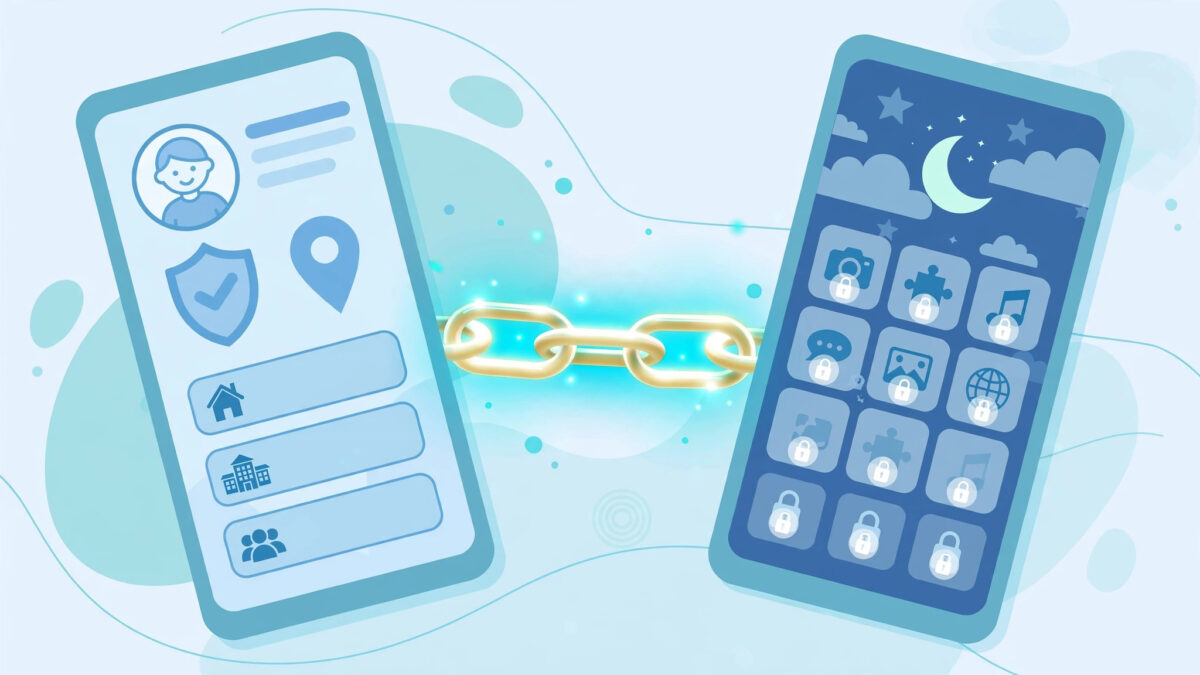
Family Link manages the child’s Google account, which means it follows them across phone, tablet, and Chromebook. The catch: it works best when set up before the child has an established unsupervised account.
Step 1: Install Family Link on YOUR phone. Get “Google Family Link” (parent version) from the Play Store or App Store. Sign in with your Google account.
Step 2: Create or link the child’s account. In the app: Add child → create a new Google account for them (under 13) or link their existing one. If they already have an unsupervised account with years of history: back up what matters, because linking supervision to an existing teen account often triggers the “take over at 13” flow awkwardly. Cleaner to create fresh under-13 accounts.
Step 3: Install Family Link (child version) on THEIR device. On the child’s Android: install “Google Family Link for Children & Teens,” sign in with the child’s account, and complete the pairing with the code shown on your phone.
Step 4: Set daily limits and bedtime. In your parent app: Controls → Daily limit (e.g., 3 hours school days) → Bedtime (e.g., 9:30 PM–7 AM, device locks). Unlike Screen Time, Family Link’s bedtime is a hard lock — no “one more minute” negotiation.
Step 5: Turn on app approvals. Controls → App limits → require approval for new installs. You’ll get a notification for every download request; approve or deny remotely. This single toggle kills 80% of problems (no new social app appears without your knowledge).
Step 6: Filter Google Play and Chrome. Controls → Content restrictions → Google Play: set age-appropriate maturity filter; Google Chrome: “Try to block mature sites.” Note the honest wording — try. Chrome filtering is decent, not perfect; pair with a DNS filter (below) for the gaps.
Step 7: Enable location sharing. Location tab → turn on. Family Link’s location is basic but free and always-on — good enough for “did they get to school.”
Step 8: Lock Settings against tampering. On Samsung and some other phones, battery optimization can kill Family Link’s background service — exempt it (Settings → Apps → Family Link → Battery → Unrestricted). Also set a device PIN the child doesn’t know, so they can’t factory-reset around you.
The age-13 cliff, again: when the child turns 13, Google offers them full account control and supervision can end. Mark it on your calendar now — at 12½, decide: transition to a third-party app, or convert to a trust-based arrangement deliberately.
🔍 Need More Than Family Link Sees? mSpy
Family Link can’t see WhatsApp chats, Snapchat, Instagram DMs, or deleted messages. mSpy covers exactly those blind spots, with GPS geofences and keyword alerts — from ~$11.67/mo annual.
14-day money-back guarantee. Confirm live pricing at checkout.
Windows: Microsoft Family Safety (10 Minutes)
Step 1: On your Microsoft account at family.microsoft.com, create a family group and invite the child’s Microsoft account (create one for them if needed).
Step 2: On the child’s Windows PC, sign in with their Microsoft account (not yours) — controls only apply to the child’s account.
Step 3: In your family dashboard: set Screen time schedules per day, turn on Activity reporting (weekly email of what they did), set Content filters (block inappropriate websites — works in Edge), and set App & game limits by age rating.
Step 4: On the child’s PC: Settings → Accounts → make sure they’re a Standard user, not Administrator. An admin child can uninstall or disable anything — this step is the whole game on Windows.
Honest limits: Edge-only filtering (install Chrome and it’s gone), trivially bypassed by a tech-savvy teen, and most kids live on their phones anyway. Do the 10-minute setup, set them as Standard user, then put your real effort into the phone.
Mac: Screen Time on macOS (10 Minutes)
Step 1: On the child’s Mac: System Settings → Screen Time → turn on. If you use Family Sharing, you can manage it from your own Mac/iPhone under your family member’s name.
Step 2: Mirror the iPhone setup: Downtime schedule, App Limits, Content & Privacy → limit adult websites, and crucially — separate user accounts. The child gets a Standard (non-admin) account. Screen Time on an admin account is a speed bump, not a wall.
Step 3: In Screen Time → Content & Privacy → App Store: require password for purchases, disable installing apps freely for young kids.
Same honest limits as Windows: Safari-only filtering, bypassable with another browser. Standard account + the phone setup matter more.
Router-Level DNS Filtering (2 Minutes, Whole House)

This is the highest-protection-per-minute step in this entire guide. Do it even if you do nothing else.
Step 1: Open your router’s admin page (usually 192.168.1.1 or 192.168.0.1 — the address is on the router’s sticker, along with the admin password).
Step 2: Find DNS settings (often under Internet/WAN or Advanced → DNS).
Step 3: Set the DNS servers to a family-safe filter:
- Cloudflare Family: 1.1.1.3 and 1.0.0.3 (blocks malware + adult content)
- OpenDNS Family Shield: 208.67.222.123 and 208.67.220.123
Step 4: Save and reboot the router.
That’s it. Every device on your home WiFi — phones, tablets, laptops, smart TVs, the Nintendo Switch, your mother-in-law’s iPad — now gets adult-content filtering with zero per-device setup.
What it doesn’t cover (know the edges): mobile data (off WiFi = unfiltered), VPN apps (which bypass DNS entirely — block VPN apps on the phone side), and individual pages (it blocks whole domains only). Pair it with the phone-level controls above and the coverage is genuinely strong.
YouTube & Gaming: Don’t Forget These
Two ecosystems parents consistently under-configure:
YouTube has three separate systems (YouTube Kids, supervised accounts, Restricted Mode) and Shorts changed the rules. The full lockdown — which system for which age, Shorts controls, watch-history review — is its own guide: YouTube parental controls.
Gaming consoles (PlayStation, Xbox, Switch) need play-time limits and communication settings — in-game chat in Fortnite/Roblox/Minecraft is the part that matters. Details in our gaming parental controls guide.
Troubleshooting: When It Doesn’t Work
Setups fail in predictable ways. Here’s the fix for each.
“The limits aren’t applying”
Cause: the child is signed into the wrong account (your Apple ID instead of theirs, or an old unsupervised Google account). Fix: verify the child’s account is the active one on the device. On iPhone: Settings → [name at top] must show the child’s name. On Android: the supervised account must be the device’s primary account.
“Family Link keeps getting killed on Samsung”
Cause: Samsung’s aggressive battery optimization. Fix: Settings → Apps → Family Link (child) → Battery → Unrestricted. Also check: Settings → Battery → Background usage limits → Never sleeping apps → add Family Link. Our Samsung guide has the full triple-exemption walkthrough.
“Screen Time passcode stopped working”
Cause: usually the child reset it via the parent’s Apple ID (“Forgot Passcode” → Apple ID password). Fix: change YOUR Apple ID password immediately, then reset the Screen Time passcode. If you genuinely forgot it: on iOS 17+, Screen Time → Forgot Passcode → authenticate with the parent Apple ID.
“The DNS filter isn’t blocking anything”
Cause: the device is using DNS-over-HTTPS (DoH) in the browser, which bypasses router DNS. Fix: in Chrome: Settings → Privacy → Use secure DNS → off (or set to the family provider). In Firefox: Settings → Network → disable DNS over HTTPS. Or block DoH at the router if it supports it.
“My teen just uses mobile data”
Cause: everything above except the phone-level controls stops at the WiFi edge. Fix: this is exactly what app-level filtering and monitoring apps are for — they travel with the device. If mobile-data evasion is the pattern, it’s time for the paid layer, not more router tweaks.
“They factory-reset the phone”
Cause: no passcode on the device, or they know it. Fix: set a device passcode/pattern you control (or at least know), enable tamper alerts in your monitoring app, and — the real fix — treat a factory reset as a trust event, not a technical one. A kid who wipes their phone to evade supervision is telling you something; listen first, re-lock second.
The Monthly 10-Minute Checkup

Setup decays. Apps update, kids learn tricks, settings drift. Put a recurring 10-minute checkup on your calendar — first Sunday of the month works for most families.
Minutes 1–3: The dashboard glance. Open your parent dashboard (Screen Time weekly report, Family Link, or your monitoring app). You’re looking for anomalies, not reading everything: new apps you didn’t approve, usage spikes at odd hours, location gaps.
Minutes 4–6: The device spot-check. Pick up the actual phone. Check installed apps against the dashboard list (sideloaded apps don’t always report). Check for VPN apps, second browsers, or calculator apps that aren’t calculators (vault apps hide behind innocent icons — the classic is a “calculator” that opens with a PIN).
Minutes 7–8: The settings audit. Screen Time passcode still unknown to them? Family Link still active (not “paused”)? DNS still set on the router? One changed setting undoes ten correct ones.
Minutes 9–10: The conversation. “Anything weird online this month? Anything you want more access to?” The checkup isn’t an interrogation — it’s the standing appointment where access gets renegotiated based on demonstrated responsibility. Kids who know the review exists behave better than kids who think nobody’s watching, and kids who can earn more freedom work with the system instead of against it.
💰 Good Protection, Fair Price: Eyezy
Set up in minutes, monitored from one dashboard: social apps, GPS location, web filtering, and app blocking. The value pick for families who want coverage without the premium price.
14-day money-back guarantee. Confirm live pricing at checkout.
Frequently Asked Questions
The Bottom Line
Forty minutes, in this order: router DNS filter (2 min) → the phone (15 min) → the computer (10 min) → YouTube and gaming (10 min) → the monthly checkup (10 min, recurring). That’s the whole system. Everything beyond it — the paid apps, the advanced monitoring — is for specific gaps you’ll be able to name once the basics are in place.
The most common failure isn’t the wrong app. It’s the setup that never happened because it felt like a project. Do the router tonight. Do the phone tomorrow. Done beats perfect.
🧪 Test the Paid Layer Risk-Free
Curious what monitoring apps see that free tools can’t? mSpy’s trial path plus 14-day money-back guarantee lets you test the full dashboard before committing.
Legal note: install monitoring apps only on devices you own or your minor children’s devices in your care. This article contains affiliate links; we may earn a commission at no extra cost to you. Pricing changes often — confirm live pricing at checkout.
