Parental Controls for Gaming (Roblox, etc.) (2026)
Gaming is where parental controls get hardest — and where they matter most. A tablet’s web filter means nothing when your 9-year-old is voice-chatting with strangers in Roblox, and screen time limits don’t cover the $40 of Robux bought at midnight.
The challenge: every game, platform, and console has its own parental system, none of them talk to each other, and the social features (chat, friend requests, voice) are where the real risks live. This guide gives you the complete map: Roblox, Minecraft, Fortnite, PlayStation, Xbox, Nintendo Switch, in-game purchases, and voice-chat safety — plus what to do about the gaps no built-in covers.
Quick verdict: Start with the game’s own parental controls (Roblox’s are the most important — account restrictions + chat filters + PIN), then the console-level controls (PlayStation/Xbox/Switch all have solid family systems), then lock down purchases everywhere. The gap nobody’s built-in covers: what strangers actually say in game chat — that’s the one place dedicated monitoring earns its keep.
👨👩👧 The Chat Gap: Why Parents Add Parentaler
Every control below manages access — none of them show you conversations. If your child plays games with chat (Roblox, Fortnite, Minecraft servers), Parentaler adds the message-level visibility that game controls deliberately don’t provide.
14-day money-back guarantee. Confirm live pricing at checkout.
Why Gaming Needs Its Own Parental Control Strategy
Most parental control advice assumes the risk is content — violent games, adult websites, too many hours. Gaming’s real risk profile is different: it’s social. The modern kids’ game is a chat room with graphics.
Consider what a typical Roblox session involves: text chat with strangers, friend requests from unknown accounts, voice chat in some experiences, private messages, and in-game purchases — all inside an app that looks like “just a game” to a parent glancing at screen time stats. Apple’s Screen Time will tell you your child played Roblox for 2 hours. It won’t tell you a stranger asked for their Snapchat.
This is why gaming needs layered defense: game-level controls (chat filters, friend restrictions), platform-level controls (console family settings, purchase locks), and visibility (knowing what’s actually said). Most parents set up one layer and assume they’re covered. Let’s build all three.
Roblox Parental Controls: The Complete Setup
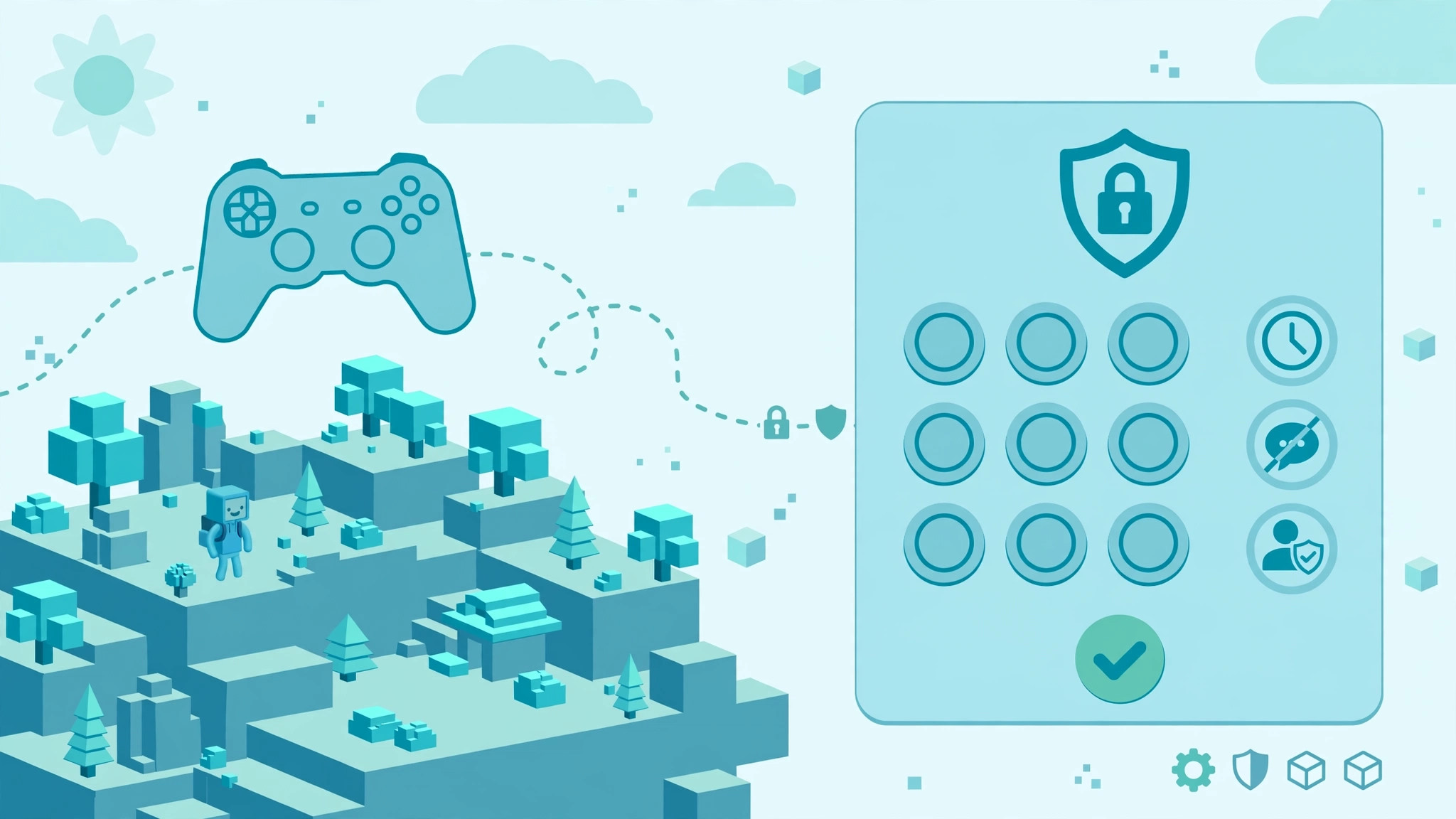
Roblox deserves its own section because it’s the #1 gaming concern for parents of kids under 13 — and its parental controls are both essential and widely misconfigured.
Account Restrictions and Age Settings
First, the foundation: make sure your child’s Roblox account has their real birthday. Roblox applies chat and content defaults by age — under-13 accounts get stricter chat filters automatically, while a 16-year-old’s birthday on an 8-year-old’s account silently disables most protections. This single setting determines everything downstream.
In Settings → Parental Controls (or via the parent PIN — see below), you can enable Account Restrictions, which locks the account to a curated list of age-appropriate experiences and disables most social features. For under-10s, this is the recommended starting point: they still get thousands of games, but the social surface shrinks dramatically.
Chat Filters and Communication Settings
Roblox filters chat by age tier. Under-13 accounts get heavy filtering (blocked personal info, blocked links, blocked inappropriate language). 13+ accounts get lighter filtering. You can further restrict:
- Who can message your child: Everyone, Friends, or No one
- Who can chat in-app: same three tiers
- Who can invite to private servers: Friends or No one
- Voice chat: available only to age-verified 13+ accounts — keep it off for younger kids
The settings live under Settings → Privacy. Walk through every dropdown — the defaults are reasonable but not maximal, and “Friends” on Roblox includes people your child has never met offline.
The Parent PIN: Locking It All Down
Roblox’s Account PIN (Settings → Security → Account PIN) locks the settings themselves. Without it, every control above is decorative — your child can open Settings and undo your work in 30 seconds.
Set a 4-digit PIN your child can’t guess, and don’t store it where they can find it. This is the Roblox equivalent of the Screen Time passcode, and skipping it is the #1 Roblox parental control failure we see.
Roblox In-Game Purchases: Robux Locks
Robux is real money wearing a cartoon costume. Lock it down at two levels:
- Roblox level: There’s no direct “disable purchases” toggle, so the control point is the payment method. Never save a credit card on your child’s Roblox account. Buy Robux as gift cards in fixed amounts — when it’s gone, it’s gone, and that’s a feature.
- Platform level: On iPad/iPhone, Apple’s Ask to Buy intercepts every purchase. On Xbox/PlayStation, the console’s purchase PIN does the same. Set a purchase PIN everywhere your child plays Roblox.
The gift-card strategy doubles as financial education: a $10 Robux card per month teaches budgeting in a way that unlimited parental-credit-card access never will.
Minecraft: What Parents Need to Configure
Minecraft’s risk profile depends entirely on how your child plays. Single-player or family Realm: minimal concern. Public multiplayer servers: a different universe.
Single-Player vs Multiplayer vs Realms
- Single-player / local worlds: No chat, no strangers, no purchases beyond the game itself. Nothing to configure.
- Minecraft Realms (Mojang’s private servers): Invite-only, you control the player list. The safe multiplayer option — worth the small subscription if your child wants to play with friends.
- Public servers: Open chat, unknown players, wildly varying moderation. This is where configuration matters.
Server Chat and Microsoft Family Settings
Minecraft (Bedrock edition) ties into the Microsoft/Xbox family system. Through your Microsoft family account you can control multiplayer access, chat permissions, and who can join your child’s games. Set multiplayer to “Friends only” and chat to “Friends only” as the baseline — public-server chat with strangers is where the problems concentrate.
For Java edition on PC, server chat is controlled per-server and harder to manage centrally. If your child plays Java on public servers, that’s a conversation about which servers (stick to well-moderated, whitelisted community servers) rather than a settings fix.
Fortnite and Epic Games Parental Controls
Fortnite’s parental controls live in the Epic Games account, not in the game — which means they follow your child across PlayStation, Xbox, Switch, and PC. Set them once at epicgames.com under Parental Controls.
What to configure:
- PIN-protected settings: Like Roblox’s PIN, lock the parental controls themselves first.
- Voice and text chat: Set to “Friends Only” or “Nobody.” Fortnite’s voice chat with random squadmates is one of the highest-risk social features in mainstream gaming.
- Friend requests: Require approval or restrict to existing friends.
- Mature language filter: On — it filters text chat.
- Purchase controls: Require PIN for all V-Bucks purchases.
- Playtime reports: Weekly emails showing hours played — useful for the Sunday review habit.
Fortnite also has Cabined Accounts for under-13s: restricted by default, requiring parental consent via email to unlock features. If your child has a Cabined Account, don’t rush to “upgrade” it — the restrictions are doing their job.
Console-Level Controls: PlayStation, Xbox, and Nintendo Switch
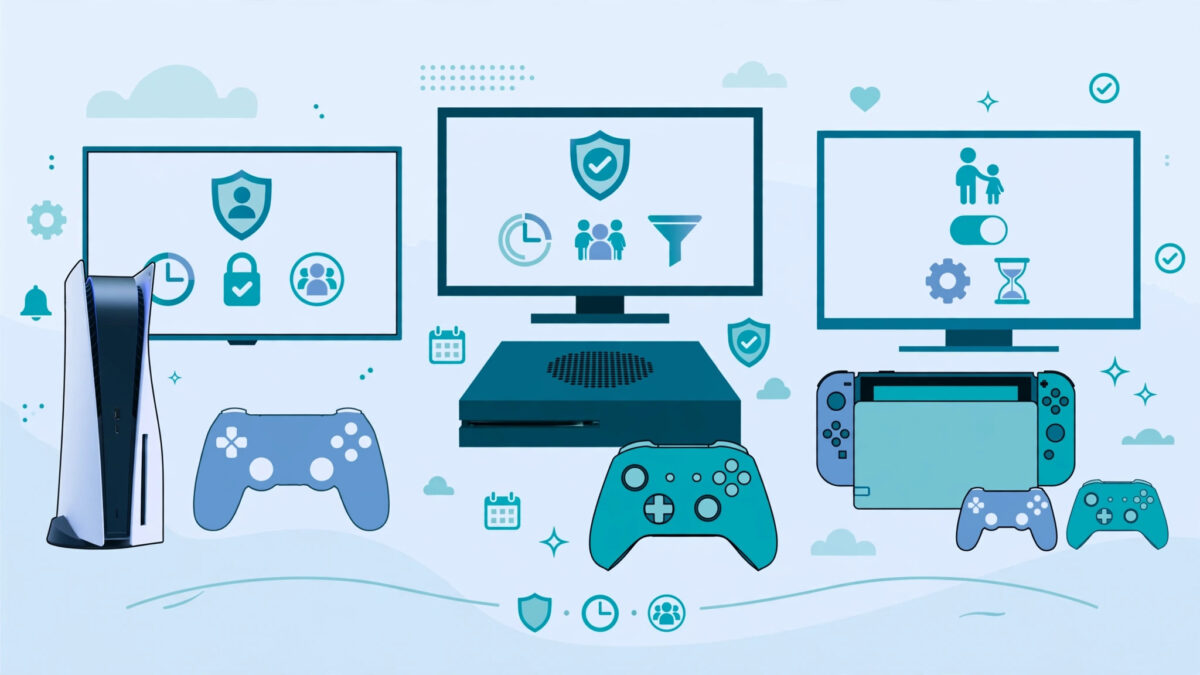
Game-level controls are per-game. Console-level controls are per-device — they govern everything on the box. You need both, but console controls are the higher-leverage setup because one configuration covers every game.
| PlayStation (PS4/PS5) | Xbox (One/Series) | Nintendo Switch | |
|---|---|---|---|
| Family system | Family Management | Microsoft Family Safety | Nintendo Switch Parental Controls app |
| Child accounts | Yes, linked to parent | Yes, Microsoft family | Yes, supervised accounts |
| Playtime limits | ✅ Per-day, per-child | ✅ Screen time via Family Safety | ✅ Best-in-class (app-based, visual) |
| Content age ratings | ✅ ESRB-based game blocking | ✅ Age-rated game/app blocking | ✅ Age-rated software restriction |
| Purchase controls | ✅ Wallet PIN + monthly limit | ✅ “Ask a parent” approvals | ✅ PIN + eShop restrictions |
| Online communication | ✅ Per-game + system chat limits | ✅ Communication & multiplayer tiers | ✅ Limited (Switch has minimal voice chat) |
| Activity reports | ✅ Playtime emails | ✅ Weekly Family Safety digest | ✅ Monthly play report in app |
PlayStation Family Management
Create a child family member under your PlayStation account (Settings → Family Management). Set the age level for games and Blu-rays, require your password for purchases (or set a monthly spending limit — the $0 option exists), and restrict online communication. The monthly spending limit is underused and excellent: set it to $0 and every purchase needs you.
Xbox Family Safety
Microsoft’s Family Safety (familysafety.microsoft.com + app) is the deepest console system: screen time schedules that span Xbox and Windows PC, content filters by age, “ask a parent” purchase approvals, activity reporting, and location sharing. If your household is Xbox + Windows, this one system covers both — configure it once, properly.
The killer feature: cross-device screen time. Two hours means two hours across Xbox and PC combined, not two hours each. Kids who’ve learned to hop devices hit a wall here.
Nintendo Switch: The Parent App Advantage
Nintendo’s approach is unique: the Nintendo Switch Parental Controls smartphone app. It’s the most parent-friendly console system — visual playtime reports, bedtime alarms that suspend the game (with a warning), per-game age restrictions, and social feature limits, all from your phone.
The Switch’s structural advantage for parents: it has almost no native voice chat and very limited messaging. The social risk surface is smaller by design. For younger kids, the Switch is genuinely the safest mainstream console — not because of settings, but because of architecture.
🔍 Consoles Show Hours, Not Conversations
Your Xbox Family Safety report says “Fortnite: 3 hours.” It doesn’t say what the random squadmates said over voice chat. For content-level visibility into game chats and messages, mSpy captures what console reports never show. 14-day money-back guarantee.
In-Game Purchases: Locking Down Spending Everywhere
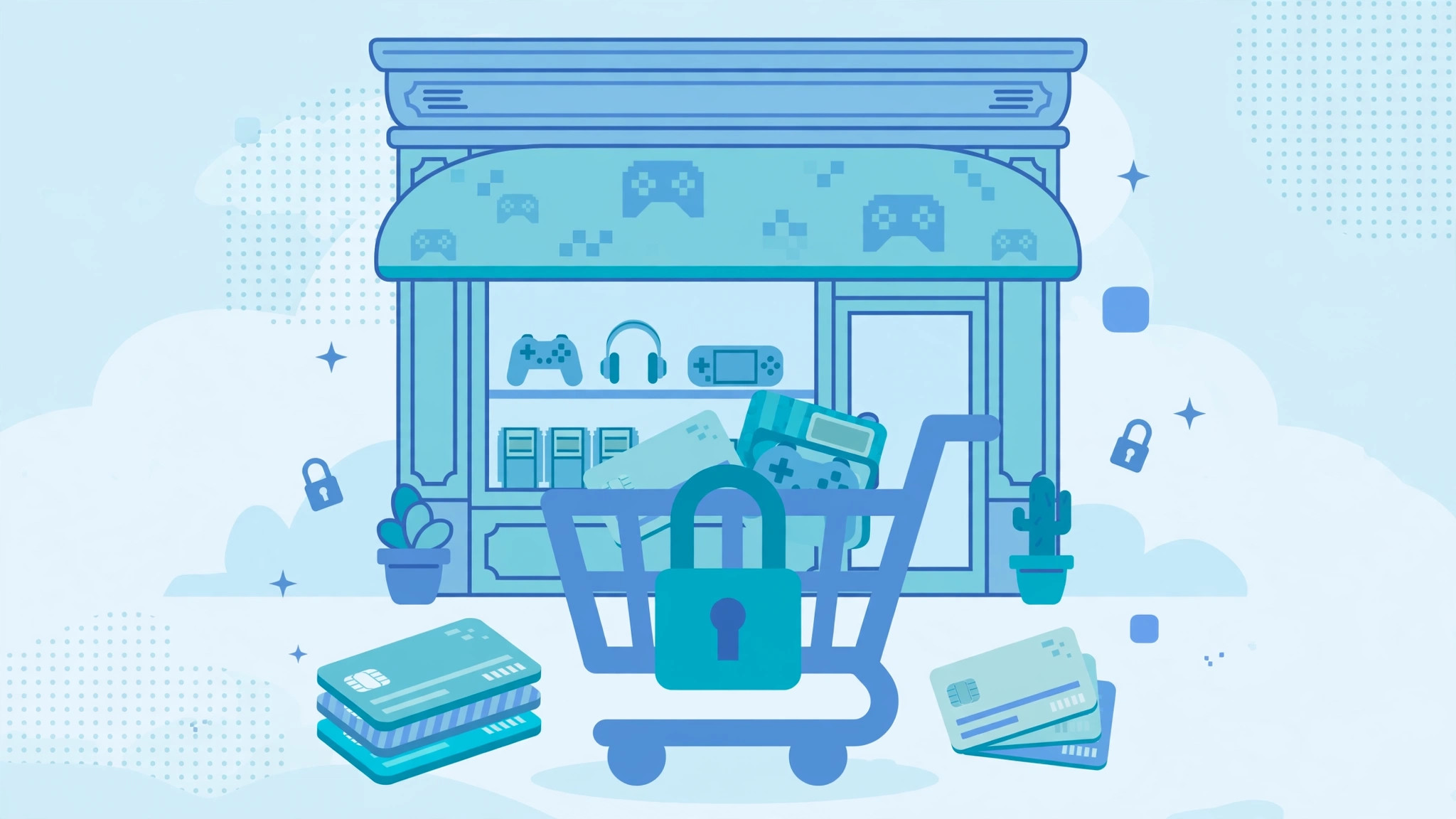
Gaming purchases are a $50-billion industry built partly on children’s impulse control. The defense is layered and platform-specific, but the principle is universal: no saved payment method on a child’s profile, ever.
The Purchase Lock Checklist
Run through this once per device your child games on:
- [ ] iPhone/iPad: Ask to Buy ON (Family Sharing) — intercepts every purchase and download
- [ ] Android: Google Play → require authentication for purchases → “For all purchases”
- [ ] PlayStation: Family Management → monthly spending limit ($0) or wallet password required
- [ ] Xbox: Family Safety → “Ask a parent” for purchases
- [ ] Nintendo Switch: eShop password required + parental app restrictions
- [ ] Roblox: No saved card — Robux via gift cards only
- [ ] Fortnite/Epic: PIN required for V-Bucks purchases
- [ ] Steam (PC): Family View PIN + no saved payment method
Gift Cards as Allowance: The Budgeting Trick
The gift-card strategy deserves its own callout because it converts a control problem into a life skill. A fixed monthly gaming budget on gift cards — Robux cards, eShop credit, PlayStation Store cards — teaches scarcity and choice. Kids who manage a $15 monthly gaming budget learn more about money than kids with unlimited “ask mom” access ever will.
When the card’s empty mid-month, the answer is “next month,” not a lecture. The system says no, so you don’t have to. Parents consistently report this single change eliminates 90% of purchase conflicts.
Voice Chat and Stranger Safety: The Real Risk
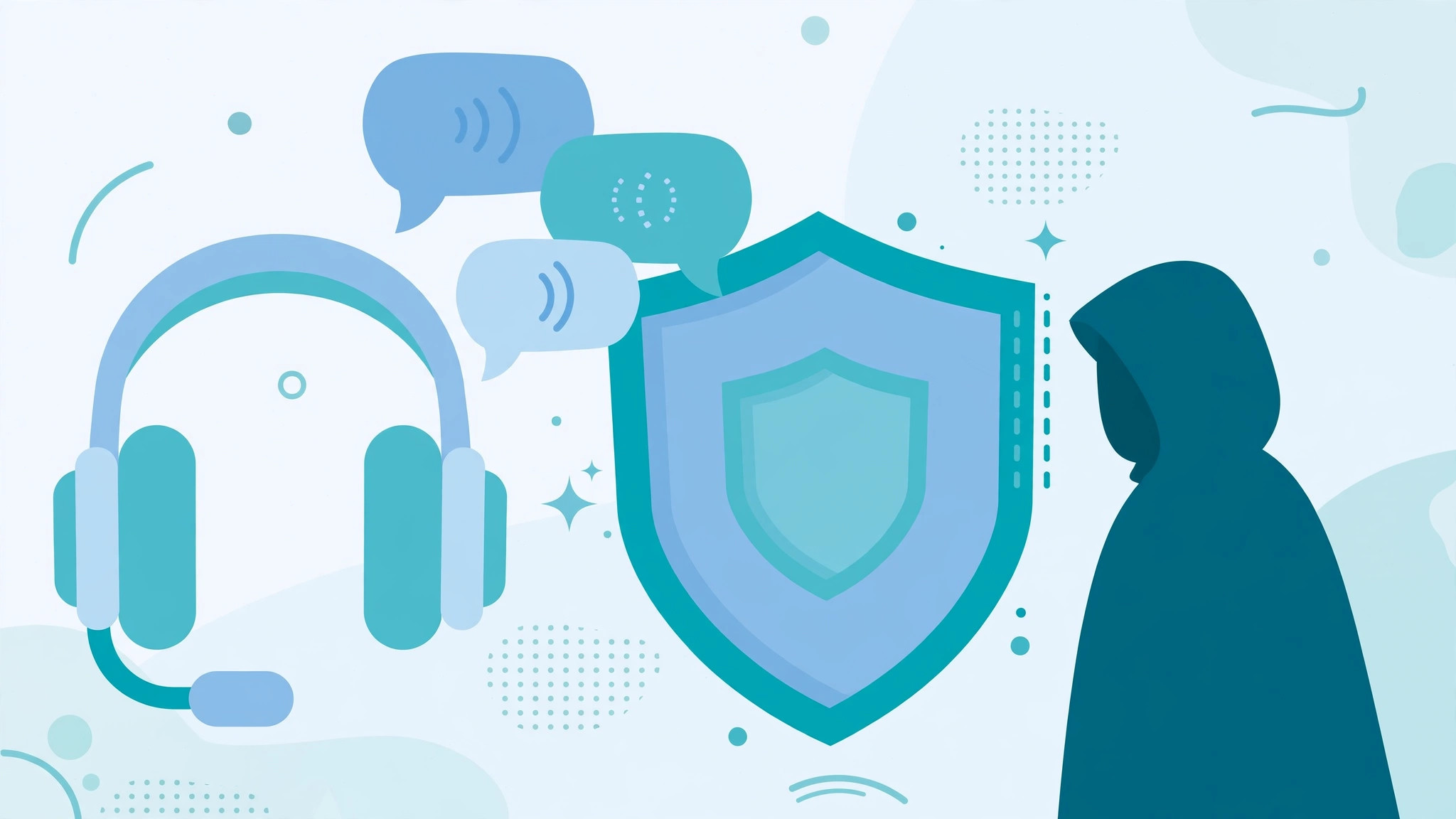
Let’s name it directly: the most dangerous feature in kids’ gaming isn’t violence or screen time — it’s voice and text chat with strangers. Everything else in this guide is important; this section is urgent.
What the Data Actually Shows
Predators use games as hunting grounds because games provide what they need: private communication channels, voice contact that builds false trust, gift-giving mechanics (rare skins, Robux) that create obligation, and an audience of children whose parents think they’re “just playing.” This isn’t fear-stacking — it’s the documented pattern behind gaming-related exploitation cases.
The defense isn’t banning games. It’s controlling who can talk to your child:
- Default every chat setting to Friends Only or Nobody — in Roblox, Fortnite, Minecraft, and at the console level. Do this today, before finishing this article.
- Audit the friend list monthly. “Friends” on gaming platforms includes strangers met in lobbies. Sit with your child quarterly and prune together — frame it as hygiene, not punishment.
- No voice chat with strangers, ever. Text chat is filterable and reviewable; voice is ephemeral and intimate. This is the one hard rule worth enforcing absolutely for under-13s.
- Teach the gift red flag. “A stranger offering you rare items or Robux wants something” — one sentence, repeated until it’s reflex.
- Keep gaming in common areas for young kids. Headphones + closed bedroom door + voice chat is the risk configuration. Living room + speakers changes the equation without a single setting.
The Conversation to Have (Not the Lecture to Give)
The talk that works isn’t “strangers are dangerous” — kids tune that out. It’s specific and empowering: “If anyone in a game asks you to move to Discord, Snapchat, or WhatsApp, that’s the line — tell me, no trouble, every time.” Predators try to move conversations off-platform where game moderation can’t see. Teaching that one pattern protects more than any filter.
And the meta-lesson: kids who tell you about weird interactions are kids who trust the reporting channel. React calmly the first time they report something — freaking out teaches them to hide the second incident.
Screen Time for Gaming: Limits That Actually Hold
Gaming screen time fails when it’s one big number. It works when it’s structured:
Separate gaming from total screen time. A 2-hour total with gaming inside it creates constant conflict. Instead: homework/reading unlimited (always-allowed apps), 1–1.5 hours gaming on school days, more on weekends. The categories make the rule feel fair.
Use the console’s own limits, not just the phone’s. Xbox Family Safety, Switch parental app, and PlayStation all have native playtime controls that suspend the game itself — more effective than a phone-level limit the console never sees. The Switch’s suspend-with-warning is the gold standard here.
Bedtime beats daily totals. A console that shuts off at 9 PM does more than any hour-counting. Every platform above supports scheduled downtime — set it once.
The weekend tournament exception. Rigid rules break on the realities of kid social life (the Saturday Fortnite session with friends). Build in a pressure valve: one pre-approved “gaming afternoon” per week with a defined end time. Flexibility you control beats rigidity they circumvent.
What No Built-In Covers: The Visibility Gap
Here’s the honest summary of everything above: game controls manage who can contact your child and what they can spend. Console controls manage when and how long. Nothing built-in shows you what was actually said.
| Layer | What it controls | What it’s blind to |
|---|---|---|
| Game parental controls | Chat permissions, friend requests, purchases | Message content, voice chat content |
| Console family settings | Playtime, age ratings, spending | In-game conversations |
| Phone screen time | App hours, downtime | Everything inside the game |
That bottom row is the gap. Usage stats can’t show you grooming, bullying, or the slow normalization of an exploitative “friendship.” Only message-level visibility can — which is exactly what monitoring apps are built for. It’s not about distrusting your child; it’s about the fact that harm happens in conversations, and every free system is blind there.
This is also where the “responsible monitoring” framing matters most. Tell your teen what’s monitored and why. Monitor less as trust is demonstrated. The goal is a young adult who never needed the training wheels — not a surveillance permanent record.
💰 Best Value for Game-Chat Visibility: Eyezy
When you need to see what’s said in game-adjacent chats (Discord, WhatsApp coordination around games, social DMs), Eyezy delivers message monitoring at the lowest serious price — from ~$9.99/mo on annual plans.
Confirm live pricing at checkout — promos change often.
🛡️ Parent-Built Monitoring: Parentaler
Parentaler approaches monitoring as a parenting tool — screen schedules, web filtering, and app oversight in one dashboard, with a 14-day money-back guarantee. Pairs well with the game-level controls above.
Frequently Asked Questions
Final Verdict
Gaming parental controls are a three-layer job: game-level (Roblox PIN + chat restrictions + gift-card Robux), console-level (family accounts, purchase locks, playtime schedules), and spending locks everywhere. That stack handles access, time, and money — the three things built-ins do well.
The honest gap is conversations. No free system shows you what strangers say in game chat, and that’s where the serious risks live. Configure the free layers this week — it’s an hour of work — then decide whether your child’s specific games and age warrant adding message visibility. Start with the settings. Add the insight only if the risk demands it.
👉 Lock Down Gaming Today
Game controls are free and take an hour to configure across Roblox, Fortnite, and your console. For the conversation layer they can’t cover, mSpy’s trial lets you test message monitoring risk-free.
14-day money-back guarantee on paid plans. Confirm live pricing at checkout.
