
Geofencing Explained: Safe Zones & Alerts (2026)
Geofencing lets you draw a virtual boundary on a map — around home, school, or any place — and get an automatic alert when your child’s phone enters or leaves it. Instead of checking a location map ten times a day, your phone tells you “Emma arrived at school” and “Emma left school” without you lifting a finger.
✅ Quick Verdict
Best geofencing for parents: mSpy. Unlimited custom zones, separate enter/leave alerts per zone, and reliable push notifications. From ~$11.67/mo annual with a 14-day money-back guarantee.
This guide explains what geofences are, how they actually work under the hood, how to set up safe zones that don’t spam you with false alerts, and which apps do geofencing best in 2026. If you haven’t read our GPS tracking overview, start there for the full location-tracking picture — this page goes deep on the alerting layer.
What Is Geofencing? (Plain-English Definition)
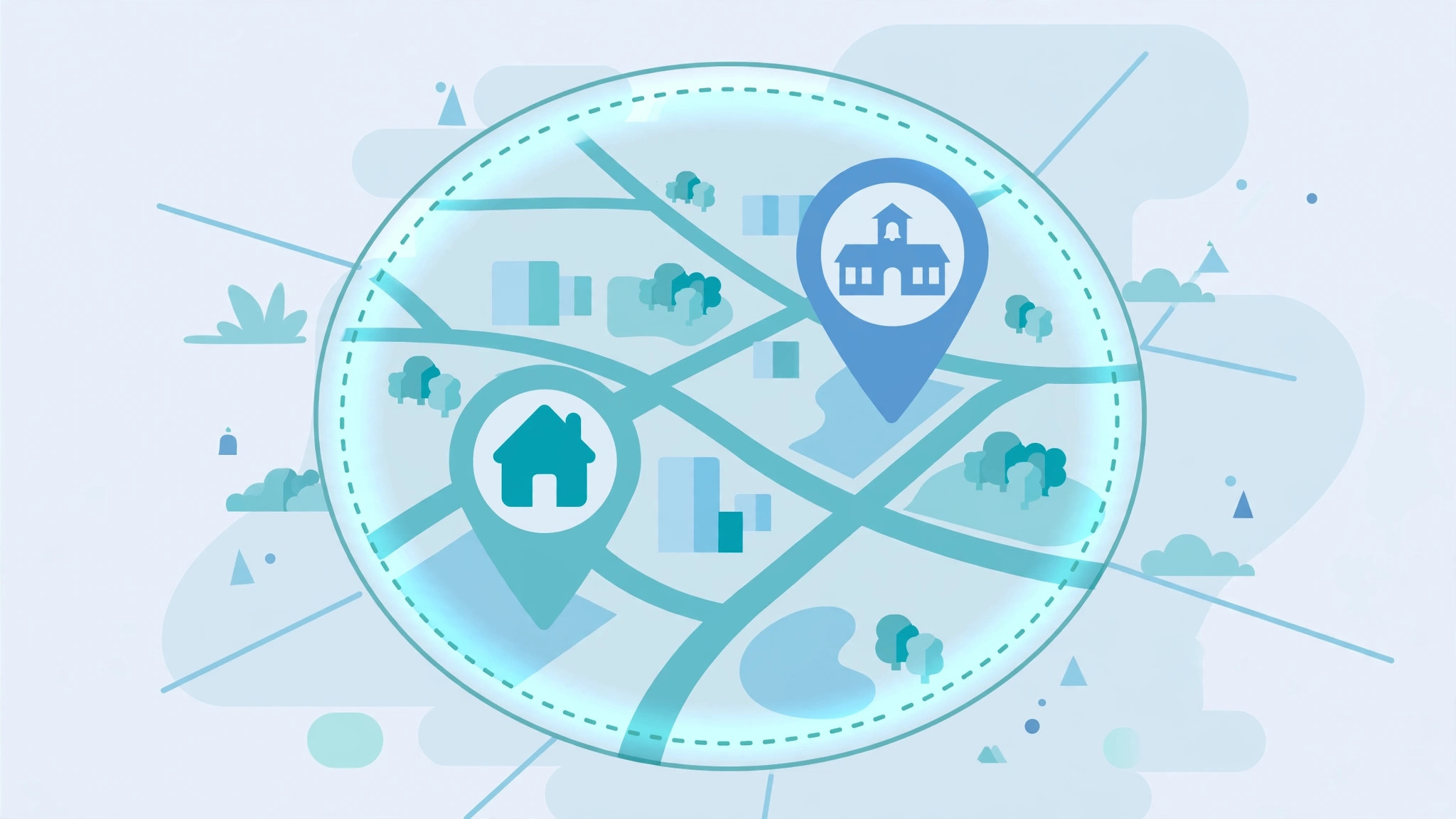
A geofence is a virtual perimeter drawn on a digital map. Picture opening a map, tapping around your child’s school to draw a circle, and naming it “School.” From that moment on, the monitoring app watches the phone’s GPS position against that circle. Cross the boundary going in → “entered School” event. Cross it going out → “left School” event. Each event can trigger a push notification, email, or just a log entry — your choice.
The term comes from “geographic fence,” and the concept is older than smartphones — logistics companies have geofenced warehouses for years. Parental monitoring apps just made it parent-friendly: draw with your finger, get alerts like text messages.
Geofencing is a feature inside a tracking app, not a standalone product. You’ll set it up in the same dashboard where you view the live map — typically under a “Geofencing,” “Places,” or “Safe Zones” tab.
How Geofencing Actually Works

Understanding the mechanics takes 90 seconds and saves you from the two most common frustrations (delayed alerts and false alerts).
The Trigger Logic
The app on your child’s phone periodically reports its GPS position to the vendor’s servers. The server compares each new position against your saved zones and evaluates a simple rule: was the last position outside the zone and the new one inside? → enter event. Inside, now outside? → leave event.
Because positions arrive every few minutes (not continuously — that would kill the battery), there’s inherent latency. An “arrived at school” alert typically lands 2–10 minutes after the actual arrival. That’s normal and fine for parenting purposes. Anyone promising “instant to-the-second” geofence alerts is overselling; the physics of periodic GPS fixes doesn’t allow it.
Zone Shapes and Sizes
Most parental apps offer circular zones: you pick a center point and a radius. A few offer polygons (custom shapes), but circles cover 95% of parenting needs. Radius guidance from our testing:
- Home: 150–250 meters. Not 20 meters. A tight home zone fires “left home” every time your kid walks to the end of the driveway or the GPS drifts indoors. Generous beats precise.
- School: 200–300 meters. School campuses are big, and indoor GPS drift is real. Cover the whole campus plus the parking lot.
- Small places (friend’s house, tutor): 100–150 meters.
- Neighborhood watch (optional): 500m–1km around home to catch “went further than agreed” without defining every destination.
Why False Alerts Happen (and How to Stop Them)
False alerts are the #1 reason parents abandon geofencing, and they’re almost always fixable:
- Zone too small. The fix above — widen it. GPS drift of 30–50 meters indoors will trip a 50-meter zone constantly.
- Overlapping zones. If “Home” and “Neighborhood” overlap heavily, you’ll get paired enter/leave spam at the boundary. Keep zones separated or nested deliberately.
- Battery optimization killing updates. When the phone throttles the app, positions arrive in bursts — the server sees a “jump” from far outside to inside and fires a spurious enter event. Exempt the app from battery optimization (our Android guide and Samsung guide show the exact taps).
- Wi-Fi positioning jumps. Indoors, the phone may snap between Wi-Fi-based positions a block apart. A wider radius absorbs this.
Advanced Geofencing Setups That Actually Help
Once the basics are running smoothly, these three setups separate parents who have geofencing from parents who benefit from it.
Schedule-Aware Zones for School Days
The most underused trick: mentally pairing zones with schedules rather than treating every alert equally. A “left School” alert at 3:15pm on a Tuesday is routine; the same alert at 10:40am is a signal. You don’t need the app to understand timetables — you do. Save your child’s school hours in your phone notes, and when a school-hours alert arrives, you instantly know which kind it is.
Some parents go further and mute the school enter alert entirely (you know the routine works — the bus arrives, the alert fires, nothing learned) while keeping the leave alert always on. The leave is the informative direction; the enter is just confirmation of the expected. Fewer notifications, higher signal.
Multi-Child Zone Management
With two or three kids, zone sprawl gets real. The fix is naming discipline and sharing: most families’ zones overlap heavily (same home, same school, often the same activities). Set the zones up once under your account — every child’s device reports against the same zone set, and alerts are tagged with the child’s name. “Maya left School” vs “Leo left School” in the same notification stream.
One caution: resist the urge to create per-child copies of identical zones. Duplicate zones with slightly different radii are a classic false-alert factory. One zone, all kids, clear names.
Combining Geofencing With Other Alerts
Geofencing gets dramatically more useful when you read it alongside the app’s other signals. A “left home” alert at 8pm followed by an “entered” alert for the approved friend’s zone is a non-event. A “left home” alert with no subsequent zone entry for an hour is worth a text. The location history timeline is where you do this detective work — and it’s why we recommend apps that keep 30+ days of history rather than a week.
Think of it as layers: geofencing tells you when to look, the live map tells you where they are, and history tells you the story. No single layer is enough; together they’re comprehensive.
👉 Set Up Geofences in Minutes with mSpy
Unlimited zones, per-zone enter/leave alerts, and a setup wizard that walks you through battery exemptions so alerts actually arrive on time.
The 5 Safe Zones Every Parent Should Set
You don’t need twenty zones. Five well-chosen ones cover a typical school-age child’s life:
1. Home
Your anchor zone. Enable both enter and leave alerts. The leave alert in the morning confirms they actually left for school (not “left” at 11am); the enter alert in the afternoon tells you they’re home without a check-in text. Radius: 200 meters.
2. School
Enable enter (“arrived safely”) and leave (“school’s out — or they left early”). The leave alert is the quietly powerful one: an unexpected 10:30am school exit is worth a calm text. Radius: 250 meters to cover the campus.
3. The Regular After-School Spot
Grandma’s house, the soccer field, the tutor’s office — wherever your child goes on a fixed schedule. Enter/leave alerts here replace “text me when you get there” for the hundredth time. Radius: 150 meters.
4. The Approved Friend’s House
For younger kids with a tight social circle. This one’s as much about your peace of mind during drop-offs as anything else. Radius: 100–150 meters.
5. The “Shouldn’t Be There” Zone (Optional, for Teens)
This is the advanced move: a zone around somewhere off-limits — not as a gotcha trap, but as a safety net you discuss openly. “I’ve set an alert for the old quarry because it’s genuinely dangerous, not because I don’t trust you.” Enter-only alert. Use sparingly; one or two of these maximum, or the relationship cost exceeds the safety benefit.
Geofencing by Age: What Makes Sense When
A 9-year-old and a 16-year-old need different geofencing setups. Here’s our parent-tested framework:
| Age | Zones | Alerts | Conversation |
|---|---|---|---|
| 6–9 | Home, school, 1–2 fixed spots | Enter + leave, all zones | “This keeps you safe; we’ll look at it together” |
| 10–12 | Add activities, friend’s house | Enter + leave; start muting routine ones | “Alerts help me not text you constantly” |
| 13–15 | Trim to home, school, key spots | Leave alerts only for school; enter for home | “Fewer alerts = more trust. Keep the routine, keep the freedom” |
| 16+ | Home + school only (or none) | Emergency/leave-only | “This stays until you’re driving solo — then we renegotiate” |
The pattern: zones shrink as trust grows. Geofencing should be a scaffold, not a cage. Tell your teen the plan explicitly — “fewer zones each year you show responsibility” turns a surveillance tool into a trust-building mechanism. Our responsible monitoring guide has full conversation scripts.
Which Apps Do Geofencing Best in 2026
We tested geofence setup, alert speed, and false-alert rates across the leading apps by walking and driving set routes through our zones.
| App | Zones | Per-Zone Enter/Leave | Alert Speed | False-Alert Rate | From (annual) |
|---|---|---|---|---|---|
| mSpy | Unlimited | ✅ Separate toggles | 2–8 min | Low | ~$11.67/mo |
| Eyezy | Multiple | ✅ | 3–10 min | Low | ~$9.99/mo |
| Parentaler | Multiple | ✅ | 3–10 min | Low | ~$10.17/mo |
| Bark | Basic | ⚠️ Limited | Varies | Medium | Varies |
| uMobix | Multiple | ✅ | 3–10 min | Low | Varies |
mSpy — Best Geofencing Overall
Unlimited zones with independent enter/leave toggles per zone is the killer combination — it lets you run the “leave alert for school, enter alert for home” setup without compromise. In our route tests, alerts arrived in 2–8 minutes with the lowest false-alert rate of the group, largely because the setup wizard forces the battery-exemption steps that other apps leave optional. Read our full mSpy review.
Eyezy — Best Value Geofencing
Covers the essentials — multiple zones, enter/leave alerts, push notifications — at ~$9.99/mo annual. Alert speed and accuracy tested essentially equal to mSpy; you’re giving up unlimited zones and some per-zone granularity most families won’t miss. The smart pick if geofencing is the feature you care about most. Read our full Eyezy review.
💰 Best Value: Eyezy
Full geofencing — safe zones, enter/leave alerts, push notifications — for less than the premium picks. Set up your first zones in under 10 minutes.
Parentaler — Best for Younger Kids
Parentaler’s geofencing is framed in plain parenting language (“Safe places” instead of “geofences”), which makes it the easiest to set up with a younger child looking over your shoulder. Feature depth is solid — multiple zones, both alert types. Read our full Parentaler review.
Bark & uMobix — Read the Reviews
Bark’s geofencing is basic — acceptable if you’re already a Bark family for its content monitoring, but not a reason to choose it. uMobix offers competent multi-zone geofencing with good Android reliability. Bark review · uMobix review.
Setting Up Your First Geofence: Step by Step
The flow is nearly identical across apps. Here’s the universal version:
- Open your parent dashboard and find the Geofencing / Places / Safe Zones tab.
- Tap “Add zone.” The map centers on the child’s last known location — search or drag to the place you want (home, school).
- Set the radius generously. Remember: 200m home, 250m school. Drag the circle edge or type the number.
- Name it clearly. “Home,” “School,” “Grandma’s” — future-you will thank present-you when reading alert logs.
- Toggle enter and leave alerts separately. Start with both on; mute the noisy ones after a week of real data.
- Choose notification channels. Push notification to your phone is the default; add email as backup for the important zones.
- Test it. Walk the phone in and out of the zone (or have your child do it on the way to school tomorrow). Confirm both alerts arrive, and note the delay — that’s your baseline.
- Review after one week. Open the alert log, find the false positives, and widen the offending zones. One tuning pass eliminates ~90% of noise.
Geofencing Without a Paid App: Free Options
Honest answer: yes, free options exist, with real trade-offs.
- Apple Find My (iPhone families): free, built-in, and offers “notify when” arrival/departure alerts for contacts sharing location. Surprisingly capable for basic home/school zones. Limitations: requires the child to keep sharing (they can pause it), no history, no logs.
- Google Family Link (Android): free location sharing with basic alerts. Same deal — works until a savvy teen toggles it off, and there’s no tamper alert.
- Life360 (freemium): the popular family locator; free tier includes 2 places with alerts. Good middle ground, though the free tier is deliberately limited to upsell you.
The paid monitoring apps earn their money on tamper-resistance (alerts if location is turned off), unlimited zones, history + logs, and combining location with everything else (messages, apps, web). If your kid is young and cooperative, free is genuinely fine. If you need reliability with a teenager, paid is worth it. Our free parental control guide covers the free tier landscape.
Geofencing Myths, Busted

“Geofence alerts are instant.” No — 2–10 minutes is normal, driven by GPS fix intervals. Plan around it; don’t expect to catch someone mid-boundary-crossing.
“More zones = better protection.” More zones = more noise = you start ignoring alerts, which is worse than fewer zones. Five good zones beat fifteen noisy ones.
“Geofencing works if the phone is off.” It doesn’t. No power, no GPS, no alerts. The dashboard shows the last known position — good apps tell you it’s stale.
“My teen can’t get around it.” A teen who turns off location services, enables airplane mode, or leaves the phone at a friend’s house defeats any geofence. The best apps send tamper alerts (“location services disabled”), which is the real defense — but ultimately, geofencing works best with cooperation, not against resistance.
“I need exact addresses in alerts.” You need timely awareness, not surveying precision. “Left School zone at 3:12pm” is actionable; whether the pin was at the gate or the parking lot is not.
🧭 Try Geofencing Risk-Free
mSpy’s 14-day money-back guarantee means you can set up your zones, run them for a week, and tune the false alerts out — then decide. Most parents know by day 3.
Frequently Asked Questions
Final Verdict
Geofencing is the highest-leverage feature in parental location tracking: five minutes of setup buys you months of automatic awareness. Draw your zones generously, tune once after a week, and shrink the setup as trust grows — that’s the whole playbook.
For the deepest implementation — unlimited zones, per-zone enter/leave toggles, and the setup wizard that actually prevents the battery-optimization problems behind most false alerts — mSpy is our pick, with Eyezy delivering the same core alerting for less. Pair either with our GPS tracking overview and you’ll have the complete location picture.
👉 Our #1 Pick: mSpy
Unlimited geofences, separate enter/leave alerts per zone, tamper notifications — backed by a 14-day money-back guarantee.
