Google Family Link: Complete Guide (2026)
Google Family Link is the free parental control system built into Android — and with 74,000 monthly searches, it’s the first thing most parents try. It handles app approvals, screen time limits, bedtime schedules, content filters, and location sharing at zero cost.
Here’s the honest version: Family Link is excellent for kids under 13 on Android phones, tablets, and Chromebooks. It starts showing real cracks with teenagers, iPhones, and determined kids who know about factory resets. This guide covers setup step by step, what it can and can’t do, and exactly when a paid app becomes worth it.
Quick verdict: Google Family Link is free and genuinely useful — app approvals, daily screen time limits, bedtime, web filters, and location sharing. Best for children under 13 on Android. It can’t monitor iPhones, read social media messages, or stop a teen over 13 from turning supervision off. If you need message monitoring, social media visibility, or iPhone coverage, that’s when a dedicated app earns its price.
👨👩👧 When Free Isn’t Enough: Parentaler
Family Link covers the basics beautifully — but it can’t show you WhatsApp chats, Instagram DMs, or deleted messages. Parentaler picks up where free controls stop, with setup that takes minutes.
14-day money-back guarantee. Confirm live pricing at checkout.
What Is Google Family Link?
Google Family Link is Google’s free parental supervision service for children’s Google Accounts and devices. A parent installs the Family Link for Parents app on their own phone, links their child’s Google Account, and manages the child’s Android device or Chromebook remotely.
Think of it less as “spy software” and more as a remote control panel for your child’s digital life. You approve or block app downloads, set daily screen time limits, schedule bedtime lockdowns, filter web content, and see where your child is — all from your phone.
Family Link works through the child’s Google Account, which means the supervision follows the account across devices. Set a 2-hour daily limit once, and it applies whether your child is on their phone or their Chromebook.
The Two Apps: Parent vs Child
There are two sides to the system, and mixing them up is the most common setup mistake.
Family Link for Parents (your phone, Android or iPhone) is the control center. You see activity reports, approve app requests, change limits, lock the device instantly, and track location. This is the only app you need as the parent.
Family Link for Children & Teens runs on the child’s device (Android phone/tablet or Chromebook). Kids don’t “use” it the way you do — it mostly runs in the background enforcing your rules. Older kids can see their own screen time stats and request more time or app approvals through it.
One account detail that matters: for children under 13 (or the applicable age in your country), you create and manage their Google Account through Family Link. For teens 13 and older, they have their own account and supervision becomes optional — a distinction with big consequences we’ll cover in the honest limits section.
Is Google Family Link Free?
Yes. Completely free, no tiers, no premium upsell, no trial that expires.
Google makes money from its ecosystem, not from parental controls, so Family Link has no paid version. Every feature — app approvals, screen time, filters, location — costs nothing. That’s genuinely rare in this space and the main reason to start here before spending money.
The trade-off is scope. Free means Google’s priorities, not yours: Family Link manages Google’s ecosystem well and everything else barely. Here’s how it stacks against paid options:
| Google Family Link | Paid monitoring apps (mSpy, Eyezy, Parentaler) | |
|---|---|---|
| Price | Free forever | From ~$9.99–$11.67/mo (annual) |
| App approvals & blocking | ✅ Yes | ✅ Yes |
| Screen time limits & bedtime | ✅ Yes | ✅ Yes |
| Web content filters | ✅ Basic | ✅ Advanced |
| Location tracking | ✅ Yes | ✅ Yes + geofencing alerts |
| Social media message content | ❌ No | ✅ Yes (WhatsApp, Instagram, Snapchat) |
| Call & SMS logs | ❌ No | ✅ Yes |
| iPhone child devices | ❌ No | ✅ Yes (iCloud method) |
| Works after age 13 | ⚠️ Teen can disable | ✅ Continues with consent setup |
Confirm live pricing at checkout — promos change often.
The takeaway: start free. If Family Link covers your needs, you’ve spent nothing. The comparison table tells you exactly what money buys if it doesn’t.
What Family Link Can Actually Do
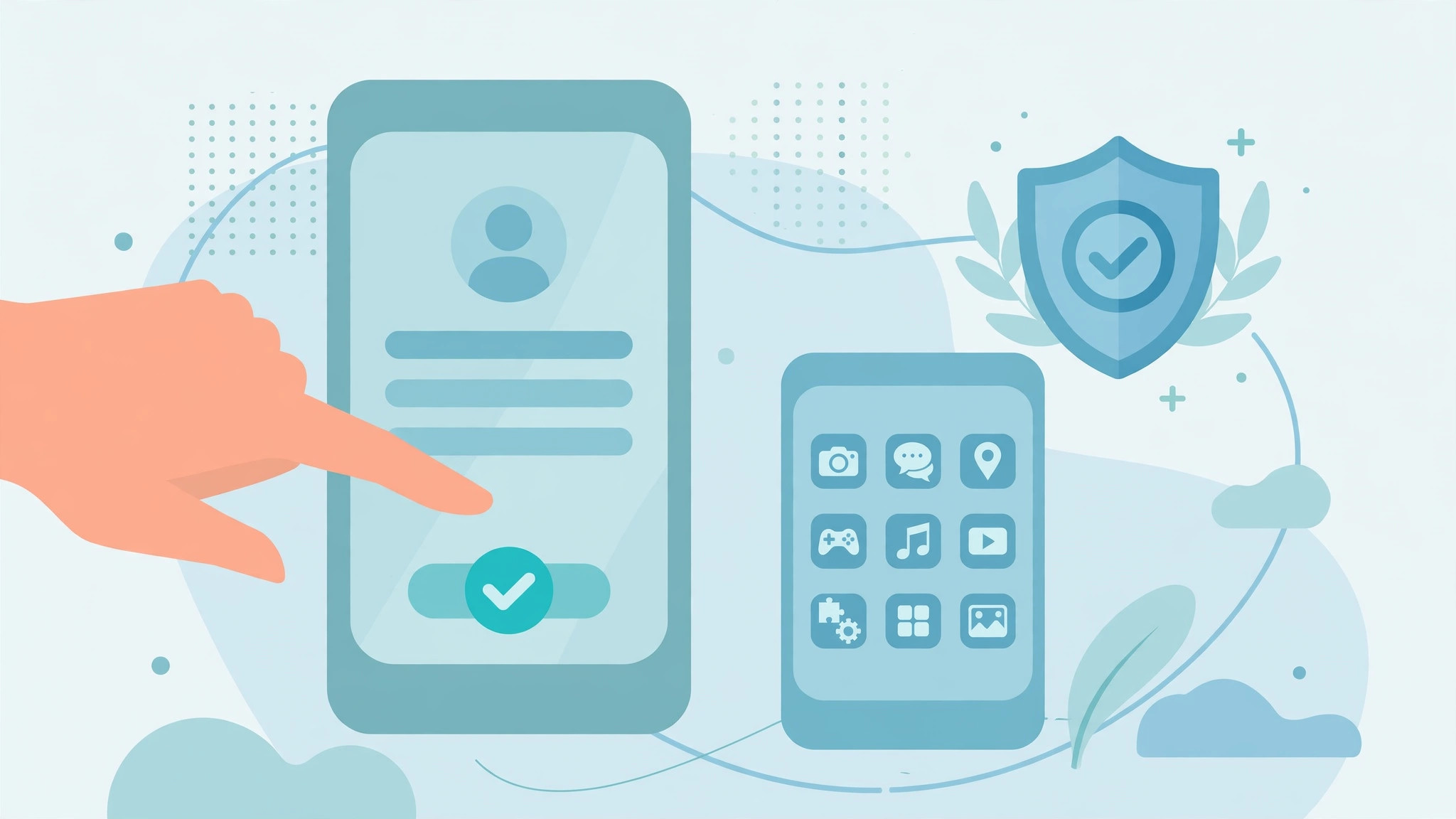
Let’s get specific about each feature, because “parental controls” is vague until you see the actual levers.
App Approvals and Blocking
Every app your child tries to download from Google Play triggers an approval request on your phone. You see the app name, its age rating, and can approve or deny with one tap. You can also block already-installed apps remotely or set per-app time limits — 30 minutes of YouTube but unlimited Duolingo, for example.
This is Family Link’s strongest feature. App-by-app control with remote approval is genuinely well designed, and it works in real time. When your 8-year-old tries to install something questionable at a sleepover, you get the ping wherever you are.
Screen Time Limits and Bedtime
You set a daily screen time limit (say, 2 hours on school days, 4 on weekends) and a bedtime window (say, 9 PM to 7 AM) when the device locks except for calls. The child sees a countdown; when time runs out, the device locks with an option to request bonus time, which pings you.
Limits apply per day across the child’s supervised devices. The bedtime lock is the sleeper hit — parents consistently say it’s the single most useful feature, because it ends the “one more video” negotiation permanently.
Content Filters
Family Link filters across Google’s services: Google Play (age-rated app/game/movie restrictions), Chrome (SafeSearch + site blocking), YouTube (Restricted Mode), and Google Search. You manage allowed/blocked websites from the parent app.
The honest note: these are Google-ecosystem filters. They don’t filter inside TikTok, Instagram, or Snapchat — those apps have their own (weaker) internal controls. If your child’s risk surface is social apps rather than the web, this filter layer helps less than you’d hope.
Location Tracking
See your child’s device location on a map in the parent app. It’s basic — current location, no geofence alerts, no location history timeline. For “where is my kid right now,” it works. For “alert me when they leave school,” you’ll need something else.
Activity Reports
Weekly (and daily) reports show which apps your child used and for how long. It’s useful for spotting the “three hours of YouTube yesterday” pattern and adjusting limits. It doesn’t show content — you see “Instagram: 47 minutes,” not what was in the DMs.
What Family Link Can’t Do: The Honest Limits
This is the section most guides skip, and it’s the reason parents get frustrated six months in. Knowing the limits upfront saves you from discovering them at the worst moment.
Teens 13 and Older Can Stop Supervision
This is the big one. When a child turns 13 (or the applicable age in your country), Google notifies them they can graduate to a normal account. They can stop supervision entirely — and you can’t prevent it through Family Link.
For younger kids this doesn’t matter. For a 14-year-old, it means Family Link is a voluntary arrangement. If your teen wants out, they’re out. Paid monitoring apps handle this differently (they’re installed with the teen’s knowledge under your device-ownership arrangement), which is exactly why families with teens often outgrow Family Link.
No iPhone Management
Family Link supervises Android devices and Chromebooks. The parent app runs on iPhone, but you cannot supervise a child’s iPhone with it. If your child has an iPhone, Family Link is a non-starter for device management — you’d use Apple’s Screen Time instead (see our iPhone Screen Time guide).
This is the most common disappointment we hear: a parent sets everything up beautifully, then realizes it doesn’t touch the iPhone their kid actually uses.
Factory Resets and Determined Workarounds
On supervised devices, Family Link blocks factory resets by default — the child can’t just wipe the phone to escape supervision. But determined kids find paths: booting into safe mode (on some devices), using a second unmanaged device, or simply waiting until 13.
Search data tells the story: “how to bypass family link screen time” (320/mo), “family link bypasser,” “hack family link” — kids are actively researching this. No system is teenager-proof. The realistic goal is making circumvention difficult and detectable, not impossible.
No Social Media Message Content
Family Link shows app usage time, never message content. You cannot read WhatsApp chats, Instagram DMs, Snapchat messages, or text messages through it. If your concern is who your child is talking to and what they’re saying — cyberbullying, predators, sexting — Family Link is blind there by design.
This is the single biggest reason families upgrade to paid monitoring. It’s not a flaw in Family Link; it’s a scope decision. But you should know the boundary exists.
Chromebook and School Account Gaps
Family Link supervises personal Google Accounts on Chromebooks well. It does not supervise school-issued Google Workspace for Education accounts — those are managed by the school. If your child does homework on a school Chromebook, that’s a separate (usually well-managed) universe you can’t see into from Family Link.
🔍 Need Message-Level Visibility?
Family Link shows how long your child used Instagram — not what was said in the DMs. If your concern is conversations (cyberbullying, strangers, sexting), you need an app built for it. mSpy captures WhatsApp, Instagram, and Snapchat content with a 14-day money-back guarantee.
How to Set Up Google Family Link: Step by Step
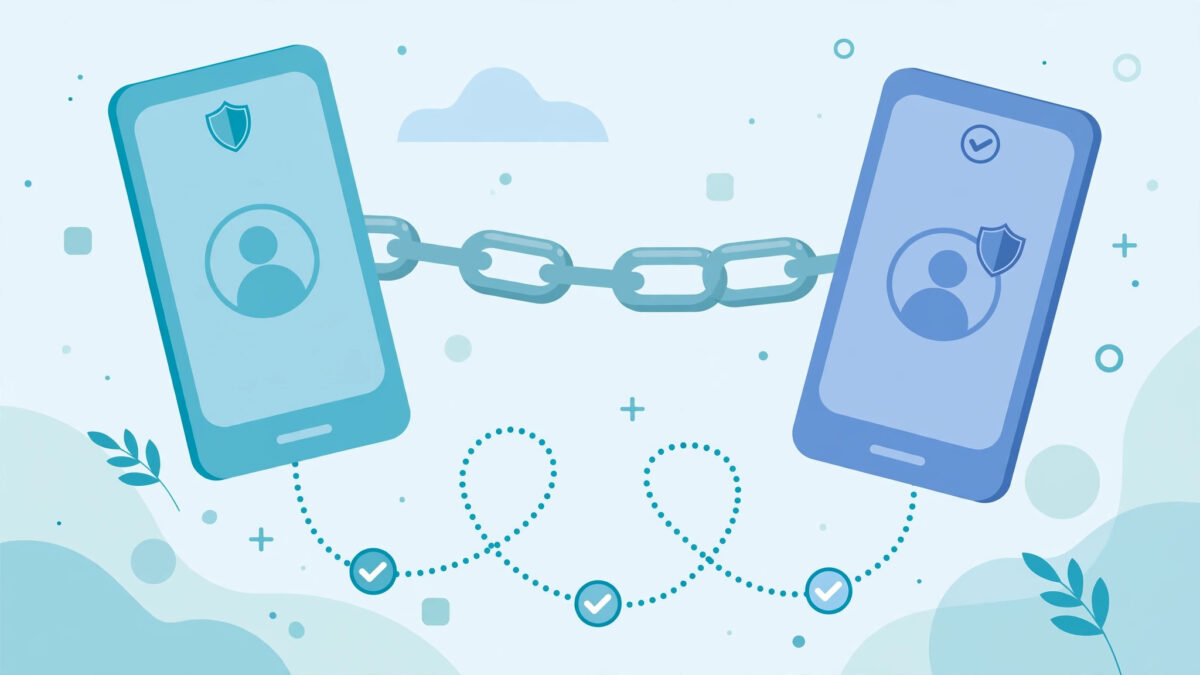
Setup takes about 15 minutes if the child’s device is new or freshly reset, a bit longer if you’re converting an existing device. Here’s the full walkthrough.
What You Need First
- Your phone (Android or iPhone) with the Family Link for Parents app installed
- Your child’s device: Android running 7.0 (Nougat) or higher, or a Chromebook
- Your Google Account (as the family manager)
- Your child’s Google Account — either one you create during setup (under 13) or their existing account (13+)
One gotcha: if your child’s Android device already has their account on it and a pile of apps, setup involves more steps than starting fresh. Back up anything important first.
The Setup Steps
- Install Family Link for Parents on your phone from Google Play or the App Store. Open it and sign in with your Google Account.
- Start child setup. Tap “Set up” and choose whether this is a new device or an existing one. For a new device, power it on and follow the prompts to add the child’s account.
- Create or link the child’s Google Account. For under-13s, you’ll create the account right in the flow (name, birthday — be honest about the birthday, it drives age-based defaults). For teens, sign in with their existing account and they’ll get a supervision consent screen.
- Connect the devices. The parent app shows a setup code. Enter it on the child’s device when prompted. Keep both devices nearby with Bluetooth and Wi-Fi on.
- Review the default protections. Family Link proposes age-based defaults — app rating limits, web filters, YouTube Restricted Mode. Accept them for now; you’ll tune later.
- Set initial screen time limits. Pick a daily limit and bedtime window. Start stricter than you think — loosening later feels like a gift, tightening feels like punishment.
- Test the approval flow. On the child’s device, try downloading an app from Play. Your phone should ping with an approval request. Approve or deny it to confirm the loop works.
- Walk your child through it. Show them where to see their remaining time and how to request bonus time. Kids accept limits far better when the system isn’t a mystery.
Adding a Second Parent
Go to Family Link for Parents → Menu → Manage family → Invite family member. The second parent gets nearly full management rights. Both parents receive approval requests, which prevents the “ask the other parent” loophole kids discover within days.
Family Link on iPhone: What Actually Works
Short version: the parent app works on iPhone; child supervision doesn’t.
You can absolutely be an iPhone-using parent managing an Android child’s device — the parent app is fully functional on iOS. What you can’t do is supervise a child’s iPhone. There’s no Family Link child profile for iOS, no screen time enforcement, no app approvals on an iPhone.
If your household is iPhone-based for the kids, your path is Apple’s Screen Time (free, built in) possibly layered with a third-party monitoring app for message visibility. Our iPhone Screen Time guide walks through the full Apple setup, and our iPhone monitoring hub covers the paid layer.
The mixed household (parent on iPhone, kid on Android) is actually Family Link’s sweet spot for cross-platform families — it just only flows one direction.
Screen Time Limits: Configuring Them Well

Default limits are a starting point, not a strategy. Here’s how experienced parents tune them.
Start with the bedtime, not the daily total. A 9 PM–7 AM lock does more for sleep and mornings than any daily minute count. Set this first, before arguing about hours.
Differentiate school days and weekends. Family Link lets you set per-day limits. A common working formula: 1.5–2 hours on school days, 3–4 on weekends, with educational apps (reading, coding, homework tools) set to “always allowed” so they don’t burn entertainment minutes.
Use per-app limits for the time-sinks. Instead of fighting over the total, cap YouTube and TikTok individually at 45–60 minutes. Kids negotiate less when the rule targets the specific app rather than “screen time” as a blob.
Review the activity report weekly. Sunday evening, two minutes: which apps ate the hours? Adjust one limit. This weekly tune-up is what separates parents for whom Family Link “works” from those for whom it “doesn’t do anything.”
Expect the bonus-time requests. Kids will request extra time — that’s the system working, not failing. Approve sometimes (goodwill bank), deny with a reason other times. The request flow itself teaches time negotiation.
Troubleshooting: Parent Access Codes and Common Glitches
Parent access code: When the child’s device is offline or locked and needs your approval, Family Link generates a parent access code on your phone (Family Link for Parents → child’s device → parent access). Enter it on the child’s device to unlock or approve. Codes expire quickly — generate fresh each time. This is the number-one “how do I” search for a reason; it’s poorly documented in the app.
“Daily limit not working”: Usually one of three causes: the limit applies per Google Account and the child switched accounts; “always allowed” apps are eating the budget invisibly; or the child’s device time zone is wrong. Check all three before reinstalling anything.
App approval not arriving: Both devices need internet. If your phone is on Wi-Fi and the child’s on patchy mobile data, requests queue silently. Also check notification permissions for the Family Link parent app — a surprising number of “it’s broken” cases are just silenced notifications.
Child’s device not appearing: The supervision link breaks most often after major Android updates. Remove the device from Family Link and re-add it; your settings are preserved at the account level.
When Family Link Isn’t Enough: The Honest Upgrade Path
There’s no shame in outgrowing a free tool. Here are the signals it’s time, and what the upgrade buys:
| Signal you’ve outgrown it | What a paid app adds |
|---|---|
| Child turned 13+ and supervision feels voluntary | Monitoring that doesn’t depend on Google’s age gates |
| Your concern is conversations, not screen hours | WhatsApp/Instagram/Snapchat message content |
| Child uses an iPhone | iCloud-based iPhone monitoring |
| You need location history and geofence alerts | GPS trails + safe-zone notifications |
| You want deleted-message recovery | Deleted chat and media capture |
The upgrade doesn’t have to mean abandoning Family Link either. Many families run both: Family Link for the free enforcement layer (bedtime lock, app approvals) plus a monitoring app for visibility. They solve different problems.
💰 Best Value When You Upgrade: Eyezy
If Family Link’s limits are your nudge to go paid, Eyezy is the value pick — most of mSpy’s monitoring depth (social apps, location, web) at a lower price, with a clean parent dashboard. From ~$9.99/mo on annual plans.
Confirm live pricing at checkout — promos change often.
🛡️ Built for Parents: Parentaler
Parentaler was designed as a parental control suite rather than a repurposed tracker — age-based setup, web filtering, and screen schedules in one place, backed by a 14-day money-back guarantee.
Frequently Asked Questions
Final Verdict
Google Family Link is the best free parental control system for Android families, full stop. App approvals, screen time limits, bedtime locks, and content filters at zero cost is genuinely generous, and for kids under 13 it covers 80% of what most parents need.
Its boundaries are equally clear: no iPhone supervision, no message content, and a hard stop at age 13. Know those going in and you’ll never be disappointed. Start free, learn what your family actually needs, and upgrade only when a specific gap — conversations, iPhones, teens — demands it.
👉 Start Free, Upgrade When You Need To
Set up Family Link today — it costs nothing and takes 15 minutes. And when you’re ready for message-level visibility, mSpy’s trial lets you test full monitoring before committing.
14-day money-back guarantee on paid plans. Confirm live pricing at checkout.
