iCloud Spy Setup: Monitor iPhone Remotely in 10 Minutes (2026)
The iCloud method is how iPhone monitoring works in 2026: no jailbreak, no touching the phone, no app installed on it. You enter the Apple ID credentials into your monitoring dashboard, approve one 2FA code, and data starts flowing.
This is the step-by-step walkthrough — every screen, every setting to enable on their iPhone (via iCloud.com if you can’t touch it), and every gotcha.
What you need: the child’s Apple ID + password, one 2FA code (one-time), a monitoring subscription (mSpy recommended for iPhone), and 10 minutes.
🏆 Best iCloud Monitoring: mSpy
Cleanest iCloud setup flow. From ~$11.67/mo.
How It Works (60-Second Primer)
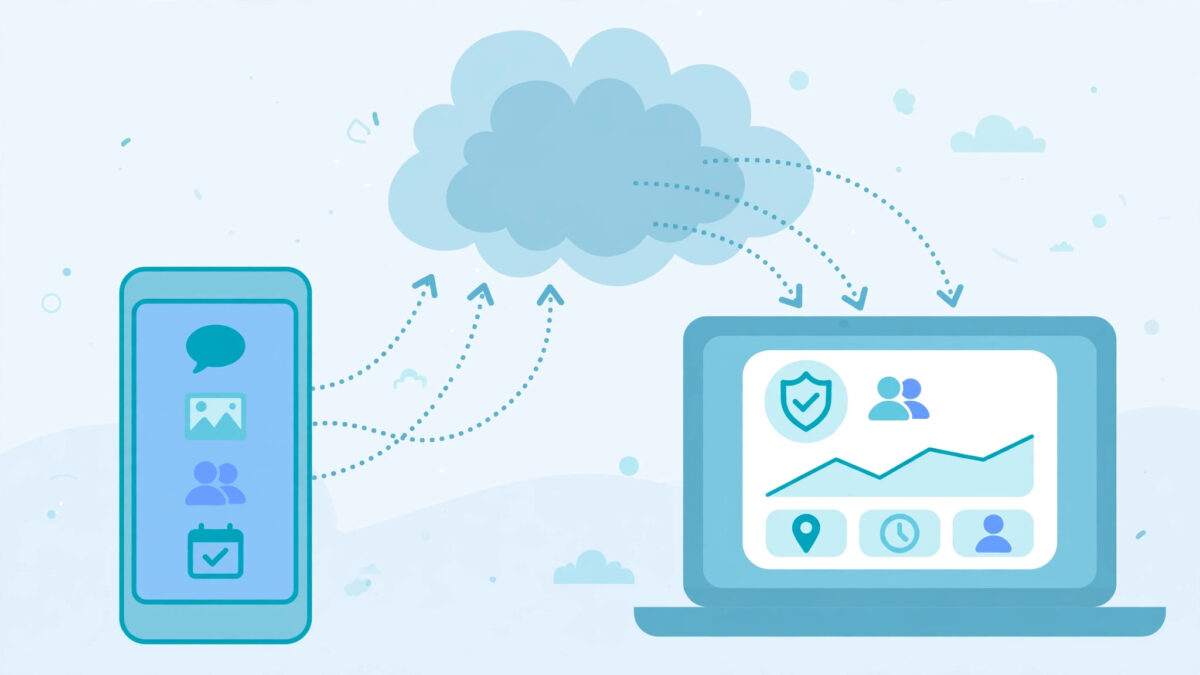
iPhones sync data to iCloud continuously (messages, photos, etc.) and back up periodically (call history, WhatsApp). Monitoring services read this iCloud data with the account credentials — the same way iCloud.com shows it. Your dashboard is essentially a parental-organized view of their iCloud.
No software on the phone = no trace, no battery impact, survives factory resets. The trade-off: backup-speed data (minutes–hours), no keylogger.
Prerequisites Checklist
- [ ] Monitoring subscription purchased (monthly for testing)
- [ ] Child’s Apple ID (email) + password
- [ ] Ability to receive ONE 2FA code (their trusted device accessible, or their cooperation)
- [ ] Their iPhone has internet (for iCloud sync to work at all)
- [ ] 10 minutes + up to 24h for first full sync
Step 1: Enable iCloud Sync on Their iPhone
If you can touch the phone (easiest): Settings → [their name] → iCloud → enable:
- iCloud Backup → On
- Messages → Sync this iPhone
- Photos → Sync this iPhone
- iCloud Drive → On
If you can’t touch the phone: you can’t enable these remotely — but most iPhones already have them on by default. The monitoring will work with whatever’s enabled; more sync = more data. (WhatsApp backup must be enabled inside WhatsApp itself — see Step 1b.)
Step 1b: WhatsApp iCloud Backup
On their iPhone: WhatsApp → Settings → Chats → Chat Backup → Auto Backup → Daily. Without this, WhatsApp messages don’t reach iCloud — and don’t reach your dashboard. This is the most commonly missed setting.
Step 2: Check iCloud Storage
Settings → [their name] → iCloud → Storage. If it’s full (5GB free tier fills fast), syncs stall silently.
Fix: upgrade to 50GB ($0.99/mo) — the practical minimum. Do it from their account (or yours via Family Sharing). This $1/month prevents the #1 mysterious-stoppage cause.
Step 3: Enter Credentials in the Dashboard
- Log into your monitoring account (mSpy/Eyezy/etc.) on YOUR device.
- Choose iPhone / iCloud setup (not jailbreak).
- Enter the child’s Apple ID and password.
- Click verify — Apple’s 2FA challenge triggers.
Step 4: Approve the 2FA Code (The One Tricky Step)

Apple sends a 6-digit code to the child’s trusted devices. You need to see it once.
Option A — Ask them: “I’m setting up the family monitoring; Apple sent a code to your phone — can you read it to me?” Honest, simple, recommended.
Option B — Be present: time the setup when you’re near their phone and can glance at the code.
Option C — Trusted number: if YOUR number is a trusted number on their Apple ID, the code comes to you. (Set this up in advance: their iPhone → Settings → [name] → Sign-In & Security → add your number.)
Enter the code in the dashboard. Access is established — future logins rarely need codes (Apple re-challenges every few months).
Step 5: Wait for First Sync (1–24 Hours)
The dashboard populates gradually — messages first (fast sync), then photos, then backup data (calls, WhatsApp). Don’t panic at hour 2 if WhatsApp is empty — backup data takes longest.
Verify at 24h: send a test iMessage to their phone → check dashboard within 30 min. Take a photo → check Photos section. These confirm the pipeline works.
What Each Vendor’s Setup Looks Like
mSpy: the smoothest — guided iCloud flow with per-setting checklists and a sync-status indicator. Tells you exactly which iCloud toggles are off.
Eyezy: clean flow, slightly less diagnostic detail. Good onboarding after connection.
Spynger/Parentaler: functional iCloud setup; fewer hand-holding diagnostics. Follow this guide alongside and you’ll be fine.
💰 iPhone Value: Eyezy
Troubleshooting
| Problem | Fix |
|---|---|
| “Invalid Apple ID” | Check email spelling; verify at iCloud.com first |
| 2FA code never arrives | Trusted device offline — ensure their phone has signal; check trusted numbers |
| Dashboard empty after 24h | iCloud storage full (most likely); Messages-sync off; 2FA re-challenge |
| WhatsApp missing | WhatsApp Chat Backup not enabled (Step 1b) |
| Photos missing | iCloud Photos sync off |
| Stopped after months | Password changed (update dashboard) or storage full |
| Constant 2FA prompts | Too many sign-in locations — consolidate; check Apple account security |
The Sign-In Email (Handle It)
Apple emails “Your Apple ID was used to sign in” — your teen may see it. Disclose upfront rather than explaining after discovery. “I’m setting up monitoring; you’ll get an Apple email — that’s expected.” Discovered secrecy damages trust more than disclosed monitoring.
Legal Note
iCloud monitoring of your minor child’s account as parent/guardian is lawful. Accessing another adult’s iCloud without consent violates computer-crime laws. The 2FA step is Apple’s consent gate — don’t circumvent it for non-consensual access. Consult a local attorney when in doubt.
Frequently Asked Questions
Pre-Flight: Verify at iCloud.com First
Before touching the monitoring dashboard, verify the credentials work:
- Go to iCloud.com on your computer.
- Sign in with the child’s Apple ID + password.
- Complete 2FA.
- Check: do you see Messages, Photos, etc.?
Why this matters: if iCloud.com shows the data, the monitoring app will too — the app reads the same iCloud. If iCloud.com is empty, the problem is sync settings (Step 1), not the monitoring app. This 2-minute test separates “credential problem” from “sync problem” and saves hours of misdirected troubleshooting.
What iCloud.com tells you:
- Messages visible → Messages sync ON ✓
- Photos visible → iCloud Photos ON ✓
- Empty → sync off or storage full (fix before proceeding)
Advanced 2FA Strategies
The 2FA code is the only human-interaction step. Optimize it:
Strategy 1: Add your number as trusted (best). Their iPhone → Settings → [name] → Sign-In & Security → Two-Factor Authentication → add your phone number as trusted. Future codes come to YOU. Do this once, never chase codes again.
Strategy 2: The scheduled setup. “Hey, I’m setting up the monitoring at 8pm — I’ll need the code Apple sends.” Scheduled, expected, no surprise. The disclosure approach with logistics.
Strategy 3: The Family Sharing parent. If you manage their child account via Family Sharing, you may already have the recovery/2FA pathways. Check what’s available before improvising.
What NOT to do: don’t try to intercept codes secretly, don’t use their phone without context repeatedly, don’t disable 2FA (you can’t anyway — Apple requires it). The 2FA gate is a feature, not a bug.
Per-App iCloud Settings (The Complete List)

Beyond the basics, these per-app toggles control what reaches your dashboard:
| iPhone Setting | Dashboard impact |
|---|---|
| Messages → Sync this iPhone | iMessages/SMS content |
| Photos → Sync this iPhone | Photo/video library |
| iCloud Drive | Files, documents |
| Contacts → Sync | Contact list |
| Calendars → Sync | Calendar events |
| Notes → Sync | Notes content |
| Safari → Sync | Bookmarks, history, tabs |
| Health → Sync | Health data (rarely needed) |
| Wallet → (no sync) | Not monitorable (by design) |
WhatsApp (separate): WhatsApp → Settings → Chats → Chat Backup → include videos (optional — videos bloat backup size; text+photos usually suffice).
Third-party apps (Snapchat, TikTok, Instagram): these don’t back up message content to iCloud meaningfully. iPhone monitoring’s blind spot — be aware, not surprised.
The Storage Deep-Dive

iCloud’s 5GB free tier is the silent killer of iPhone monitoring:
How it fills: photos (biggest), WhatsApp backups (second), device backups (third). A teen’s phone hits 5GB in weeks.
Symptoms of full storage: dashboard goes stale gradually (newest data stops first), iCloud.com shows old data, no error messages anywhere (Apple doesn’t alert clearly).
The fix ladder:
- 50GB ($0.99/mo) — solves it for most. Buy via their account or Family Sharing.
- 200GB ($2.99/mo) — if multiple kids share Family Sharing storage.
- Optimize iPhone Storage (Settings → Photos → Optimize) — keeps thumbnails local, full photos in cloud. Reduces backup size.
Check quarterly. Put a calendar reminder. “Dashboard stale” is almost always this.
Re-Authentication: When Apple Asks Again
Apple periodically re-challenges iCloud sessions — every few months, after password changes, after iOS updates, or if sign-in patterns look unusual.
What you’ll see: dashboard shows “authentication required” or data goes stale.
What to do: re-enter the Apple ID password in the dashboard, approve the new 2FA code (same process as setup, 2 minutes).
Minimizing re-auth:
- Don’t log into the monitoring dashboard from many different devices/IPs (looks suspicious to Apple).
- Keep the Apple ID password stable (every change = re-auth).
- Use Strategy 1 (your trusted number) so codes come to you.
Security Hardening (Protect the Setup)
Your monitoring dashboard contains your child’s private data — secure it like it matters (it does):
- Unique strong password for the monitoring account (password manager).
- 2FA on the monitoring account if the vendor offers it.
- Don’t share the dashboard login casually — every viewer is a privacy risk.
- Secure the Apple ID too: if someone gets the Apple ID password, they get the same iCloud access. Strong password + 2FA on the Apple ID protects both.
- Your own device: lock screen on, don’t stay logged into the dashboard on shared computers.
Family Scenarios
“Two iPhones, two kids.” Most plans are per-device. Options: two monthly plans (~$96/mo — expensive), one annual + one monthly, or vendor family plans (ask support). Budget accordingly.
“Shared family iPad too.” Same Apple ID = same iCloud = the iPad’s data merges in. Usually fine (it’s the same child’s data). Different Apple ID = separate setup.
“Divorced co-parents.” Whoever holds the Apple ID credentials controls the monitoring. Agree in the parenting plan — technically, either parent with credentials can set it up. Don’t weaponize it.
“Teen bought their own iPhone.” Legally trickier — they own the device, but as a minor you’re still the guardian. The Apple ID situation determines practicality. Have the conversation before the technology.
🏆 Remote Setup, Real Results: mSpy
What Success Looks Like (Timeline)
Hour 0: credentials entered, 2FA approved. Hour 1: dashboard shows account connected; messages start appearing. Hour 6: photos syncing; call history populating. Hour 24: full first sync complete — WhatsApp, Safari, notes all present. Day 3: you’ve verified with test message + test photo. Baseline established. Day 10: keep-or-refund decision (switch to annual if keeping). Month 3: first re-auth or storage check — routine maintenance begins.
If Hour 24 shows nothing: don’t wait longer — troubleshoot immediately (storage, sync toggles, 2FA). The first sync either works in 24h or something’s wrong.
Frequently Asked Questions (Continued)
Can I use iCloud.com instead of a paid app?
Partially — iCloud.com shows messages and photos manually, but no alerts, no organization, no call history view, no keyword monitoring. The paid app is the usable interface; iCloud.com is the verification tool.
Does the child need to do anything?
Only the one 2FA code (if you don’t have a trusted number). Otherwise zero involvement.
What if they have Android too (dual phone)?
Separate setups — iCloud for the iPhone, APK for the Android. Two dashboards (or one vendor covering both).
Can Apple block monitoring services?
Apple tolerates web-based iCloud access (it’s the same as iCloud.com). They’ve never blocked the major vendors. The risk is negligible.
Does Low Data Mode break syncing?
It slows background sync. If their phone is perpetually in Low Data Mode, expect delays. Worth checking if data is inexplicably slow.
What about iCloud+ Private Relay?
Doesn’t affect iCloud sync data — only Safari browsing IP masking. Monitoring unaffected.
The 10-Minute Setup Checklist (Tear-Off)
- [ ] Subscription purchased
- [ ] Credentials verified at iCloud.com (2-min pre-test)
- [ ] iCloud Backup ON, Messages/Photos sync ON
- [ ] WhatsApp Chat Backup → Daily
- [ ] iCloud storage not full (50GB if needed)
- [ ] Credentials entered in dashboard
- [ ] 2FA code approved (your trusted number = easiest)
- [ ] Wait up to 24h for full sync
- [ ] Test: send iMessage → appears in dashboard
- [ ] Test: take photo → appears in dashboard
- [ ] Sign-in email disclosed to teen
- [ ] Day-10: keep (annual) or refund
Bottom Line
iCloud setup is the easiest monitoring setup in existence: verify at iCloud.com, enable the syncs, enter credentials, approve one code, wait 24 hours. The gotchas are all boring (storage full, WhatsApp backup off, password changed) — which means they’re all fixable. Ten minutes of setup, then the dashboard does the work.
💰 Start Remote Today: Eyezy
P.S. The Two-Minute Pre-Test
If you take one thing from this guide: verify at iCloud.com before buying. Sign in with their Apple ID, look at what’s there. If messages and photos show up, every monitoring app will work beautifully — buy with confidence. If iCloud.com is empty, fix the sync settings first — no app can read data that isn’t in iCloud. Two minutes that prevent 100% of “I bought it and see nothing” disasters.
TL;DR
iCloud.com pre-test → enable syncs (Messages, Photos, Backup) → WhatsApp Chat Backup daily → check storage (50GB) → enter credentials in dashboard → approve 2FA (your trusted number = easiest) → wait 24h → verify with tests → disclose the sign-in email → day-10 decision. Ten minutes active, 24 hours passive. No jailbreak, no phone touching, no trace.
Related Guides
- iPhone complete guide — the full picture
- Screen Time guide — free Apple controls
- Jailbreak explained — why it’s unnecessary
- Best iPhone spy apps — ranked picks
- mSpy review — the smoothest iCloud setup
Our Testing Note
Verified October 2026 with iCloud sync configurations on iOS 17/18. Sync speeds measured on Wi-Fi; cellular sync is slower. Apple adjusts iCloud behavior periodically — we re-verify annually and after major iOS releases.
Appendix: What If You Can’t Get the Apple ID Password?
The honest answer: no password, no iCloud monitoring. There’s no legitimate bypass — that’s Apple’s security working correctly.
Legitimate paths to the password:
- Family Sharing child account — you created it, you know it (or can reset it).
- Ask — “I need your Apple ID password for the family safety setup.” Direct.
- Password reset — if you control the trusted email/number, Apple lets you reset. (This is account recovery, not hacking — it’s your child’s account as their guardian.)
- Check your password manager — many parents saved it during initial setup and forgot.
What NOT to do: keyloggers on shared computers to steal it, phishing their email, “Apple support” social engineering. If you’re considering these, step back — the relationship problem is bigger than the monitoring problem.
The deeper question: if your teen won’t share their Apple ID password, the monitoring conversation needs to happen before the monitoring technology. Tech can’t substitute for trust — it can only supplement it.
Glossary
iCloud Backup: periodic full-device backup to Apple’s servers. Source of call history, WhatsApp, app data.
iCloud sync: continuous per-app syncing (Messages, Photos). Faster than backup.
2FA: two-factor authentication — Apple’s 6-digit code to trusted devices.
Trusted device/number: Apple ID security endpoints that receive 2FA codes.
Monitoring dashboard: the vendor’s web interface showing the iCloud data, organized for parents.
One More Scenario: Setting Up for Someone Else’s Child
Grandparents, step-parents, guardians: only the legal guardian should set up iCloud monitoring. If you’re a grandparent with a grandchild’s iPhone, the parent sets it up — not you. iCloud credentials are the keys to someone’s entire digital life; the authority to use them follows legal guardianship, not good intentions. When in doubt, the parent does the setup and shares dashboard access with you.
Final Word
The iCloud method is elegant: Apple’s own infrastructure, read with permission, presented for parents. No hacks, no jailbreak, no device modification — just credentials, one code, and patience. It’s the rare monitoring method that’s both the easiest and the most legitimate. Use it well.
🏆 The Easiest Setup in Monitoring
Quick Answers (For the Skimmers)
How long does setup take? 10 minutes active + up to 24h first sync.
Do I touch their iPhone? No. Ever. That’s the point.
What if 2FA is a problem? Add your number as trusted — codes come to you.
Why is my dashboard empty? Storage full (60%), sync off (30%), 2FA pending (10%).
WhatsApp missing? Chat Backup not enabled in WhatsApp. The #1 miss.
Is this legal? Your minor child’s account, as guardian: yes. Another adult: no.
Do I need to jailbreak? No. Not for this, not ever in 2026.
Which app? mSpy for the smoothest setup, Eyezy for value + alerts.
Seven questions, seven answers, zero jailbreak. Go set it up.
Maintenance: Keeping It Running
Monthly (2 min): glance at the dashboard — data fresh? If stale, run the diagnostic: storage → sync toggles → 2FA status.
Quarterly (5 min): check iCloud storage (the silent killer). Verify WhatsApp backup still daily (updates sometimes reset it).
After iOS updates: verify sync within 48h. Major iOS versions occasionally change iCloud behavior — vendors adapt in days.
After password changes: update the dashboard immediately. Every password change breaks the connection until updated.
Yearly: reassess — still needed? The goal is always to outgrow monitoring, not to maintain it forever.
Monitoring isn’t set-and-forget. It’s set, verify, and tend — five minutes a month keeps it working for years.
The Last Word
You now know more about iCloud monitoring than 99% of parents attempting remote iPhone setup: the pre-test, the sync toggles, the WhatsApp backup, the storage trap, the 2FA strategies, the maintenance rhythm. The setup itself is ten minutes — the knowledge is what makes those ten minutes work. Go use it.
P.S.
Ten minutes from now, this could be done. The credentials, the code, the 24-hour wait. Most parents overthink the 2FA step and underthink the storage check — do both right and iCloud monitoring just works. Good luck.
