How to Monitor Your Child’s Phone (The Right Way) (2026)
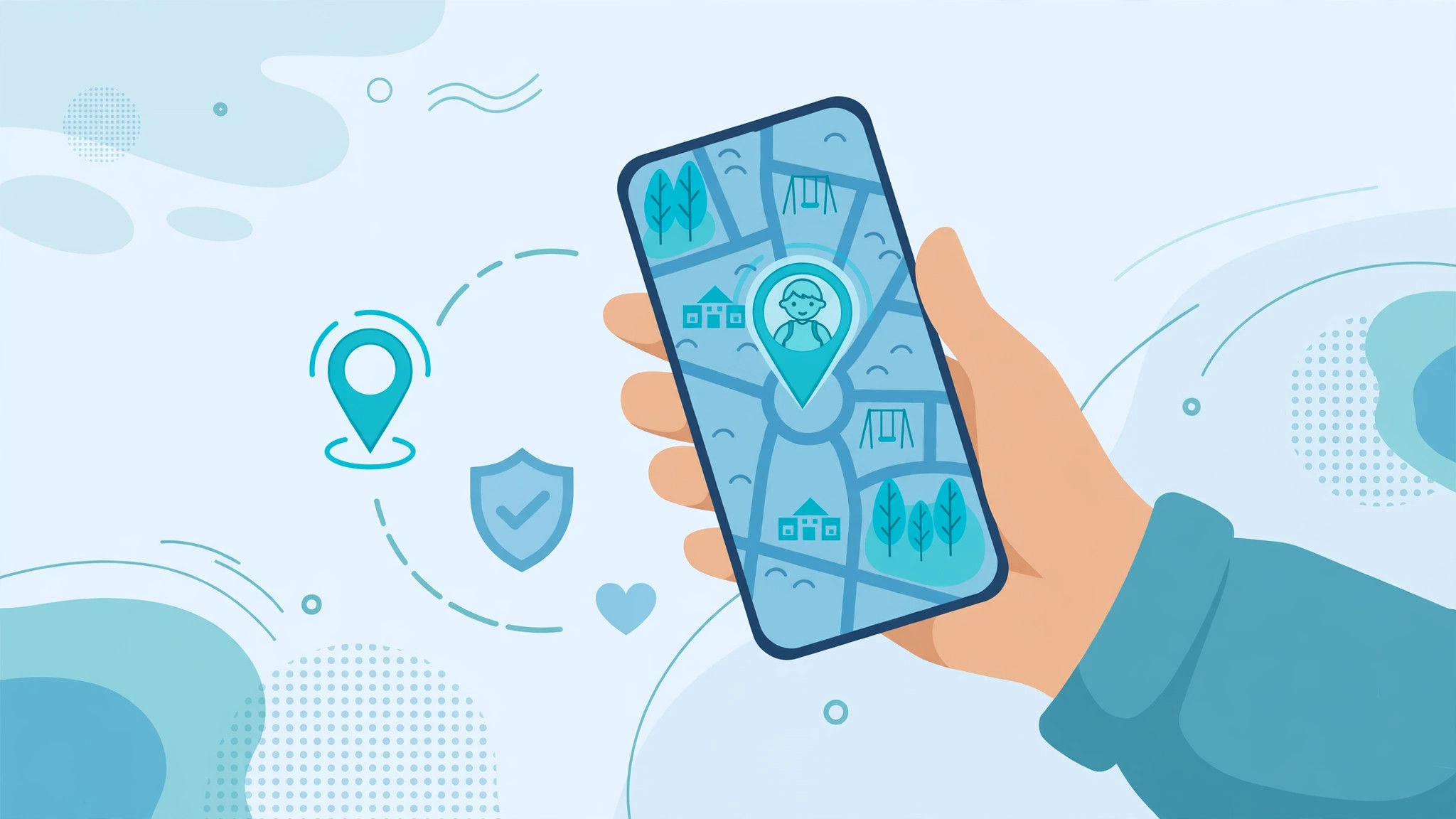
You can set up phone monitoring for your child in about 30 minutes total — 15 minutes deciding the right approach, 15 minutes doing it. This guide covers both: the conversation to have first, how to choose between Android and iPhone methods, and the complete setup in numbered steps.
The one-line promise: by the end of this guide you’ll know exactly which monitoring method fits your child’s phone, you’ll have it installed and verified, and you’ll know what to tell your child about it.
🏆 Our #1 Pick: mSpy
The deepest monitoring features we’ve tested, the clearest setup guides, and the most reliable syncing. From ~$11.67/mo annual, 14-day money-back guarantee.
Before You Touch the Phone: The Conversation
The technical setup takes 15 minutes. This conversation takes 10 — and it matters more.
Tell your child what you’re doing and why, in age-appropriate terms. For younger kids (under 10), it’s simple: “We put safety tools on your phone, like the seatbelt in the car.” For tweens, add the why: “There are people online who lie about who they are, and this helps us keep you safe.” For teens, be direct and respect their intelligence: “I’m going to monitor location and screen time. I’m not reading every message — but if an alert fires, we’ll talk about it.”
Parents who skip this conversation and get discovered later face a trust repair job that’s ten times harder than the setup. Parents who have it upfront usually report the same thing: the kid grumbles for a day, then forgets about it.
The one exception: if you have specific reason to believe your child is in immediate danger — contact with a stranger, threats, evidence of harm — secure the phone first and have the conversation after. Safety outranks process.
Step 1: Identify the Phone (60 Seconds)
Everything downstream depends on this. Pick up your child’s phone and check:
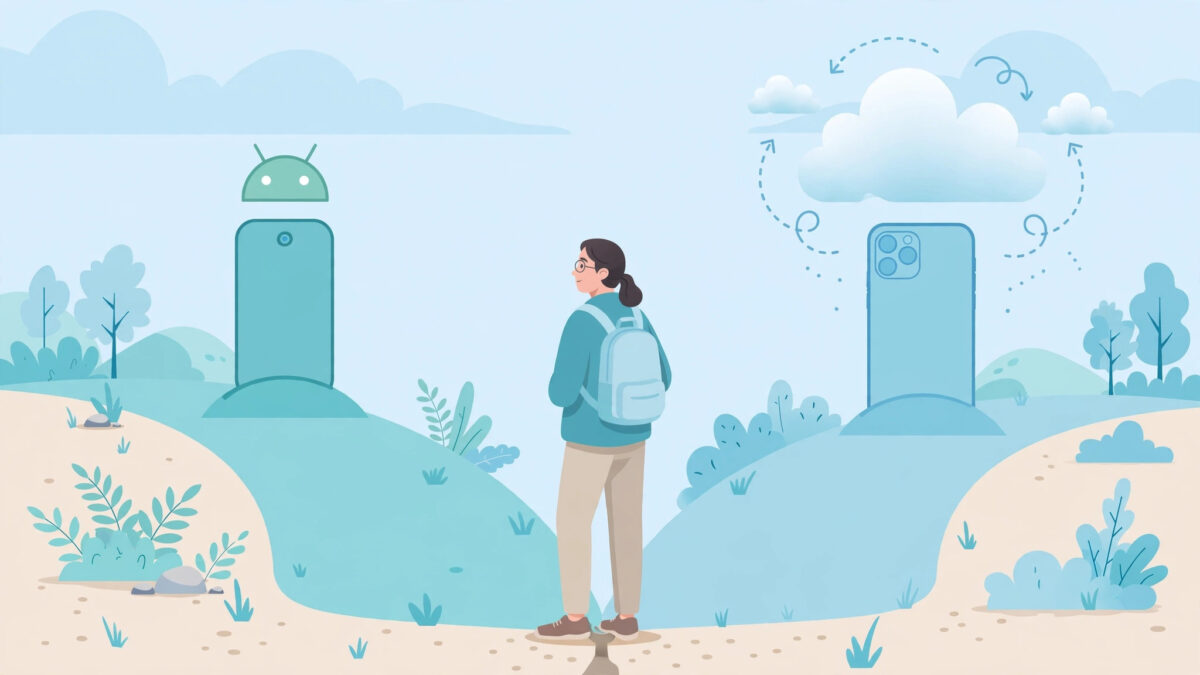
- Android (Samsung, Google Pixel, Motorola, OnePlus, etc.): You’ll install a small app directly on the phone. Requires 10–15 minutes of physical access.
- iPhone (any model): No app gets installed. Monitoring works through iCloud — you enter the Apple ID and password into your monitoring dashboard. Requires the Apple ID credentials, not the phone itself.
Don’t guess. An iPhone in a chunky Android-looking case is still an iPhone. Check Settings → About (iPhone) or Settings → About Phone (Android) if you’re unsure. Getting this wrong is the single most common pre-purchase mistake — the plans are OS-specific, and buying the iPhone plan for an Android phone (or vice versa) means starting the purchase over. Sixty seconds of checking saves a week of refund emails.
Step 2: Choose Your Method
| Android (APK install) | iPhone (iCloud sync) | |
|---|---|---|
| Physical access needed | Yes, 10–15 min | No (need Apple ID login) |
| What you can see | Very deep: messages, calls, GPS, apps, keystrokes | Broad but shallower: messages, calls, location, photos |
| WhatsApp capture | Full (on-device) | Via iCloud backup (needs backup enabled) |
| Deleted messages | Sometimes recoverable | Rarely |
| Ongoing effort | Battery exemption must survive updates | Re-authenticate if Apple ID password changes |
| Stealth | Icon hidden, runs discreetly | Nothing installed to find |
The rule of thumb: Android gives you more data but needs the phone in hand. iPhone needs no physical access but depends on iCloud cooperation (backups on, enough storage, 2FA handled).
If your child has an Android, continue to the Android path below. iPhone — skip to the iPhone path.
💰 Good Value Alternative: Eyezy
Covers the essentials — location, messages, screen time — at a friendlier price. From ~$9.99/mo annual.
Android Path: Numbered Setup
What you’ll need
- The phone + its unlock code (PIN, pattern, or password)
- Your monitoring app account (purchase the Android plan first)
- The download link from your account email or dashboard
- 15 uninterrupted minutes
Step 1: Open the download link on the child’s phone
In the phone’s browser, open the link from your purchase email. This downloads the APK file (Android’s app installer format). It’s a small file — under a minute on Wi-Fi.
Step 2: Allow the install when Play Protect warns you
Google Play Protect will flag the APK — this is expected. Play Protect flags every sideloaded app. Tap “Install anyway” / “Keep anyway” on the warning. This is the step where most people panic and quit. Don’t.
Step 3: Open the app and grant permissions
The app will request a series of permissions: accessibility, notifications, location, contacts, and others. Grant all of them. Each permission maps to a feature — deny location and you lose GPS; deny notifications and you lose message alerts. If you’re unsure about one, grant it anyway; you can review later.
Step 4: Exempt the app from battery optimization — DO NOT SKIP
Go to Settings → Battery → Battery Optimization (exact path varies by brand; Samsung: Settings → Battery → Background usage limits). Find the monitoring app and set it to “Unrestricted” / “Don’t optimize.” This single toggle causes more “it stopped working” complaints than everything else combined. Android aggressively kills background apps to save battery.
Step 5: Hide the app icon (optional)
Most monitoring apps offer a stealth option during setup — the icon disappears from the app drawer. Decide based on the conversation you had in the pre-step: transparency for most families, discretion where safety requires it.
Step 6: Verify in your dashboard
On your own phone or computer, log into the monitoring dashboard. You should see the device appear within minutes. Send a test text to the child’s phone and confirm it shows up. Check that location updates. Do not hand the phone back until you’ve confirmed data is flowing.
iPhone Path: Numbered Setup
What you’ll need
- The child’s Apple ID email and password
- Access to the 2FA method (usually a code sent to the child’s phone or another Apple device)
- Your monitoring app account (purchase the iPhone/iCloud plan)
- iCloud Backup enabled on the child’s phone (Settings → [name] → iCloud → iCloud Backup → On)
- Enough iCloud storage for backups to complete
Step 1: Enter the Apple ID in your dashboard
In your monitoring account, choose the iPhone setup option and enter the child’s Apple ID credentials. The dashboard connects to Apple’s servers — nothing installs on the phone.
Step 2: Approve the 2FA prompt
Apple will send a verification code to the child’s trusted device. You’ll need brief access to read it — this is the one moment you need the phone (or the trusted device) nearby. Enter the code in your dashboard.
Step 3: Wait for the first sync
Data appears as iCloud syncs — messages, call logs, location, photos. The first sync can take minutes to a few hours depending on how much data there is. Subsequent syncs are incremental and faster.
Step 4: Check the storage trap
If data stops appearing weeks later, check iCloud storage first. When iCloud fills up, backups pause — and monitoring data comes from those backups. The fix is usually upgrading the storage tier (a couple of dollars a month) or clearing space.
Step 5: Set up location sharing properly
iPhone location via monitoring depends on Find My / location services being on. Verify in the dashboard that location points are updating. If they’re stale, check that Location Services are enabled on the phone.
What You’ll Actually See (Honest Version)
| Data type | Android | iPhone (iCloud) |
|---|---|---|
| Text messages (SMS) | Yes, full content | Yes, via backup |
| WhatsApp chats | Yes, full | Yes, if iCloud backup includes WhatsApp |
| Call logs | Yes | Yes |
| GPS location | Real-time | Periodic (Find My based) |
| Web history | Yes | Limited |
| Keystrokes | Yes (keylogger) | No |
| Deleted messages | Sometimes | Rarely |
| Screen time / app usage | Yes | Partial |
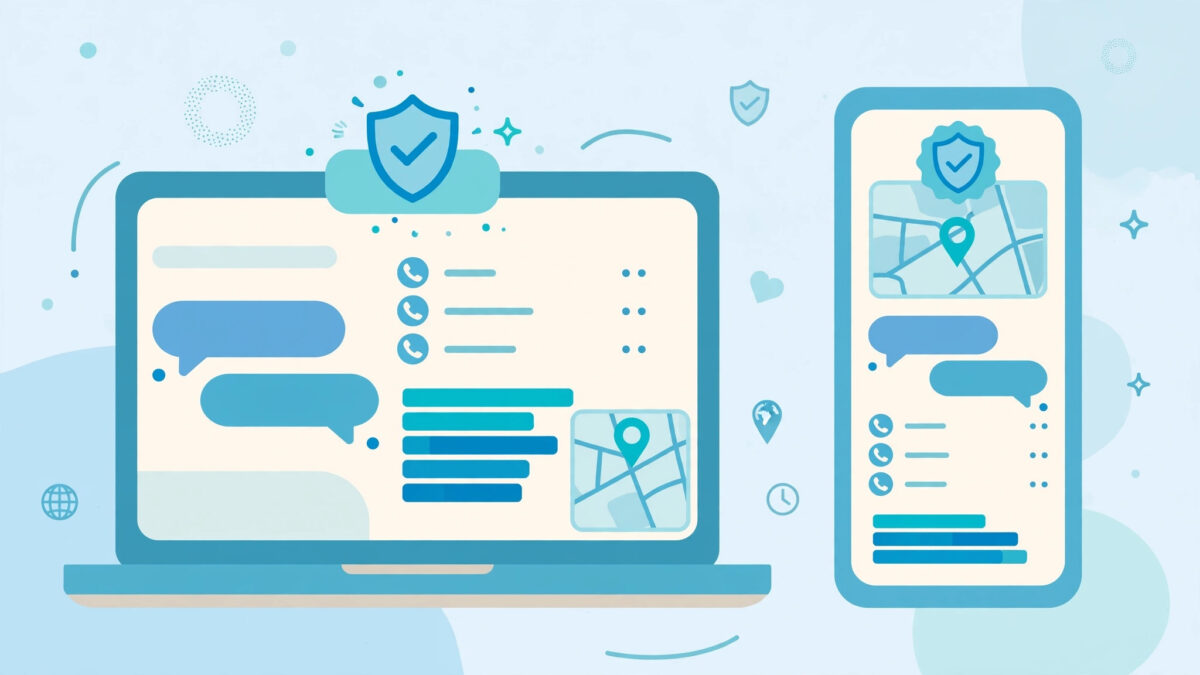
What no method can do: install on Android remotely (scam claim), monitor with just a phone number (scam claim), or guarantee 100% invisibility (marketing claim). Anyone promising these three things is lying.
Choosing the Right App for This Job
Not every monitoring app handles both paths well. Here’s how the two we recommend most compare for this specific task:
| mSpy | Eyezy | |
|---|---|---|
| Android install difficulty | Easiest guides we’ve seen | Straightforward |
| iPhone iCloud setup | Guided, handles 2FA well | Works, less hand-holding |
| Dashboard clarity | Excellent | Very good |
| Best for | First-timers who want it to just work | Budget-conscious parents |
| Price | From ~$11.67/mo annual | From ~$9.99/mo annual |
| Guarantee | 14-day money-back | 14-day money-back |
Pick mSpy if: this is your first time, you want the smoothest install, or you need the deepest feature set (keylogger, detailed app activity). The setup guides alone are worth the difference for nervous beginners.
Pick Eyezy if: budget matters most and your needs are mainstream — location, messages, screen time, web history. It covers the 80% use case at a lower price.
Skip both and reconsider if: your child is an adult (different legal landscape), the phone isn’t yours, or what you actually need is a conversation, not software. The best monitoring can’t fix a broken reporting relationship — and sometimes the right move is talking first and installing later, or not at all.
Your First Week: A Sensible Plan

Day 1 — Verify, don’t binge. Confirm data flows: send a test message, check it appears, confirm location updates. Then close the dashboard. Reading everything on day one teaches you nothing and burns you out.
Day 3 — Set alerts, not habits. Configure the alerts that matter: geofence around home and school, keyword alerts if your app supports them. Alerts beat manual checking — they tap you on the shoulder instead of requiring you to patrol.
Day 7 — First review. Spend 20 minutes on a weekly review: screen time totals, new contacts, location patterns. Write down anything that needs a conversation. Then decide your ongoing rhythm — weekly reviews work for most families; daily checking is a fast track to anxiety.
Day 30 — Reassess scope. After a month, ask: am I actually using the deep features, or just location and screen time? Downgrade scope if you’re paying for depth you never check. Monitoring should shrink as trust grows, not expand by default.
Troubleshooting: If X Happens…
Dashboard shows “device offline” (Android). Battery optimization re-enabled itself — usually after a system update. Revisit Step 4. Also check the phone has internet (Wi-Fi or data).
“Wrong credentials” on iPhone setup. Apple ID passwords are case-sensitive and often contain characters that are easy to mistype. Also: if the child recently changed their Apple ID password, you must re-enter it in the dashboard.
2FA code never arrives. Check that the trusted phone number on the Apple ID is current. Codes go to trusted devices first, SMS fallback second. If the child’s old phone number is still listed, update it at appleid.apple.com.
Data was flowing, then stopped (iPhone). Two usual suspects: iCloud storage full, or the Apple ID password changed. Check both before anything else.
Play Protect keeps disabling the app (Android). Some phones re-scan periodically. In Play Protect settings, you can disable “Scan apps with Play Protect” — or add the monitoring app as an exclusion if your vendor documents one.
Location is stale or missing. Android: location permission must be “Allow all the time,” not “only while using.” iPhone: Location Services must be on, and Find My iPhone enabled.
🧪 Test First: mSpy Trial
Not sure monitoring is for you? Try the dashboard and core features before committing to a full plan.
The Legal Note (Short and Plain)
Monitor only devices you own or minor children in your care. That’s the bright line in most places. It gets murkier with older teens, shared family devices, and other people’s children — when in doubt, check your local laws. This guide isn’t legal advice, and “everyone does it” isn’t a legal defense. The ethical version is simple: own the device or have clear parental authority, tell the child in age-appropriate terms, and use what you learn for protection, not punishment.
Affiliate disclosure: iSpyer earns a commission if you purchase through links on this page, at no extra cost to you. It funds our testing.
Frequently Asked Questions
The Bottom Line
Monitoring your child’s phone is a 30-minute task: a 10-minute conversation, a 15-minute setup, and a 5-minute verification. The conversation matters more than the technology. Choose the method that matches the phone — Android APK or iPhone iCloud — follow the numbered steps without skipping the battery exemption, and verify before you hand the phone back.
Start with location and screen time. Add depth only when there’s a reason. And revisit the setup after every major OS update — that’s when things silently break. You’ve got this: thousands of parents do this exact setup every week.
🏆 Start Right: mSpy
The most reliable syncing we’ve tested, on both Android and iPhone. 14-day money-back guarantee.
