

How to Manage Parental Controls (2026)
Short answer: Managing parental controls means two things: adjusting them as your child matures, and recovering access when you’ve locked yourself out. Both are straightforward — Screen Time passcodes can be reset via Apple ID, Family Link issues parent access codes, and every platform lets you loosen restrictions gradually. This guide covers the parent-side of control management: no bypass tutorials, just legitimate administration of your own family’s devices.
👉 Parental Monitoring That Grows With Your Child
Built-in controls are a starting point — but they don’t show you what’s happening. Parentaler adds message and social media visibility on top of basic controls, so loosening restrictions doesn’t mean flying blind. Backed by a 14-day money-back guarantee.
When to Loosen Controls: The Maturity Ladder
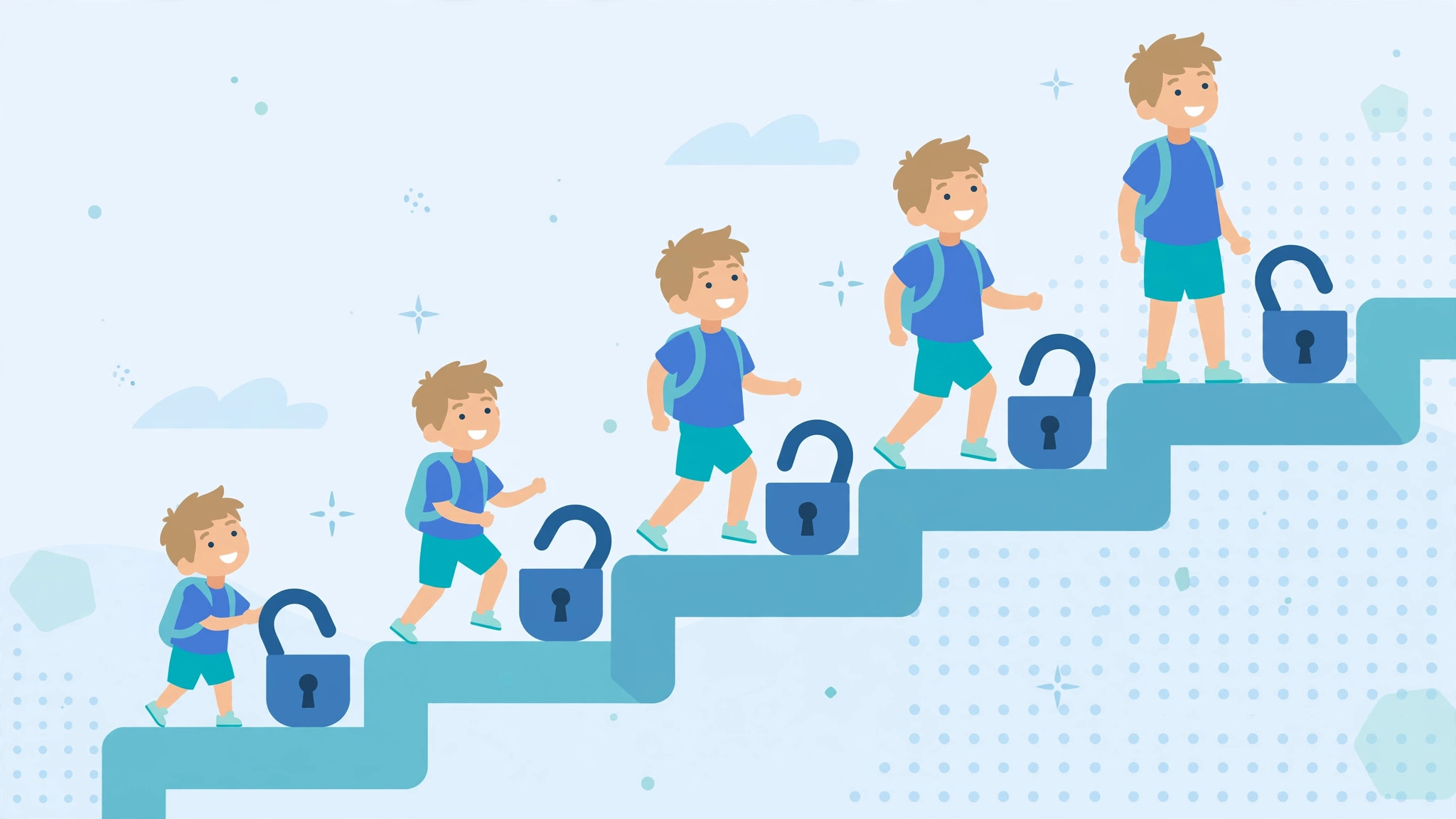
The biggest mistake parents make with parental controls isn’t setting them too strict or too loose — it’s setting them once and never revisiting. A 9-year-old and a 16-year-old need completely different setups, and controls that don’t evolve breed resentment and sneakiness.
Here’s a framework we recommend — the maturity ladder. Each rung loosens one category while keeping the safety net below it:
| Age | Screen time | Content filters | App approvals | Location | Message visibility |
|---|---|---|---|---|---|
| 5–8 | Strict schedules | Maximum | Every app approved | Always on | Full (read together) |
| 9–12 | Bedtime + homework blocks | Strong, some exceptions | New apps approved | Always on | Spot checks |
| 13–15 | Negotiated limits | Moderate | Alerts, not approval | On, discussed | Monitoring app |
| 16–17 | Self-managed, reviewed | Light (malware/phishing) | None | On, mutual | Trust + spot checks |
The principle: each birthday (or each demonstrated responsibility milestone) moves one control down a rung — and you tell your child it’s happening. “You’re 14 now, so I’m turning off app approval requirements. Location stays on until you’re 16.” This turns controls from a cage into a curriculum. Kids who watch restrictions loosen as they mature have far less incentive to bypass them.
Review rhythm: put a 10-minute controls review on your calendar every 3 months. Ask: what’s working, what’s annoying, what can we loosen? The conversation matters more than the settings.
How to Adjust Controls by Platform
iPhone: Screen Time Settings
To loosen or change restrictions:
- Open Settings → Screen Time.
- Enter your Screen Time passcode.
- Adjust each category:
- App Limits: tap an existing limit to edit hours, or swipe to delete limits you’ve outgrown.
- Downtime: shift the schedule later (or turn off for weekends) as kids mature.
- Content & Privacy Restrictions: under Content Restrictions, raise the age ratings for apps, movies, and web content one tier at a time.
- Communication Limits: expand allowed contacts during downtime as trust grows.
Pro tip: don’t remove everything at once. Loosen one category per review cycle. If behavior stays solid for a month, loosen the next. Gradual beats abrupt — for both safety and family harmony.
Don’t forget Communication Safety. Under Screen Time → Communication Safety, Apple can blur nude images in Messages and warn your child before viewing or sharing them. This is separate from content restrictions and worth keeping on longer than other filters — it protects without feeling restrictive, and most teens don’t object to it once they understand what it does.
Check purchase sharing. As kids mature, the “Ask to Buy” feature becomes the friction point. For teens 14+, consider switching to an allowance model: keep Ask to Buy on but approve routinely, or set up Apple Cash Family so they manage a small budget. Financial autonomy is part of the maturity ladder too — and purchase history remains visible to the organizer either way.
Android: Google Family Link
To adjust:
- Open the Family Link app on the parent device.
- Select the child’s profile.
- Controls → App limits: adjust or remove per-app timers.
- Controls → Filters on Google Chrome / Google Search: move from “Try to block mature sites” toward lighter filtering for older teens.
- Location: under Settings → Location, you can toggle location sharing — we recommend keeping it on through 16 with an explicit conversation about why.
The age-13 cliff: when a child turns 13, Google lets them take over their account — Family Link supervision can be removed by the child. Plan for this before the birthday: have the conversation, agree on what stays, and consider transitioning to a monitoring app for continued visibility. Our Family Link guide covers the transition in detail.
Windows, Mac & Consoles
- Windows (Microsoft Family Safety): family.microsoft.com → select child → Screen time / Content filters. Loosen web filtering from “only allowed sites” to “block mature content” as kids age.
- Mac: System Settings → Screen Time (same Apple ID family). Mirrors iPhone controls.
- PlayStation/Xbox/Switch: each has its own parental dashboard (web-based). Key ones to revisit annually: spending limits, communication/chat permissions, and age-rated game purchases. On PlayStation, the family manager can also set play-time schedules per child account; on Xbox, content filters follow the child’s Microsoft account age and update automatically at birthdays — verify the birthdate is correct, because a typo there silently misconfigures everything.
💰 The Value Alternative: Eyezy
As you loosen built-in controls, Eyezy keeps affordable visibility — texts, location, and app activity in one dashboard for around $10/month on annual plans. The safety net that doesn’t feel like a cage.
Forgot Your Screen Time Passcode? (iPhone/iPad/Mac)
This is the most common “locked out of my own controls” scenario, and Apple built a recovery path — no bypass tricks needed.
If you’re on iOS 16+ / macOS Ventura+:
- Go to Settings → Screen Time.
- Tap Change Screen Time Passcode (or Turn Off Screen Time Passcode).
- Tap Forgot Passcode?
- Enter the Apple ID and password associated with the Screen Time setup.
- Set a new passcode.
Requirements: you must know the Apple ID credentials used when Screen Time was configured (usually the parent’s Apple ID on a child’s device via Family Sharing). If you don’t know those either, you’ll need to go through Apple’s account recovery at iforgot.apple.com first.
If “Forgot Passcode?” doesn’t appear: you’re likely on an older iOS version, or Screen Time was set up with a different Apple ID. Update iOS first. If the device is managed by an organization (school device), contact the administrator — consumer recovery won’t apply.
What NOT to do: don’t factory-reset the device to kill Screen Time. You’ll lose data, and on a child’s device managed via Family Sharing, Screen Time settings restore from iCloud anyway. The legitimate path takes two minutes.
Locked Out of Family Link? (Android)
Family Link lockouts usually take one of two forms:
You forgot the parent account password: recover it at accounts.google.com/signin/recovery. Once you’re back into the parent Google account, Family Link controls are fully available again. There’s no separate Family Link password to lose — it’s your Google account.
The child’s device is asking for a parent access code: this happens when the child tries something restricted (installing a blocked app, for instance). To generate a code:
- Open Family Link on the parent device (or go to families.google.com).
- Select the child’s account.
- The app generates a one-time parent access code.
- Enter it on the child’s device.
The code expires quickly — generate it while you’re standing next to the device. If the code keeps failing, check that both devices have internet access and the Family Link app is updated.
Child turned 13 and removed supervision: this isn’t a lockout — it’s Google’s design. At 13, children can graduate their account. You can’t force supervision back on; instead, have the transition conversation and consider a monitoring app if continued visibility matters to your family.
Managing vs Removing: What’s the Right Call?
Parents generally face three options, and the right one depends on the situation:
| Situation | Best move |
|---|---|
| Child is maturing well, wants more freedom | Loosen gradually (maturity ladder above) |
| Controls are causing constant fights | Review together — often the settings are wrong, not the concept |
| You forgot credentials | Recover via official paths (above) — never factory-reset |
| Child keeps bypassing | That’s a trust conversation, not a settings problem — plus consider monitoring for visibility |
| Device is now the parent’s (hand-me-down) | Remove the child profile properly: Family Link → remove account; iPhone → sign out of child Apple ID and erase |
The hand-me-down case deserves emphasis: when a child outgrows a device and it becomes yours (or a younger sibling’s), remove controls cleanly. On iPhone: Settings → Screen Time → Turn Off, then erase all content for a fresh start. On Android: Family Link → child’s account → Account info → Delete account (or remove supervision). Leftover restrictions on a “new” device cause bizarre issues months later — apps that won’t update, purchases that need approval from an account no one uses anymore, location sharing that reports to the wrong parent.
When Your Teen Asks for More Freedom
This conversation goes better with a framework. Try this:
1. Acknowledge the ask respectfully. “I hear you — wanting more freedom at 15 is completely normal.” Dismissing the request teaches them to stop asking and start hiding.
2. Name what stays and why. “Location stays on. That’s non-negotiable until you’re 16, because if something happens I need to find you.” Concrete safety reasons land better than “because I said so.”
3. Trade freedom for transparency. “I’ll remove app approval requirements if you agree to monthly check-ins where we look at screen time together.” This is the core deal of the maturity ladder: freedom in exchange for openness.
4. Set a review date. “Let’s try this for two months and revisit.” Time-boxed experiments feel less scary than permanent changes — for both sides.
5. Keep one backstop. Even at maximum trust, keep something — location sharing, or a monitoring app in a light-touch role. Frame it honestly: “This isn’t about catching you. It’s so I can help fast if something goes wrong.” Our kids’ safety hub has full conversation scripts for these talks.
The Annual Controls Audit: A 15-Minute Checklist
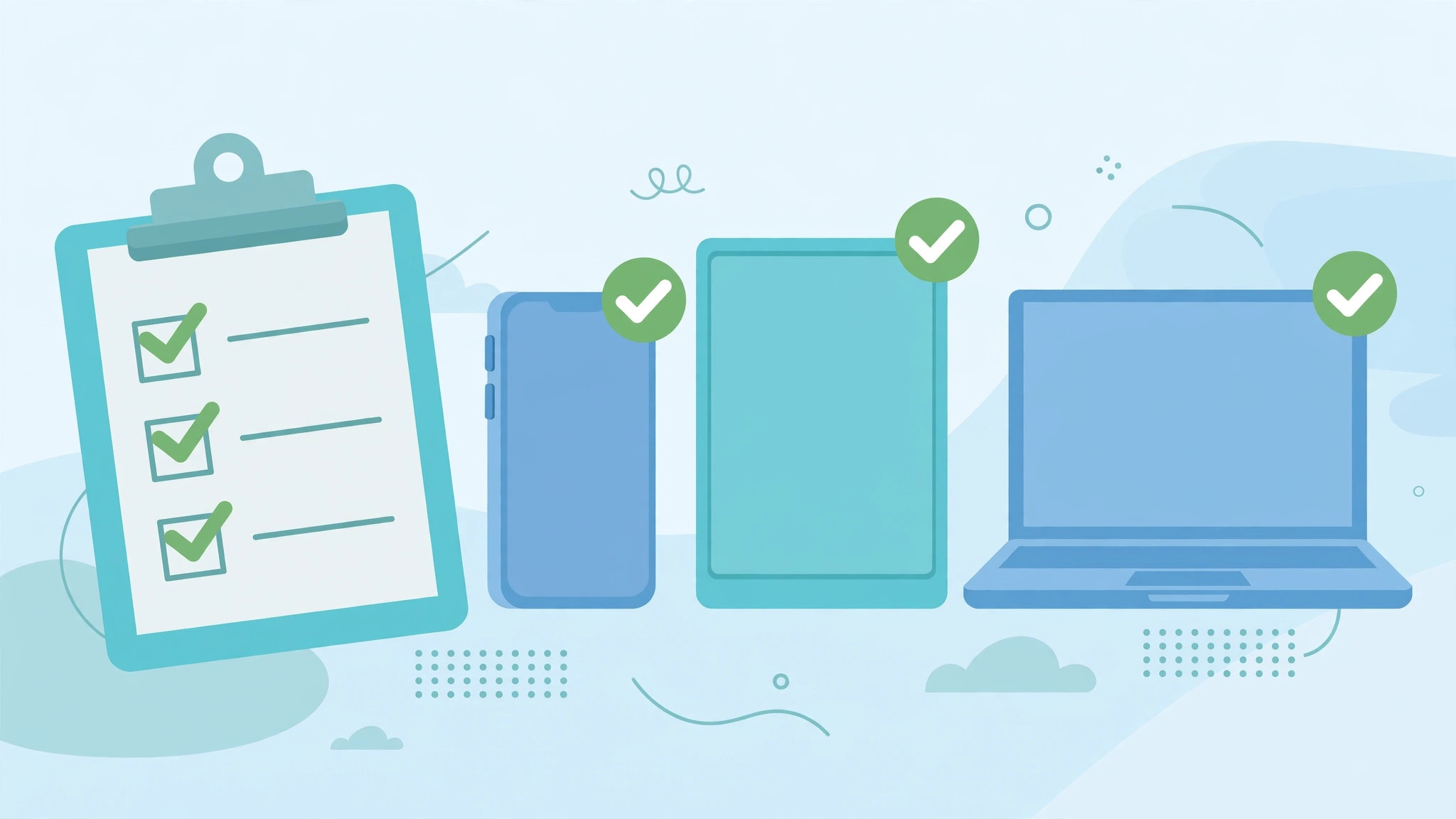
Once a year — pick a date you’ll remember, like the start of the school year — run this full audit. Fifteen minutes now prevents months of silently-broken controls.
Device inventory (3 min). List every device your child uses: phone, tablet, school laptop, old phone now used as a media player, gaming console. Controls you set two years ago on a forgotten tablet are either broken or blocking things pointlessly. If a device isn’t in your inventory, it’s not managed.
Credential check (2 min). Can you still log into the parent accounts? Apple ID, Google account, Microsoft family dashboard. Try each one. Credentials go stale — passwords changed, 2FA devices replaced — and you don’t want to discover that during a crisis.
Settings review (5 min). On each device, open the controls and ask three questions: Is this still age-appropriate? (Raise content ratings a tier if your child aged up.) Is anything broken? (iOS updates love to reset Screen Time.) Is anything redundant? (If you now run a monitoring app, maybe the DNS filter can retire.)
The bypass test (3 min). Ask your child to show you what happens when they hit a limit. Not as a gotcha — as a systems check. If they demonstrate a bypass you didn’t know about, thank them (seriously) and patch it. Kids who report bypasses instead of exploiting them are exactly what the maturity ladder is building toward.
Conversation (2 min). “Anything about the rules feel unfair or outdated?” Two minutes of listening buys more compliance than any settings page.
Write down what you changed and the date. Next year, you’ll thank yourself. A simple notes file — “2026 audit: raised YouTube to 13+, removed app limits on weekends, kept location on” — turns vague memory into an actual system you can build on every single year.
Two Households, One System
Divorced or separated parents face a special controls challenge: different rules at each house confuse kids and create loopholes. You don’t need identical parenting — but the technical baseline should match.
Agree on the non-negotiables. Location sharing, no-contact-with-strangers rules, and age-inappropriate content blocks should be consistent across households. These are safety, not parenting philosophy. Put them in the parenting plan if you have one.
One admin account if possible. If both parents can cooperate, use a single Family Link or Apple Family Sharing setup with both parents as organizers. One dashboard, one set of rules, no contradictions. Apple allows multiple adults in Family Sharing; Google Family Link supports co-management.
When cooperation isn’t possible. Each household manages its own devices. At minimum, share a one-page “controls baseline” document: what’s blocked, what the screen-time rules are, and the child’s passcode-recovery info. The child shouldn’t be able to play households against each other on safety basics.
Never use controls as leverage. Removing or tightening a co-parent’s controls to punish the other parent puts the child in the middle and teaches them controls are arbitrary. Keep the technical layer boring and consistent; save disagreements for direct parent-to-parent conversation.
Troubleshooting Common Issues
“Screen Time limits aren’t applying.” Check: is the child’s device signed into the correct Apple ID? Is Share Across Devices on? Did a recent iOS update reset settings? Re-verify after every major iOS update — they sometimes scramble Screen Time.
“Family Link says the device is incompatible.” The child’s device needs Android 7.0+. Some heavily customized Android skins (certain Huawei/Xiaomi builds) break Family Link features. Check Google’s compatibility list before buying a kid’s phone.
“My child factory-reset the phone to escape controls.” On Android, Factory Reset Protection + Family Link usually re-locks the device to the child’s account after reset — the escape rarely works and the attempt itself is the conversation starter. On iPhone, Activation Lock does the same. If bypass attempts keep happening, the issue is trust, not technology.
“Controls work on Wi-Fi but not mobile data.” DNS-based filters (router-level) only cover your home network. For everywhere-coverage you need device-level controls (Screen Time, Family Link) or a monitoring app with web filtering. Our web filtering guide explains the layers.
“Two parents, conflicting settings.” Decide which parent’s account is the “controls admin” and make all changes there. Split administration causes contradictory rules that confuse everyone — especially the kid.
Frequently Asked Questions
Final Verdict
Parental controls work best as a system you manage, not a wall you build once. Loosen them on a schedule, recover access through official paths when you’re locked out, and keep the conversation running alongside the settings. The families who do this well end up needing the strictest controls for the shortest time — because the kids internalize the judgment the controls were standing in for.
And when you loosen a restriction, don’t fly blind: a light-touch monitoring app keeps the safety net in place while your teen practices freedom. That’s the responsible version of “turning off parental controls.”
👉 Try Before You Commit
Want visibility without the heavy hand? mSpy’s trial lets you test message logs, location, and app activity before committing — the backstop that lets you loosen built-in controls with confidence.
Our #1 Pick Reminder: mSpy
The deepest visibility we tested — so loosening Screen Time or Family Link never means losing sight of what matters. 14-day money-back guarantee.
