
What Is Geofencing? (2026)
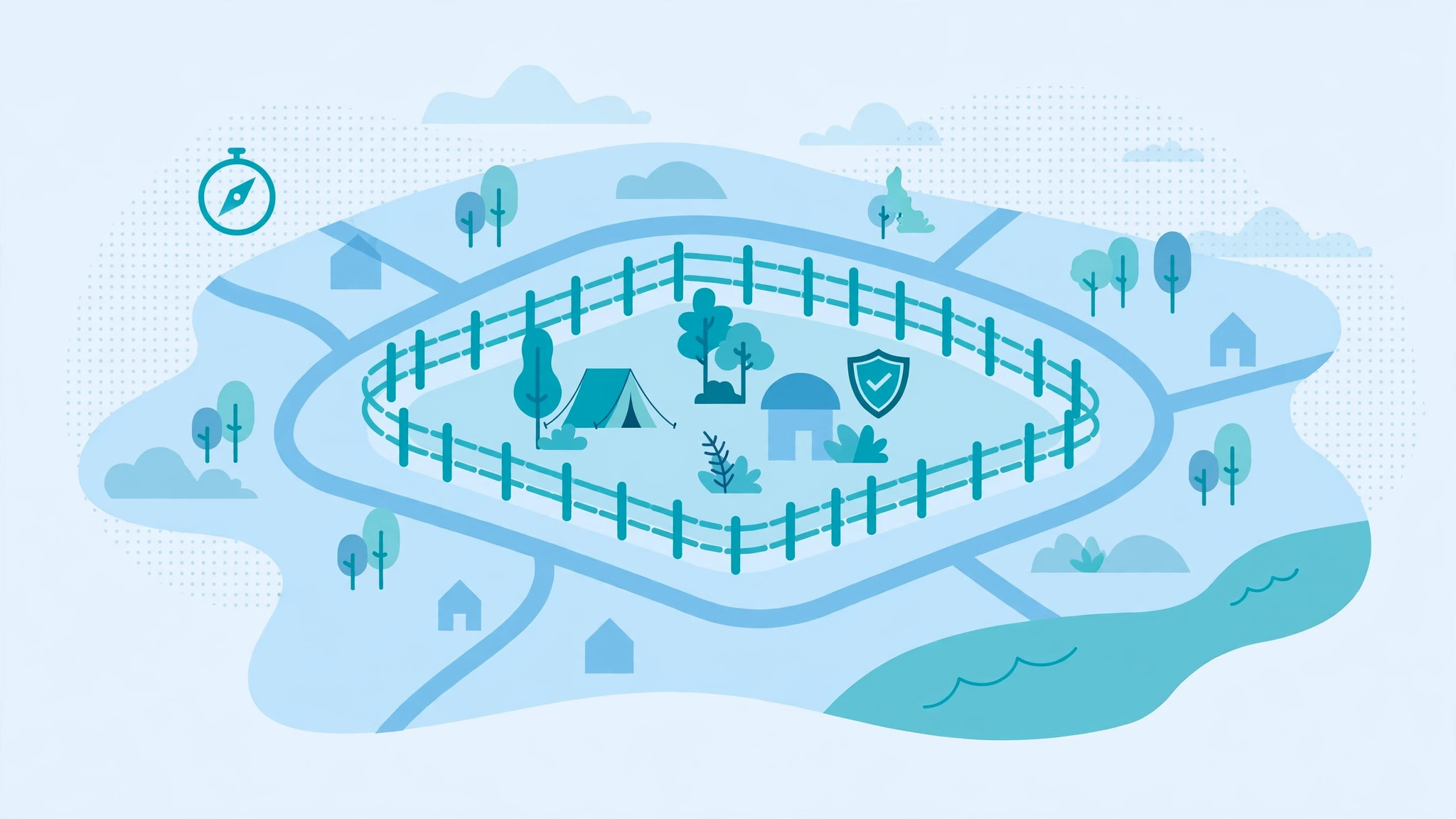
Quick definition: Geofencing is the practice of drawing an invisible boundary on a digital map and getting an automatic alert when a phone enters, leaves, or lingers inside that boundary. A parent might draw one around a school and get a notification the moment their child arrives. The technology underneath is simple: the phone’s GPS knows where it is, and the app watches whether that position crosses the line you drew. Keep reading for how it works, the types of geofences, honest limits, and how it shows up in monitoring apps.
Geofencing in Plain Words
Imagine you draw a circle on a map around your child’s school.
The circle is invisible in the real world. But the phone in your child’s pocket knows exactly where it is, to within a few meters, thanks to GPS.
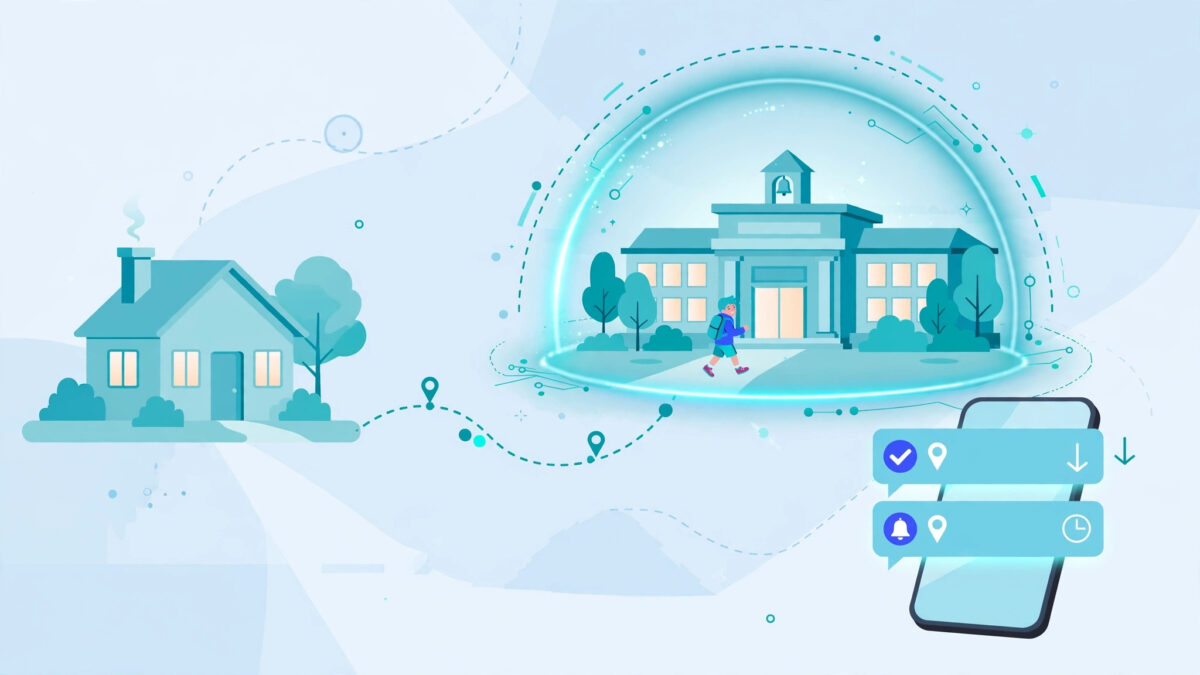
A geofencing app watches that phone’s position all day. The moment the phone crosses into your circle — your child arrives at school — the app sends you a notification: “Arrived at school, 8:02 AM.” When the phone crosses back out at 3:15 PM, you get another one: “Left school.”
That is geofencing in a sentence: invisible fences that send automatic arrival and departure alerts.
No one has to check in. No one has to remember to text you. The fence does the watching, quietly, and only speaks up when something actually happens. For parents, that difference matters. Constantly opening a live-tracking app to see where your kid is feels like surveillance. A geofence feels like a safety net — silent until it needs to be loud.
The term comes from “geo” (earth/location) plus “fence.” Businesses coined it in the early 2000s for things like sending coupons to shoppers near a store. But parents quickly became the power users. Knowing your child got to school safely without calling them in the middle of class is one of those small daily reliefs that adds up.
Geofencing also works in the other direction. Instead of only knowing where someone is, you can know where they shouldn’t be. Draw a zone over a busy highway crossing, an area known for problems, or a friend’s house during school hours. If the phone enters that zone, you hear about it immediately. Same technology, opposite use case.
One thing to understand early: geofencing doesn’t replace live GPS tracking. It sits on top of it. The phone’s location services are the engine; the geofence is the tripwire. You’ll see both features sold together in monitoring apps, and later in this guide we’ll compare them head-to-head so you know which one actually solves your problem.
How Geofencing Works (The Simple Technical Version)
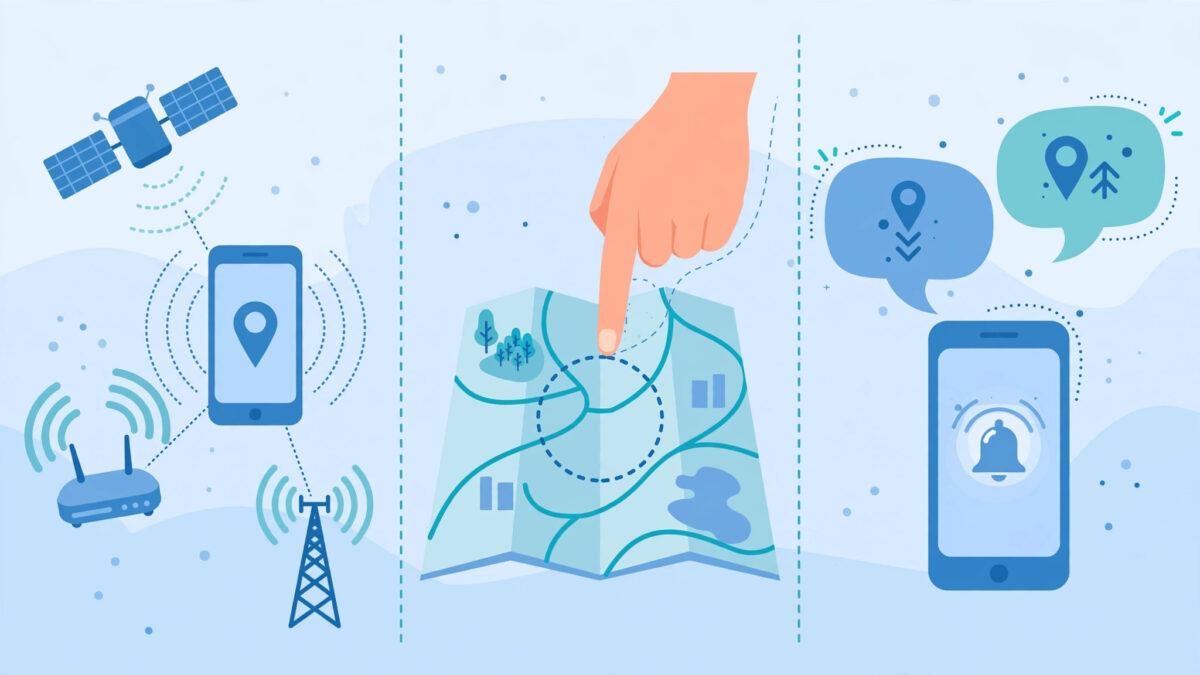
Three pieces have to work together for a geofence to fire. Miss any one of them and you get silence — or worse, false alarms. Here’s each piece in plain language.
Piece 1: The Phone Figures Out Where It Is
Your child’s phone is constantly estimating its own position. It does this three ways, usually all at once:
- GPS satellites. The phone listens for timing signals from satellites overhead and triangulates its position. This is the most accurate method — typically within 5 to 15 meters outdoors — but it’s slow to lock on and power-hungry.
- Wi-Fi networks. The phone sees nearby Wi-Fi routers and looks them up in a database of known router locations. This is the hero indoors, where GPS can’t reach. Accuracy ranges from 20 to 100 meters depending on how many networks are visible.
- Cell towers. The phone measures which towers it connects to and how strong each signal is. This is the least accurate — anywhere from a few hundred meters to a couple of kilometers — but it works everywhere there’s signal, and it costs almost no battery.
The phone’s operating system blends these three sources into one best guess, several times per minute. Geofencing apps don’t do this positioning work themselves. They just read the number the phone already calculated. That’s why geofencing accuracy can never be better than the phone’s location accuracy — a point that matters when we get to the honest limits section.
Piece 2: You Draw the Virtual Boundary
In the app, you drop a pin on a map and set a radius — that’s a circular geofence. Or you trace the actual outline of a building or neighborhood — that’s a polygon geofence. (More on both types below.)
The app stores this boundary as a set of coordinates on its servers, not just on your phone. That matters because alerts need to reach your phone, not your child’s. The monitoring service watches the child’s phone position, compares it against your stored fences, and decides whether a crossing happened.
Typical radius options run from about 100 meters (a single house) to several kilometers (a whole school district or town). Here’s the rule of thumb: make the fence at least twice as wide as the location accuracy you expect. If GPS in your area drifts by 50 meters, a 100-meter fence will fire false alarms every time the signal wobbles. Give it room to breathe.
Piece 3: The App Watches for Trigger Events
This is the “fence” part. The app doesn’t alert you on every position update — that would be hundreds of notifications a day. Instead it watches for three specific events:
- Enter. The phone’s position moves from outside the boundary to inside it. This fires your “arrived” alert — at school in the morning, home in the afternoon.
- Exit. The phone moves from inside to outside. This fires your “left” alert — left school at dismissal, left home on the way out.
- Dwell. The phone stays inside the boundary longer than a time you set — say, 30 minutes. This is the underused one. A parent might set a dwell alert for a location that should only be a quick stop: if your teen is still at a friend’s house two hours past the agreed time, the dwell alert tells you.
Each fence can have its own set of triggers. Your school fence might alert on enter and exit. A “forbidden zone” might alert only on enter — you don’t care when they leave it, you care that they went there. A good monitoring app lets you configure each fence independently, including quiet hours (no school alerts on weekends).
When a trigger fires, the alert travels from the monitoring service to your phone — usually a push notification, sometimes also an email or SMS backup. End to end, from crossing the boundary to your phone buzzing, typically takes anywhere from a few seconds to a couple of minutes. It’s not instantaneous, and we’ll explain why in the limits section.
👉 See It in Action: mSpy
Reading about safe zones is one thing. mSpy’s geofencing lets you draw them on a real map, set enter/exit alerts, and watch the alerts arrive on your own phone — with a 14-day money-back guarantee if it doesn’t click.
Types of Geofences
Not all geofences are the same shape, and the shape you pick changes how reliable your alerts are.
Circular vs. Polygon Geofences
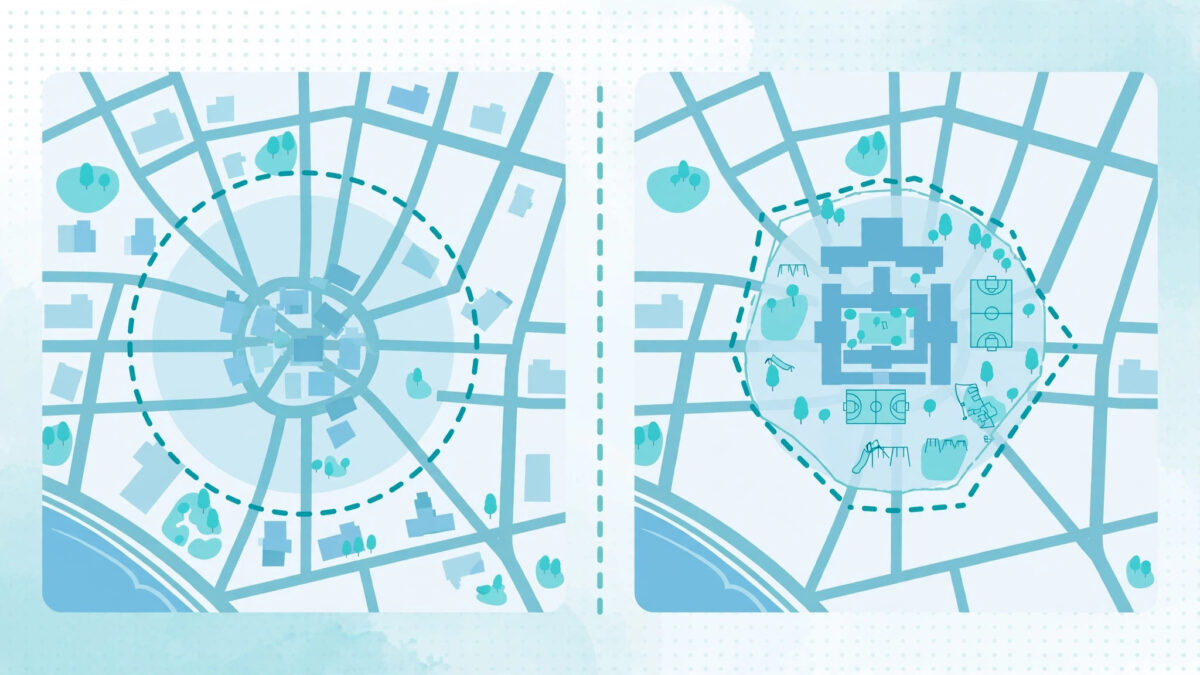
Circular geofences are the default everywhere. You drop a pin, pick a radius, done. They’re fast to set up and perfect for simple cases: a house, a single school building, a park.
Their weakness is precision. A 500-meter circle around a school also covers the pizza place next door, the bus stop across the street, and half the parking lot. If you’re trying to know “is my kid actually inside the school,” a circle is a blunt instrument.
Polygon geofences let you trace the real outline of a place — the actual school grounds, the actual perimeter of your neighborhood. They take longer to set up (you tap each corner of the boundary), but they’re far more accurate for irregular shapes. A polygon around a school doesn’t include the shop next door.
Our recommendation: use circles for quick, large zones (the neighborhood, the town) and polygons for small, precise zones (the school, your home). Not every app supports polygons, though — check before you buy, because this is one of the features that separates basic parental-control apps from serious monitoring tools.
Single-Zone vs. Multi-Zone Setups
A single-zone setup means one fence — usually home. It’s the minimum viable geofence: you know when your kid leaves and comes back. Fine for younger children whose world is basically home and school.
A multi-zone setup is where geofencing gets powerful. A typical parent setup looks like this:
- Home zone (enter/exit alerts)
- School zone (enter/exit alerts, weekday mornings and afternoons only)
- Grandparents’ or babysitter’s zone (enter alerts)
- Practice or club location (dwell alerts — did they stay for the full session?)
- One “alert” zone (a place they shouldn’t be — enter alert only)
Most good monitoring apps allow 10 or more fences. The practical limit isn’t the app — it’s your attention. Five well-chosen fences with thoughtful triggers beat twenty noisy ones you’ll start ignoring. Alert fatigue is real, and it has a whole section later in this guide.
Time-Based and Recurring Fences
The newest wrinkle: fences that only exist at certain times. A school fence that only watches on school days. A curfew fence around the house that’s only armed after 9 PM. A “should be at practice” fence that only exists Tuesday and Thursday afternoons.
Time-based fences cut false alarms dramatically. Without them, your school fence fires when your kid walks past the building on a Saturday — noise that trains you to ignore the alerts. With them, every alert means something. If the app you’re considering doesn’t offer scheduling, you can work around it by toggling fences manually, but you’ll forget. Scheduling is worth paying for.
Geofencing for Parents: Real-World Examples
Theory is fine. Here’s what geofencing actually looks like in a family’s daily life, with setups parents told us they actually use.
The School Commute: Arrival and Pickup Alerts
The most common setup by far. One parent described it as “the notification that replaced my anxiety.” Here’s the playbook:
- Draw a polygon geofence around the school grounds — not a giant circle, just the school.
- Set enter alerts for weekday mornings (7:00–9:00 AM).
- Set exit alerts for weekday afternoons (2:00–4:00 PM).
- Enable quiet hours for weekends, holidays, and evenings.
Result: two notifications a day that answer the two questions every school parent has — did they get there? and did they leave on time? If the bus breaks down and they’re standing outside school for 40 minutes, no alert fires — because they’re inside the fence. If they skip school and head downtown, the exit alert never comes and the enter alert fires at the wrong place. The system catches the pattern without you watching a dot on a map all day.
One honest note: geofencing can’t tell you they went into the building. It tells you they arrived at the grounds. For elementary kids, pair it with the school’s own attendance system. Geofencing is your backup, not the school’s replacement.
The New Driver: Curfews and Boundary Zones
For teens with fresh licenses, parents use geofencing as a digital curfew. The setup:
- A large circular fence around your city or county — the “allowed driving area.”
- An exit alert on that fence, any time. If your teen drives out of the agreed area, you know immediately.
- A dwell alert on the home fence after curfew time — if the car hasn’t come home by 10 PM, you don’t have to be the one checking the driveway.
This works best when the rules are agreed on in advance, not sprung on your teen. The fence enforces the rule; the conversation sets it. Parents who skip the conversation and rely on the technology report one consistent outcome: their teen learns to leave the phone at home. The fence can’t monitor a phone that isn’t in the car.
The “Danger Spot” Alert
Every town has places parents worry about — a stretch of road with bad crossings, an area where older kids hang out, a construction site kids find irresistible. You can draw an alert-only zone over any of these.
Set it to fire on enter only. You don’t need departure alerts from a place they shouldn’t be. The enter alert is the conversation starter: not an accusation, just “hey, I noticed you were near X — everything okay?”
A word of caution on accuracy: GPS drift of 50 meters in a dense area can put a false “enter” on a small danger zone. Make these zones generous — a couple of blocks, not a single building. You want high-confidence alerts, because every false alarm erodes trust in the system (and in you, from your teen’s perspective).
After-School Activity Tracking
Sports practice, music lessons, part-time jobs. Dwell alerts shine here. Set a dwell of 90 minutes on the practice field fence: if your kid leaves practice early and goes elsewhere, you don’t get an exit alert the moment they step out (they might be getting water from the car) — you get a dwell-timeout alert, which means “they didn’t stay.” It’s a gentler, smarter signal than raw enter/exit.
How Monitoring Apps Use Geofencing
Geofencing started as a business technology, but monitoring apps built for parents have made it one of their headline features. Here’s how it typically works in practice inside these apps.
After you install the app on your child’s phone (with their knowledge, on a device you own or manage — more on the legal frame below), you open the dashboard on your own phone or computer. There’s a map. You drop pins, draw boundaries, and toggle enter/exit/dwell alerts per fence. The child’s app runs quietly in the background, reporting position updates to the service, which checks them against your fences and pushes alerts to your dashboard.
What separates the good implementations from the basic ones:
- Unlimited or generous fence counts. Basic parental controls sometimes cap you at 2–3 zones. Serious monitoring tools allow 10+ with per-fence settings.
- Alert history and logs. Not just the push notification — a timestamped log of every crossing, kept for weeks or months. Useful when you need to reconstruct “what time did they actually get home last Tuesday.”
- Polygon support. As discussed, circles are fine for big zones but crude for precise ones. This is a real differentiator.
- Quiet hours and schedules. Fences that arm and disarm on a schedule, so weekends don’t generate noise.
- Combining with location history. The best dashboards show geofence alerts on top of the location timeline, so an alert becomes “they left school at 3:05 and here’s the route they took” rather than a bare timestamp.
Pricing-wise, geofencing is almost never sold as a standalone feature. It comes bundled in the location package of most monitoring apps — typically on the mid-tier plans and up. As of October 2026, mSpy includes geofencing on all its plans, starting from ~$11.67/mo on the annual plan (confirm live pricing at checkout — promos change often). Eyezy bundles it too, from ~$9.99/mo annually. Both back it with a 14-day money-back guarantee, which is the right way to test whether the alerts feel reliable on your kid’s phone in your neighborhood — accuracy varies by area, and no review can tell you how it performs at your address.
👉 Compare for Yourself: Eyezy
Want the same safe-zone alerts at a lower price point? Eyezy includes geofencing, location history, and enter/exit notifications from ~$9.99/mo — also backed by a 14-day money-back guarantee.
What About Free Geofencing?
Fair question. Google Family Link and Apple’s Find My both offer basic location sharing, and some free parental-control apps include simple geofencing. The catch is always the same: fewer fences, no polygon support, no schedules, no alert history, and — most importantly for this audience — the child can usually see and modify the setup. Free tools are location sharing (cooperative, visible). Paid monitoring tools are location monitoring (persistent, harder to disable, running even when the child would rather it didn’t). Which one fits your family is a parenting decision, not a technical one. Just know what you’re buying.
Geofencing Beyond Parenting
Parents are the power users, but the same tripwire idea runs quietly through a lot of modern life. A quick tour, since understanding the broader technology helps you judge the parenting tools:
- Business and fleets. Delivery companies geofence depots and customer addresses — a truck entering the depot zone automatically logs “arrived,” no paperwork. Some employers geofence job sites for time-tracking. (This is also where the ethics debates live: monitoring employees with geofences is legal in many places but regulated differently than monitoring your own child.)
- Smart home. Your phone crossing a geofence around your house can trigger the thermostat to warm up, the porch light to turn on, the door to unlock. The fence is the same technology; the “alert” is just an action instead of a notification.
- Retail and marketing. Stores send coupons to phones that enter a geofence around the mall. This is the original commercial use case — and the reason your phone’s location permissions matter beyond parenting apps.
- Pet and asset tracking. GPS collars for dogs work exactly like kid trackers: draw a fence around the yard, get an alert when the dog leaves it. Same for expensive equipment on construction sites.
The parenting use is the most emotionally charged, but it’s worth remembering the technology is neutral. A geofence is just a question — “did the thing cross the line?” — and the answer goes wherever you tell it to.
Honest Limits of Geofencing
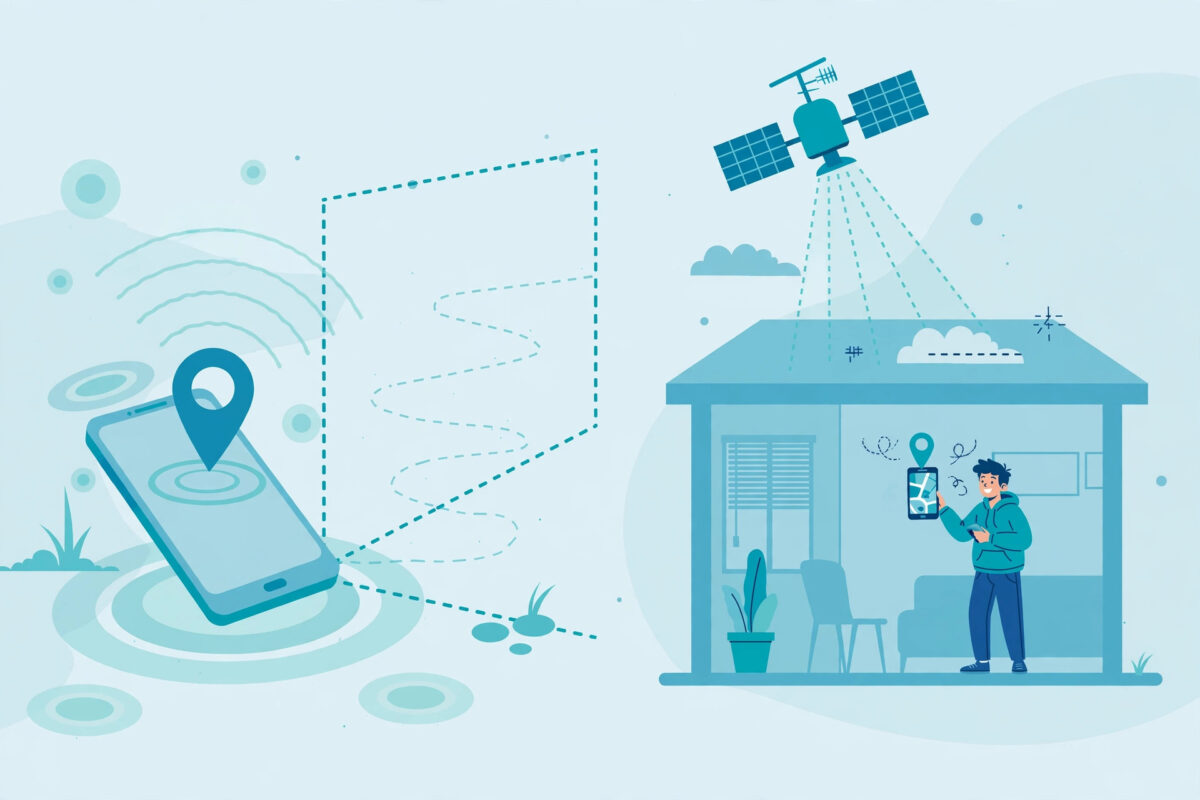
Every geofencing article that only lists benefits is selling you something. Here’s what the technology can’t do well — the stuff that causes the “this app doesn’t work” one-star reviews, which are almost always actually physics problems, not app problems.
GPS Accuracy: The 50-Meter Wobble
GPS is not as precise as the movies suggest. Outdoors with a clear sky, a modern phone is accurate to about 5–15 meters. In a city with tall buildings bouncing signals around (engineers call this “urban canyon” effect), accuracy degrades to 30–50 meters. Indoors, GPS barely works at all — the phone falls back to Wi-Fi positioning, which can be off by 100 meters or more.
What this means for your fences: a tight fence around a small location will generate false alerts. Your child is sitting in class, but the phone’s position wobbles 60 meters west for thirty seconds, and the app records an “exit” and an “enter” — two phantom notifications. This is the number-one cause of geofencing frustration, and the fix is always the same: make the fence bigger than the error. A school fence should cover the whole campus plus a buffer, not hug the building.
Battery Drain: The Always-Watching Cost
For geofencing to work, the phone’s location services must stay on and the monitoring app must keep checking position in the background. This costs battery — typically an extra 5–15% per day depending on the phone and how aggressively the app polls.
Two practical consequences. First, if your child turns on battery saver mode or kills background apps to save charge, geofencing degrades or stops. Most good monitoring apps warn you when the child’s app stops reporting — treat that warning as a feature, not a bug. Second, phones with aggressive power management (many Android brands are notorious for this) may throttle the monitoring app even when the child does nothing wrong. If alerts stop arriving, the first troubleshooting step is always: check that the app is exempted from battery optimization on the child’s phone.
Indoor Blind Spots
Geofencing is an outdoor technology wearing an indoor disguise. Inside a mall, a school building, or a parking garage, the phone can’t see GPS satellites. It guesses position from Wi-Fi, which is rough. A geofence around “the mall” works fine — the building is huge. A geofence around “the food court on the second floor” is fiction. Vertical position (which floor) is something consumer phones simply can’t determine reliably. If your use case needs room-level precision indoors, geofencing is the wrong tool — Bluetooth beacons are, but that’s enterprise equipment, not a parenting app.
Location Spoofing: The Determined Teen Problem
Here’s the uncomfortable one. On Android, “mock location” apps from the Play Store can feed a fake GPS position to other apps — your teen’s phone can report itself at school while actually being across town. On iPhone, spoofing requires more effort (a computer and specific software) but it’s still possible.
No mainstream monitoring app fully defeats a determined, tech-savvy teen with physical access to their own phone and time to research. What the better apps do: detect mock-location settings on Android and alert you that spoofing may be active, and cross-check GPS against Wi-Fi and cell data so a crude fake stands out. But the honest framing is this: geofencing is a trust-but-verify tool, not a prison wall. If your teen is motivated enough to spoof their location, the problem is the relationship, not the radius setting. Have the conversation. The fence is backup.
Alert Delays
Crossing a boundary doesn’t instantly buzz your phone. The child’s phone has to register the new position, report it to the monitoring service, the service has to evaluate the fence, and then push the alert to you. Each step takes seconds to a minute. In practice, expect alerts 30 seconds to 3 minutes after the actual crossing — longer if the child’s phone has poor data connectivity at that moment. Don’t set up a geofence expecting to catch someone “in the act” in real time. It’s a record-keeping and reassurance tool, not a live interception system.
The Alert Fatigue Problem (And How to Beat It)
Here’s an original framework we wish more parents knew before they set up their first fence: every geofence has a signal-to-noise ratio, and most parents accidentally build noise machines.
It works like this. Week one: you set up six fences, every trigger on, no schedules. You get 14 notifications a day. Most are meaningless — “left home” when they walked to the mailbox-adjacent zone edge, “entered school” on a Saturday when they cut across the field. By week three, you’ve muted the app’s notifications. By week four, the one alert that mattered — the unexpected exit at 11 PM — buzzed silently into a muted channel. The system worked perfectly and failed completely.
The fix is a simple audit we call the 3-question fence test. For every fence, ask:
- What decision does this alert change? If the answer is “nothing, I’d just notice it,” delete the fence or turn off that trigger.
- How often will it fire on a normal day? More than twice per fence per day is too much. Tighten triggers or add schedules.
- Would I act on this at 2 AM? If yes, it deserves a loud, unmutable alert channel. If no, it belongs in the log only, not as a push notification.
Parents who run this audit typically end up with 3–5 fences, each firing 1–3 meaningful alerts a day. That’s a system you’ll actually keep using. A geofence you ignore is worse than no geofence — it gives you the feeling of monitoring without the reality.
Geofencing vs. Live GPS Tracking: Which Do You Actually Need?
These two features are bundled together so often that parents conflate them. They’re different tools for different anxieties:
| Geofencing | Live GPS Tracking | |
|---|---|---|
| What it answers | “Did they arrive / leave / stay?” | “Where exactly are they right now?” |
| How you consume it | Push alerts only when something happens | You open the app and look at a map |
| Battery impact | Moderate (background checks) | Higher (frequent position updates) |
| Best for | Daily reassurance, routines, curfews | One-off checks, emergencies, lost phone |
| Feels like | A safety net | Surveillance (use sparingly with teens) |
| Blind spots | Indoor precision, spoofing | Same — plus it needs you to actively check |
Our honest take: most parents need geofencing far more than live tracking. Live tracking answers a question you ask maybe twice a month. Geofencing answers the questions you ask every single day — did they get to school, did they get home — without you having to remember to ask. When you’re comparing apps, don’t be dazzled by a pretty live map. Ask about fence counts, polygon support, and scheduling. That’s where the daily value lives.
For the full deep-dive on the tracking side — accuracy, history timelines, and which apps do it best — see our complete guide to GPS tracking for kids.
Related Terms
Geofencing sits inside a small family of monitoring concepts. If you’re building your understanding (or your parental-control setup), these are the siblings worth knowing:
- What is a keylogger? — the other half of “what are they doing”: keyloggers record what gets typed, while geofencing records where the phone goes. Together they cover the where and the what.
- What is stealth mode? — how monitoring apps run quietly in the background. Geofencing alerts arrive on your phone; stealth mode is about what the child’s phone does or doesn’t reveal.
- GPS tracking for kids: the full guide — the complete feature guide this glossary entry summarizes: live tracking, location history, and geofencing compared across the top apps.
- Monitoring glossary: all terms explained — the full S10 glossary hub. Bookmark it; every monitoring term we cover lives there.
The Legal and Ethical One-Liner
Geofencing your own minor child’s phone — a device you own or pay for, used by a kid in your care — is legal in the US, UK, EU, and most jurisdictions. Geofencing another adult’s phone without their knowledge or consent is not, in most places. The rule is simple: monitor devices you own and children in your care; get consent from anyone else. And with teens, tell them the fences exist. Secret fences that get discovered do more damage to trust than no fences at all.
Frequently Asked Questions
Final Verdict
Geofencing is the rare monitoring feature that’s both powerful and proportionate. It replaces anxious checking with quiet automation: draw the zones, set the triggers, and let the phone tell you only when something actually happens. Its limits are real — GPS wobble, battery cost, indoor blind spots, spoofing — but they’re manageable once you know they exist. Size your fences generously, schedule them sanely, audit for alert fatigue, and you’ll have a system you actually keep using.
If you want to see geofencing running on a real dashboard before committing, both of our top picks let you test it risk-free.
👉 Try It Risk-Free: mSpy Trial
Not sure the alerts will feel reliable in your neighborhood? Start with mSpy’s trial option, set up two or three fences, and watch a week of arrival alerts land on your phone before you spend on a full plan.
👉 Our #1 Pick for Geofencing: mSpy
Generous fence limits, per-fence enter/exit/dwell triggers, scheduling, and alert history — the full package from ~$11.67/mo annually, with a 14-day money-back guarantee. Confirm live pricing at checkout.
Affiliate disclosure: iSpyer is reader-supported. When you buy through links on this page, we may earn a commission at no extra cost to you. Our definitions and verdicts are written independently — commissions don’t change what a term means or which tools we’d recommend to a fellow parent.
